Productivity is personal. The best app is not the one with the most features, but the one that fits how you actually work on your iPad.
So instead of asking which productivity app is best, it's better to ask a different question. What are you trying to do right now? Plan your day, organize notes, stay focused, build habits, or get through a study session?
Over the past year, we tested dozens of productivity methods in real life. These are the apps that actually stuck.
Best iPad apps for organizing thoughts, notes, and ideas
Most productivity systems don’t fall apart because you picked the wrong app. They fall apart because your notes are everywhere. Half an idea here, a list there, and something you’re pretty sure you wrote down for a reason.
The apps in this category help you capture thoughts, organize ideas, and think things through before turning them into tasks.

Goodnotes
| Feature | Details |
| Price | Limited free plan available; $11.99/year for Essential or $35.99 one-time purchase from the App Store for Special Edition (Same features as Essential); $35.99/year for Pro; Optional $9.99/month for AI Pass. |
| Best for | Handwritten notes, notebook-style organization, structured note systems. |
| Compatibility | Available for iPad, iPhone, Mac, Windows, and Android. |
| Links | Download app | View website |
Goodnotes is a popular notetaking app built around handwritten notes, notebooks, and folders. You can use it for class notes, meeting notes, planning pages, and anything else you’d normally write down on paper.
What makes Goodnotes especially strong for organization is how clearly it mirrors a real notebook system. Notes live inside notebooks, notebooks live inside folders, and everything stays grouped by topic or project. If you prefer writing things out but still want your ideas to stay structured and easy to revisit later, Goodnotes keeps handwritten notes from turning into loose pages.

Apple Notes
| Feature | Details |
| Price | Free. |
| Best for | Quick note capture, everyday organization, low-friction planning. |
| Compatibility | Available for iPad, iPhone, and Mac. |
| Links | Download app |
Apple Notes is a built-in app for typing, handwriting, sketches, and quick lists. It’s often used for everyday notes, reminders, and ideas you want to capture quickly without opening a separate app.
It earns its spot in this category because organization starts with an idea. Apple Notes makes it easy to jot something down the moment it comes to mind, sort it into folders, and search across everything later. That low friction helps prevent ideas from getting lost before they ever have a chance to turn into plans.

Microsoft OneNote
| Feature | Details |
| Price | Free; Microsoft 365 Personal with 1TB of storage for $99.99/year or $9.99/month for one person. (You also get the whole Microsoft suite and integrations.) |
| Best for | Long-term note storage, organized notebooks, mixed media notes. |
| Compatibility | Available for Windows, Mac, iPad, iPhone, Apple Watch, Android, WearOS, and Chromebooks. |
| Links | Download app | View website |
Microsoft OneNote is a flexible notetaking app designed around notebooks, sections, and pages. It supports typing, handwriting, images, and long-form notes, making it useful for both planning and reference material.
OneNote works well for organization when you’re dealing with a lot of information over time. Its layered structure makes it easier to separate ideas by subject, project, or area of life, so notes don’t all end up in one overwhelming place. If you tend to keep notes for the long haul, OneNote helps keep them organized and browseable.
Best iPad apps for planning, projects, & big-picture organization
At some point, lists stop being enough. You know what you’re working on, but not how it all fits together. Projects start to blur, goals feel vague, and it’s hard to tell what actually deserves your attention next.
The apps in this category help you zoom out. They’re built for planning projects, organizing bigger ideas, and keeping long-term goals from getting lost in the day-to-day.

Notion
| Feature | Details |
| Price | Limited free plan available; $12/month (per member) or $120/year for Plus; $22/month (per member) or $240/year for Business; varying Enterprise plans. |
| Best for | Project planning, goal tracking, flexible planning systems. |
| Compatibility | Available for iPhone, iPad, Mac, Android, and Windows. |
| Links | Download app | View website |
Notion is a flexible planning and organization app that combines notes, databases, and custom layouts. People use it to plan projects, track goals, organize information, and create systems that reflect how they actually work.
Notion works well for big-picture planning because it helps you see how your work fits together. You can lay out projects, check in on progress, and make changes as things evolve, which makes it useful for Weekly Reviews, goal planning, or simple Kanban-style boards. It’s a good option if you want one place to keep track of multiple projects without losing sight of longer-term goals.

Obsidian
| Feature | Details |
| Price | Free; $5/month or $48/year per user to sync across multiple devices; $10/month or $96/year per site to publish notes to the web. |
| Best for | Connected notes, long-term thinking, idea mapping. |
| Compatibility | Available for iPhone, iPad, Mac, Android, Windows, and Linux. |
| Links | Download app | View website |
Obsidian is a notetaking app built around linked notes, designed to help ideas connect rather than live in isolated folders. It’s often used for long-term thinking, research, and the development of ideas over time.
This makes Obsidian a strong choice for big-picture organization. If your planning process involves exploring ideas, spotting patterns, or building projects gradually, Obsidian helps you keep track of how thoughts evolve and relate to one another, rather than forcing them into rigid plans.

Bear
| Feature | Details |
| Price | Limited free plan available; $2.99/month or $29.99/year for Bear Pro. |
| Best for | Writing-based planning, outlines, distraction-free idea organization. |
| Compatibility | Available for iPhone, iPad, and Mac. |
| Links | Download app | View website |
Bear is a clean, writing-focused app designed for outlining and organizing text-based notes. Many people use it to draft plans, write project outlines, or think through goals in plain language.
Bear works well for big-picture planning when you prefer to plan by writing things out. It’s a simple place to organize ideas, reflect on progress, and shape projects before they turn into timelines or task lists, without distractions getting in the way.
Best iPad apps for focus, deep work, & fewer distractions
Sometimes the problem isn’t knowing what to work on. It’s actually staying with it. Distractions pile up, attention slips, and even small tasks start taking longer than they should.
The apps in this category are designed to maintain your focus. They help you work in intentional blocks, reduce distractions, and stay with one thing long enough to make real progress.

Flow: Focus & Pomodoro Timer
| Feature | Details |
| Price | Free; $2.99/month or $17.88/year for Pro plan. |
| Best for | Pomodoro sessions, focused work blocks, structured breaks. |
| Compatibility | Available for iPhone, iPad, Mac, Apple Vision, and Apple Watch. |
| Links | Download app | View website |
Flow is a focus timer built around short, structured work sessions with planned breaks. It’s commonly used with the Pomodoro technique to help you concentrate without burning out.
Flow fits this category because it gives your work a clear start and stop point. Instead of staring at an open-ended task, you commit to a focused block of time, making it easier to start and stay engaged until the timer ends.

FocusPomo
| Feature | Details |
| Price | Limited free plan available; $3.99/month, $15.99/year, or $29.99/lifetime for Plus; varying family plans. |
| Best for | Focus timers with task context, short work sessions. |
| Compatibility | Available for iPhone, iPad, and Apple Watch. |
| Links | Download app | View website |
FocusPomo combines simple task lists with focus timers, so you can see what you’re working on while the timer runs. It’s designed for people who want a bit of structure without a full planning system.
This makes FocusPomo useful for staying focused on the right task. Pairing a timer with a short task list also works well for approaches like Eat the Frog, where you focus on one important task first.

Forest
| Feature | Details |
| Price | Free; varying costs for in-app upgrades. |
| Best for | Reducing distractions, visual motivation, staying off other apps. |
| Compatibility | Available for iPhone, iPad, Apple Watch, and Android. Firefox extension is also available. |
| Links | Download app | View website |
Forest is a focus app that encourages you to stay off distracting apps while you work. When you start a focus session, a virtual tree grows. If you leave the app, the tree doesn’t survive.
Forest belongs in this category because it adds friction to distraction. It’s especially effective if you tend to reach for other apps without thinking. The visual feedback makes staying focused feel more intentional and, surprisingly, more motivating.
Best iPad apps for tasks, lists, & daily priorities
Big plans are great, but eventually everything comes down to what you’re actually doing today. This is where tasks, lists, and priorities matter. When your to-dos are clear, it’s easier to start and easier to finish.
The apps in this category focus on daily execution. They help you capture tasks, decide what matters most, and keep your day from turning into one long, overwhelming list.

Todoist
| Feature | Details |
| Price | Limited free plan available; $7/month per user or $60/year for Pro; $10/month per user or $96/year for Business. |
| Best for | Daily to-do lists, task prioritization, recurring tasks. |
| Compatibility | Available for iPhone, iPad, Mac, Apple Watch, WearOS, Android, Windows, Linux, and browser and email extensions. |
| Links | Download app | View website |
Todoist is a popular task management app built around simple lists, due dates, and priorities. People use it to capture to-dos, plan their day, and keep recurring tasks from slipping through the cracks.
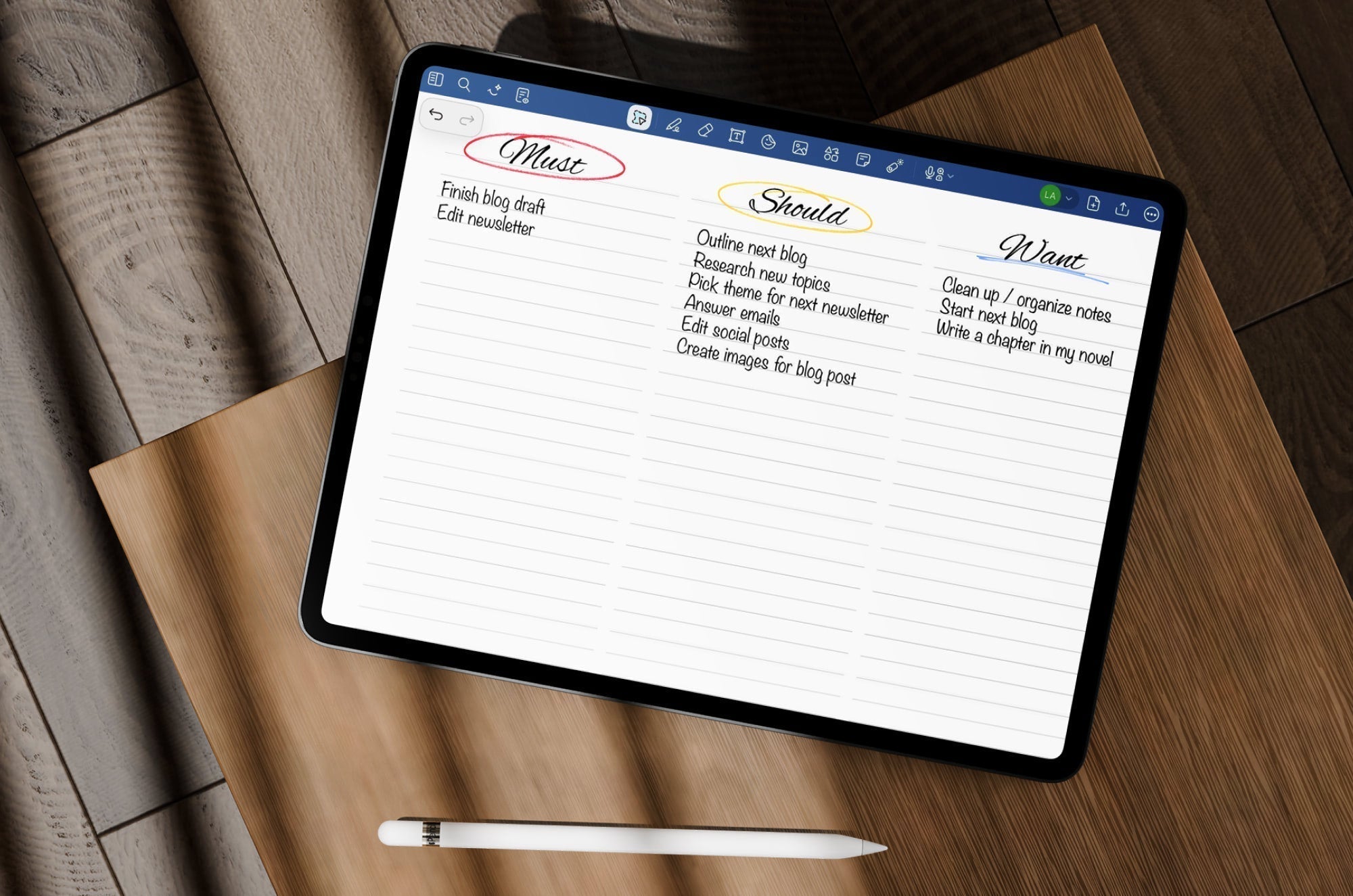
Todoist works well for daily priorities because it stays focused on action. It’s quick to add tasks, easy to organize them, and flexible enough to support different planning styles without feeling heavy or complicated, making it great for simple systems like the 1–3–5 Rule or Must–Should–Want planning.

TickTick
| Feature | Details |
| Price | Free; $3.99/month or $35.99/year for Premium. |
| Best for | Task planning with reminders, scheduled to-dos. |
| Compatibility | Available for iPhone, iPad, Mac, Apple Watch, Android, Windows, Linux, Web, and browser and email extensions. |
| Links | Download app | View website |
TickTick is a task management app that combines to-do lists with reminders, scheduling, and planning tools. It’s often used by people who want more structure around when tasks happen.
This makes TickTick a strong choice for managing daily priorities. It helps turn loose to-dos into a plan by encouraging you to think about timing and follow-through, not just what needs to get done. Its scheduling features pair well with methods like the Ivy Lee Method, where deciding what comes first matters most.

Apple Reminders
| Feature | Details |
| Price | Free. |
| Best for | Daily focus, setting priorities, intentional planning. |
| Compatibility | Available for iPhone, iPad, Apple Watch, and Mac. |
| Links | Download app |
Apple Reminders is the built-in task app on iPad, and it’s easy to overlook because of that. It handles simple to-do lists, date-based reminders, and location-based alerts without much setup.
That’s exactly why it works well for daily priorities. It’s always there, it’s quick to use, and it’s hard to turn into something more complicated than it needs to be.
Best iPad apps for habits & staying consistent
Motivation comes and goes. Consistency is what actually makes progress stick. Habit-focused tools are less about planning the perfect system and more about showing up regularly, even on low-energy days.
The apps in this category are designed to help you build routines, track progress over time, and keep small daily actions from falling through the cracks.

Habitica
| Feature | Details |
| Price | Free; $4.99/month, $14.99/3 months, $29.99/6 months, or $47.99/year for subscription features; varying costs for extra features. |
| Best for | Gamified habit tracking, motivation through rewards. |
| Compatibility | Available for iPhone, iPad, Android, and Web. |
| Links | Download app | View website |
Habitica is a habit-tracking app that turns daily routines into a game. You create habits, complete tasks, and earn rewards as your character levels up.
Habitica fits this category because it makes consistency feel more engaging. If traditional habit trackers feel boring or easy to ignore, this one’s game-style feedback can provide the extra motivation needed to keep showing up day after day.

Streaks
| Feature | Details |
| Price | $5.99 one-time purchase. |
| Best for | Habit tracking, maintaining streaks, simple routines. |
| Compatibility | Available for iPhone, iPad, Mac, Apple Watch, and Apple Vision. |
| Links | Download app | View website |
Streaks is a simple habit-tracking app focused on one goal: not breaking the chain. You choose a habit and track whether you complete it each day.
This makes Streaks especially effective for building consistency. By keeping the focus on daily repetition, it encourages small, manageable actions that add up over time without overwhelming you with features.

Habitify
| Feature | Details |
| Price | Limited free plan available; $39.99/year or $89.99/lifetime for Premium. |
| Best for | Building consistency through daily repetition. |
| Compatibility | Available for iPhone, iPad, Mac, Apple Watch, WearOS, Android, Windows, and Web. |
| Links | Download app | View website |
Habitify is a habit-tracking app designed to help you build routines through simple reminders and progress tracking. You can set up daily habits, track streaks, and check in on how consistent you’ve been over time.
Habitify works well for staying consistent because it keeps the focus on repetition without adding too much friction. If you want a straightforward habit tracker that works smoothly on the iPad and encourages daily follow-through, Habitify is an easy fit for this category.
Best iPad apps for studying, learning, & retention
Studying is less about writing things down once and more about coming back to them later. Retention occurs through review, repetition, and active engagement with the material rather than just collecting notes.
The apps in this category are designed to support learning over time. They help you review information, reinforce concepts, and make studying feel more intentional instead of overwhelming.

Notability
| Feature | Details |
| Price | Limited free plan available; $7.99/month or $20/year for Plus; $20/month or $99/year for Pro. |
| Best for | Handwritten study notes, annotations, lecture reviews. |
| Compatibility | Available for iPhone, iPad, Mac, and Web. |
| Links | Download app | View website |
Notability is a notetaking app that’s especially popular for studying and learning. It supports handwritten notes, typed text, audio recordings, and document annotation, all in one place.
Notability fits this category because it’s built for review. Being able to annotate slides, replay recorded lectures, and revisit notes makes it easier to reinforce what you’ve learned instead of starting from scratch every time you study.

MyScript Notes
| Feature | Details |
| Price | Free trial; $1.99/month, $7.99/year, or $24.99/lifetime for full app. |
| Best for | Handwriting recognition, searchable handwritten notes. |
| Compatibility | Available for iPhone, iPad, Mac, and Android. |
| Links | Download app | View website |
MyScript Notes is a handwriting-focused app that converts handwritten notes into searchable text. You write naturally with the Apple Pencil, and the app handles organization and search behind the scenes.
This makes MyScript Notes useful for learning and retention when you prefer handwriting but still want structure. Being able to search your notes later helps turn handwritten study sessions into something you can actually revisit and use.

Quizlet
| Feature | Details |
| Price | Free (ads); $44.99/year for Quizlet Plus. |
| Best for | Flashcards, active recall, exam preparation. |
| Compatibility | Available for iPhone, iPad, Android, and Web. |
| Links | Download app | View website |
Quizlet is a study app built around flashcards and active recall. It’s commonly used for memorization, exam prep, and reinforcing key concepts through repetition.
Quizlet belongs in this category because it focuses on retention, not notetaking. Flashcards, quizzes, and review modes help you test what you know and strengthen memory over time, which is often where studying really pays off.
Best iPad apps for creative planning & visual thinking
Some ideas are hard to plan in a list. They make more sense when you can sketch them out, move things around, or see everything at once. Visual thinking helps you explore possibilities, connect ideas, and plan without committing to structure too early.
The apps in this category are designed for brainstorming, visual planning, and spatially organizing ideas. They’re especially useful when you want to think freely before narrowing things down.

Procreate
| Feature | Details |
| Price | $12.99/one-time fee for the iPad app; $5.99/one-time fee for Procreate Pocket (iPhone app). |
| Best for | Visual brainstorming, sketching ideas, creative planning. |
| Compatibility | Available for iPad and iPhone (as a separate app). |
| Links | Download app | View website |
Procreate is a powerful illustration app built for drawing, sketching, and creative work on iPad. While it’s often used for finished artwork, many people also use it earlier in the process to explore ideas visually.
Procreate fits this category because it gives you a blank canvas to think on. You can sketch concepts, rough out layouts, or work through ideas visually without worrying about structure or formatting, which makes it a great tool for creative planning.

Canva
| Feature | Details |
| Price | Limited free plan available; $18/month per person or $144/year for Pro; $25/month per person or $250/year for Business; varying Enterprise plans. |
| Best for | Mood boards, visual layouts, goal visualization. |
| Compatibility | Available for iPhone, iPad, Mac, Android, and Windows. |
| Links | Download app | View website |
Canva is a design app that makes it easy to create visual layouts using templates, images, and text. It’s commonly used for presentations, planners, mood boards, and visual documents.
Canva belongs here because it helps ideas take shape visually. When seeing something laid out helps you clarify your thinking or stay motivated, Canva makes it easier to turn abstract plans into something concrete.

Apple Freeform
| Feature | Details |
| Price | Free. |
| Best for | Brainstorming, mind mapping, spatial planning. |
| Compatibility | Available for iPhone, iPad, and Mac. |
| Links | Download app |
Freeform is Apple’s open-ended whiteboard app designed for brainstorming and collaboration. You can add text, sketches, images, and links anywhere on the canvas and move them around freely.
Freeform works well for visual planning because it doesn’t force a system. It’s ideal for mind mapping, mapping relationships between ideas, and thinking through problems spatially before deciding on next steps.
Best iPad apps for mental clarity, reflection, & burnout prevention
Productivity isn’t just about doing more. It’s also about knowing when to slow down, reset, and clear mental clutter before everything starts to feel overwhelming. Without space to pause and reflect, even the best systems stop working.
The tools in this category focus on mental clarity. They support reflection, mindfulness, and sustainable productivity, helping you stay engaged without burning out.

Headspace
| Feature | Details |
| Price | Free trial; $12.99/month or $69.99/year. |
| Best for | Stress reduction, mindfulness, mental resets. |
| Compatibility | Available for iPhone, iPad, and Android. |
| Links | Download app | View website |
Headspace is a mindfulness app that focuses on guided meditations, breathing exercises, and short mental resets. It’s often used to manage stress, improve focus, and create a regular mindfulness habit.
Headspace fits this category because it helps you step out of constant doing mode. Short, guided sessions help you reset your attention and return to work feeling more grounded, supporting long-term productivity.

Dayol
| Feature | Details |
| Price | Limited free plan available; $1.99/month or $7.99/year for VIP; varying costs for upgrades. |
| Best for | Journaling, reflection, emotional check-ins. |
| Compatibility | Available for iPhone and iPad. |
| Links | Download app | View website |
Dayol is a simple journaling app designed for reflection and emotional check-ins. It lets you quickly jot down thoughts, track moods, and add visual elements without feeling like you need to write a lot.
Dayol belongs here because reflection is a key part of preventing burnout. Having an easy place to process thoughts and check in with yourself can make planning and productivity feel lighter, not heavier.

Paperlike 15-Day Mindfulness Method
| Feature | Details |
| Price | Free. |
| Best for | Guided reflection, intentional breaks, building a sustainable mindfulness habit without an app. |
| Compatibility | Available as a PDF to use on any device. |
| Links | Download Mindfulness Method |
Okay, this one isn’t an app. But it earns its spot here. The Paperlike 15-Day Mindfulness Method is a free, undated digital journal designed to help you slow down and reflect, with a different mindfulness exercise each day.
It fits because productivity isn’t just about getting things done. Since you can use it inside your favorite iPad notetaking app, it adds mindfulness and reflection to your workflow without introducing another app or notification to manage.

FAQs
Is the iPad actually good for productivity, or is a laptop better?
The iPad is great for productivity if your work involves writing, planning, sketching ideas, or working with the Apple Pencil. It shines for notetaking, planning systems, focus sessions, and visual thinking, especially when paired with tools that make writing on glass feel more comfortable.
Laptops still make more sense for heavy multitasking or specialized software. But for day-to-day planning, notes, and focused work, the iPad holds up surprisingly well.
Which productivity apps work best with the Apple Pencil?
Apps that support handwriting, sketching, or visual planning tend to pair best with the Apple Pencil. Notetaking apps, creative planning tools, and digital planners are especially useful if writing things out helps you think. If you rely on the Pencil, choosing apps that feel natural to write in can make a big difference in consistency.
Are there free productivity apps for the iPad?
Yes. Many popular productivity apps offer free versions that are more than enough to get started. Built-in apps like Apple Notes and Freeform are completely free, and several third-party apps include solid free plans. Starting with free tools can help you figure out what works before committing to anything more advanced.
Final thoughts
There’s no single best productivity app, and that’s kind of the point. The tools that work are the ones that fit how you actually think, plan, and get things done.
If this list proves anything, it’s that productivity looks different depending on what you’re trying to do. Sometimes you need better organization. Sometimes you need more focus. Sometimes you need fewer tools, not more.
Try a few apps. Drop the ones you don’t use. Keep what sticks. Productivity isn’t about finding the perfect system. It’s about building habits that work in real life.