


I don’t know about you, but I’ve got way too many things to keep track of. Between work, family schedules, appointments, errands, writing my novel, and all the little things I keep telling myself I’ll remember (but inevitably forget), it can get overwhelming.
You probably feel the same way, which is why you’re reading a blog about organization apps. The iPad and the right app can help you keep everything in one place.
I’ve rounded up some of the best organization apps for iPad and broken them down into categories, so you can find the right tools to keep your life running smoothly.
| Best for | Organization app |
| Overall | Notion |
| Work | Trello, Asana, Todoist |
| Life & personal | Google Keep, Google Calendar, Apple Reminders |
| Families | Cozi, FamilyWall |
| Studying | Goodnotes, Quizlet |
| Time management | TickTick, Structured, Paperlike Digital Planner |
How to choose the right organization app for your iPad
Unfortunately, I have yet to find the perfect organization app that can handle every single aspect of life. That’s because most are designed around different needs, like keeping track of to-do lists, managing projects, organizing study materials for school, or coordinating family schedules, to name a few.
It all depends on what exactly you need.
I’ve broken down my recommendations into categories based on what they’re best at, so you can find one that suits your needs.
Best organization app overall
As I said, if you want to organize every aspect of your life, you’re probably going to need more than one app. However, there is one app that can get you pretty close.

Notion
| Price | Free; $12/month or $120/year for Plus. |
| Best for | All-in-one organization and customizable workspaces. |
| Links | Website | App Store |
If you’re looking for the one app to rule them all, Notion is probably as close as you’re going to get. It combines task lists, calendars, notes, databases, and project management tools in one customizable workspace.
You can start with a blank page or choose from hundreds of templates to build a system that works for you. There’s so much you can do with it, but I’d start with a dashboard and databases. For my novel, I have different databases for my characters, locations, and more.
The nice thing is that you can also link databases together, so when I create scene cards, I can pull in the character and location cards for each one.

What I like most about Notion is how much control you have over the way you organize things. Even if you use a template, you can add, move, or change things however you want, at any time. You’re not locked into anything.
What really sets it apart is its flexibility. Most organization apps are designed to do one or two things really well. Notion is a little more of a jack-of-all-trades, letting you build it out into whatever system you might need. You can create a dashboard for your personal life, another for work (or even a team workspace), and one for school.
It’s not the best dedicated task manager or calendar on the list, but if you want to bring every part of your life into one place, it’s your best option.
Best organization apps for work
Keeping track of work can get messy quickly, especially if you’re working with a team. A good organization app can help you manage projects, track deadlines, and collaborate with your coworkers.

Trello
| Price | Free; $6/month or $60/year for Standard; $12.50/month or $120/year for Premium. |
| Best for | Visual project management and team workflows. |
| Links | Website | App Store |
I’m a very visual person, which is why I love Trello. It uses boards, lists, and cards to help you organize your workload into a digital Kanban board.
You can create a board for each project you’re working on, add lists for different stages (like To Do, Doing, and Done), and move individual task cards along as you work.
Each card can hold a variety of things, including its own checklist, due date, labels, comments, and even attachments. You can also invite teammates to boards and assign them tasks, so you don’t have to chase them down for updates in separate apps.

Instead of staring at a long list of tasks, Trello’s visual layout lets you see exactly where everything stands and what still needs attention.
Personally, I like to break projects into small steps, and Trello lets me do that. It’s easy to track progress, and you can also customize your boards for everything from content calendars and marketing campaigns to personal work projects.

Asana
| Price | Free for Personal; $13.49/month or $131.88/year for Starter; $30.49/month or $299.88/year for Advanced. |
| Best for | Managing team projects, tasks, and deadlines. |
| Links | Website | App Store |
While Trello is all about visual boards, Asana is the one I’d suggest when a project has a lot of people involved and a lot of moving parts.
For each project, you’ll create tasks, assign them to coworkers, and set due dates. The best feature is task dependencies. Asana will flag tasks that can’t be started until another one is done, so you can see what the holdup is and who needs to step up next.
If you want to switch between looking at individual tasks and seeing how everything fits together, you can choose from list, board, calendar, or timeline views.

You can also comment on tasks, share files, and keep all your project conversations in one place.
Asana’s focus is on team coordination, so it’s not one that I’ve used a ton. You can still use it to manage your own workload, but it’s even better when multiple people are working with it.

Todoist
| Price | Free for Beginner; $7/month or $60/year for Pro; $10/month or $96/year for Business. |
| Best for | Organizing work tasks and personal to-do lists. |
| Links | Website | App Store |
Todoist is the easiest app to use on this list, which is refreshing. It’s a task management app that helps you organize your responsibilities into lists or projects, set your priorities for each task, and stay on top of all your deadlines.
You can create separate projects for different areas of your work (or life), break tasks into smaller subtasks, and use labels or filters to organize everything.

Todoist also supports recurring tasks, reminders, and natural language input, so you can add something like “Send the report every Friday” without having to fill out a task for each individual Friday.
You can even use widgets on your iPad to see what’s coming up without opening the app.
And that’s pretty much it. Add your tasks and move on with your day.
Best organization apps for life & personal organization
For your personal life, chances are you just need somewhere to jot down a grocery list, remember your appointments, write down something important before you forget, or other smaller tasks that don’t take a whole system to track. These apps are great for handling the everyday stuff.

Google Keep
Are you one of those people who has sticky notes all over your house? Google Keep is essentially a digital version.
You can jot down ideas, make checklists, save links, record voice notes, or snap a picture of something you want to remember. Everything is organized into notes that you can color-code, label, and pin for easy access when you need it.
You can also create reminders for individual notes, share lists with other people, and access everything on all your devices.

On the iPad and the iPhone, the simple interface makes it easy to pull up a grocery list while you’re shopping or add something to your running to-do list before you forget about it.
The best part? There’s very little setup involved. You don’t need to create elaborate folders or spend an afternoon building your perfect organizational system (although you can if that sounds fun to you). You can just open the app and write something down, then move on with your day.
It’s a great option for those little bits of information that don’t necessarily belong in a calendar or a more structured task manager. And I love that you can pair it with Google Calendar for a more complete organizational system.

Google Calendar
| Price | Free; Varying prices for upgraded storage. |
| Best for | Managing appointments, events, and schedules. |
| Links | Website | App Store |
If your life runs on a schedule, Google Calendar is the app for you. You can add appointments, work meetings, family events, and personal commitments, then view everything by day, week, or month.
The cool thing is that you can create multiple calendars to separate different parts of your life, color-code events, and set reminders so those important dates don’t sneak up on you.
I also really like how easily it works with other Google apps. You can add events directly from Gmail, share calendars with other people, and even invite guests to appointments.

The iPad app also gives you a larger view of your schedule, making it easier to see what’s coming up and spot potential conflicts.
If you already use Google’s ecosystem (hello, Google Keep), or you need to coordinate with people who don’t use Apple devices, it becomes even more useful.

Apple Reminders
| Price | Free; Varying prices for upgraded iCloud storage. |
| Best for | Everyday tasks, shopping lists, and reminders. |
| Links | Website | App Store |
Sometimes the simplest solution is the one that’s already on your iPad. Apple Reminders is a surprisingly capable task manager that lets you create lists, add subtasks, set due dates, and organize everything with tags.
You can also build Smart Lists that automatically collect reminders based on criteria like priority, date, or tag.
Apple Reminders also lets you create recurring reminders, set location-based alerts, add attachments, and even organize grocery lists that automatically sort items into categories. How neat is that? When you’re trying to hurry through the store with two teenage boys, this is a bigger blessing than you can imagine.
The only problem is that it leaves space for adding items, and it spaces everything out, so you’re scrolling a lot when you’re at the store. I changed it to columns instead of a list, and that helps a little bit.

Shared lists make it easy to divide up household errands or keep everyone on the same page. And because it works with Siri, adding a reminder is as easy as asking your iPad to remember something for you.
Its biggest advantage is how well it fits into the Apple ecosystem. You don’t need to download another app or create another account, and your reminders will sync across all your devices through iCloud.
It’s not as customizable or versatile as Notion, but for everyday tasks and quick reminders, it gets the job done.
Best organization apps for families
Between two kids, a husband, work, my novel, and everything else that comes with running a household, I’ve got a lot to keep track of. My boys have very different schedules between sports, band practice, and student council responsibilities, making it hard for me to remember who’s going where, when, and what needs to be picked up along the way.
That’s where a shared family organizer can help. Instead of relying on memory (which, let’s be honest, mine isn’t great), these apps give everyone a place to check schedules and keep track of what’s coming up. Some even include shared shopping lists and meal planning, which can take more off your plate.

Cozi
| Price | Free; $39/year for Gold; $79/year for Max. |
| Best for | Coordinating family schedules, grocery lists, and household tasks. |
| Links | Website | App Store |
I’ve used Cozi ever since my kids started preschool, and it keeps my household running smoothly (or close enough). It has a shared calendar that lets you track everyone’s appointments, school events, practices, activities, and other commitments.
I love that each family member gets their own color, so it’s very easy to see who’s doing what and when.
And if my husband hits the store on the way home from work, he doesn’t have to call me to find out what we need, thanks to the shared shopping lists. I like to create one for each store; that way he (or whoever is going) knows exactly what to get and where. The built-in recipe and meal planning features are a really nice bonus, too.

Whenever you make a change to anything, it automatically updates across all devices, so your family can check in to see what’s happening each day. You can even send appointment reminders so that nobody forgets about an upcoming activity.
Cozi is built around the things families need to coordinate, from who’s taking the kids to practice to what’s on the dinner menu. The free version covers the basics, while Cozi Gold and Max add extra features for families who want more.

FamilyWall
| Price | Free for Standard; $44.99/year for Premium (30-day free trial) |
| Best for | Managing family schedules, communication, and household responsibilities. |
| Links | Website | App Store |
FamilyWall is similar to Cozi in a lot of ways, but it takes things a step further by adding in communication tools.
Just like with Cozi, you can create shared calendars, manage shopping and to-do lists, plan meals, and keep important family information all in one place. But it also includes features like family messaging, location sharing, and a family journal, giving everyone a shared space beyond just the schedule.

You can also use FamilyWall to coordinate plans and communicate with family members without having to switch to a different app or use group texting. Last month I needed to tell my boys that practice moved to 5:30, and a calendar update was a lot easier than a group text that would lead to multiple liked notifications and thumbs-up emojis (though those came through in the app messaging anyway).
On the iPad, the larger screen gives you more room to view schedules and add in information, which is nice.
You do need the Premium subscription to access some of the features (tracking, recipes, meal planning, and more) and to go ad-free, but if you’ll use those, it might be worth it.
Best organization apps for studying
Whether you’re in school or just learning something new, studying is more than just taking notes. You’ve got lecture slides, assignments to keep track of, flashcards to review, and more.
Luckily, your iPad is a great place to organize everything, as long as you have the right app.

Goodnotes
| Price | Free; $11.99/year for Essential; $35.99/year for Pro. |
| Best for | Organizing handwritten notes, notebooks, and study materials. |
| Links | Website | App Store |
Goodnotes is one of my go-to recommendations for anyone who likes taking handwritten notes on their iPad. I’ve talked about this app quite a bit over the years, and for good reason. It’s a great way to keep all your notes, class materials, and study resources organized.
You can create separate notebooks for each class, sort them into folders, and customize your pages with different paper templates. I also love that you can import slides, PDFs, and reading materials and annotate them with your Apple Pencil.

One of my favorite features is the handwriting search. You can search your handwritten notes just like you would typed text, which is really handy when you’re trying to find a specific definition or something your professor mentioned last week.
You can also add bookmarks and outlines to longer documents, making it much easier to jump between topics without scrolling through pages of notes.
Goodnotes also includes Study Sets, which let you turn your notes into digital flashcards for reviewing what you’ve learned. It’s a nice way to take all the information you’ve collected and turn it into something you can study.
For organizing your notes, Goodnotes is my favorite, but if you’re comparing note-taking apps, you can check out our best note-taking apps blog to see which fits your study style.

Quizlet
| Price | Free; $35.99/year for Quizlet Plus; $44.99/year for Quizlet Plus Unlimited. |
| Best for | Creating flashcards and organizing study materials. |
| Links | Website | App Store |
When you want to organize all your class materials into something that you can use to study, Quizlet can make it happen. It started out as a digital flashcard app, but it’s expanded into so much more.
With Quizlet, you can build your own study sets, search millions of flashcard sets created by other students and teachers, or use your class materials to generate study resources. It’s especially useful for memorizing information, whether that’s vocabulary, historical dates, scientific terms, or anything else.
I’ve used it to help learn German, and my kids regularly use it to study for upcoming tests.

Learn mode adapts practice to your progress, while practice tests let you check how well you’ve learned the material. You can also use games and matching activities to mix up your review sessions.
It supports spaced repetition, too, bringing back information at strategic intervals to help you retain it over time.
Best organization apps for time management
Having a list of everything you need to do is great, but it doesn’t necessarily mean you’ll get it all done. (I wish!) The hardest part is figuring out where everything fits in your day.
These tools can help you plan your time and prioritize what’s important.

TickTick
| Price | Free; $49.99/year for Premium. |
| Best for | Combining task management, habit tracking, and focus tools. |
| Links | Website | App Store |
TickTick does a lot. It combines task management, calendar scheduling, habit tracking, and focus tools in one app.
You can organize your tasks into lists, set priorities and deadlines, create recurring reminders, and view everything on a calendar. There’s even a built-in Pomodoro timer to help you stay focused when it’s time to get things done.

I find it especially helpful because you can schedule tasks in your calendar, track habits you want to build, and use the Eisenhower Matrix to sort tasks by urgency and importance. TickTick also has a widget, so you can keep an eye on your schedule without having to open the app.
Fair warning, it takes some time to explore everything it can do, but once you have, it might be the only productivity app you need.

Structured
| Price | Free; $29.99/year for Pro. |
| Best for | Visual daily planning and time blocking. |
| Links | Website | App Store |
If you prefer seeing your entire day laid out in front of you, Structured takes that approach. It turns your schedule into a visual timeline. You can add tasks, appointments, breaks, and recurring activities, then assign each one a spot in your day.
I like the idea of being able to see exactly how much time I’ve set aside for different things. It’s easy to underestimate how long a task will take (or how many things you can realistically squeeze into an afternoon).

Having everything laid out makes it easy to spot those overly ambitious days before you get halfway through your day and realize there’s not enough time to finish everything you have left.
You can also connect your calendars and reminders, set notifications, and use widgets to keep your schedule visible. If you have a tendency to overfill your schedule, Structured will make that obvious to you and help you fix it.

Paperlike™ Digital Planner
| Price | Free; $12.99/one-time payment for Pro. |
| Best for | Handwritten daily, weekly, and monthly planning. |
| Links | Website |
Okay, so this one’s technically not an app. But since we’re talking about ways to organize your time on the iPad, I couldn’t leave digital planners off the list.
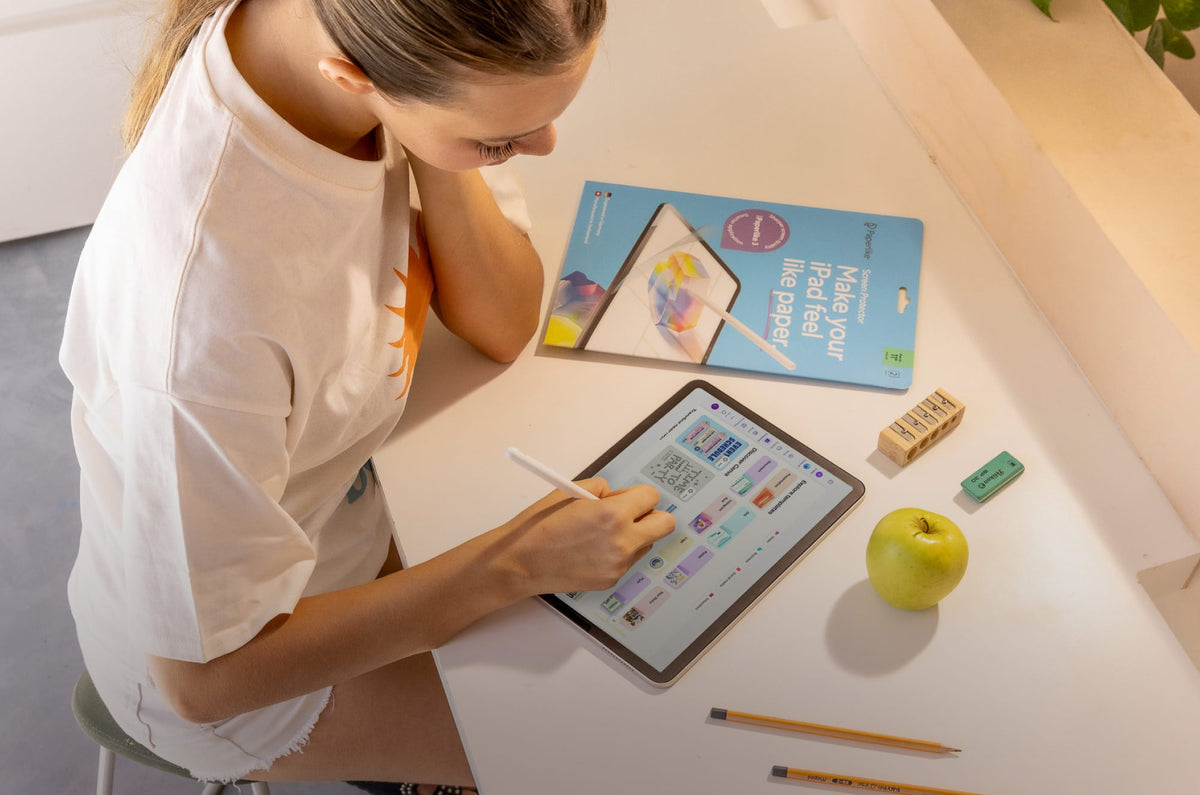
If you’re anything like me and still enjoy handwriting your plans, the Paperlike Digital Planner gives you that familiar experience of putting pen to paper (especially if you’re using a Paperlike™ Screen Protector) without having to carry around another notebook.

The Paperlike Digital Planner includes daily, weekly, and monthly layouts to help you organize your schedule, jot down to-do lists, and keep track of your goals. You can write directly on the pages with your Apple Pencil, add notes, and customize your planning system to suit your needs.
Since it’s a PDF, you can use it in the note-taking app of your choice, like Goodnotes.
The biggest difference between a digital planner and apps like TickTick or Structured is the freedom to plan your way. You aren’t working within a predefined task management system. You can write things out, move them around, add notes, and make the planner your own.
And if you want to give digital planning a try without spending anything, you can download our free Paperlike Digital Planner Lite to see how it fits into your routine.
Make handwritten organization feel natural on your iPad
One of my favorite things about using an iPad for organization is that you don’t have to choose between the convenience of digital and the familiar feel of pen and paper. You can keep your calendar, to-do lists, notes, and planners all in one place and use the Apple Pencil to write things out by hand.
The downside is that writing on a glass screen doesn’t feel right. It’s slippery, making it hard to control your strokes. The Paperlike Screen Protector uses Nanodots™ technology to add friction and resistance, giving your Apple Pencil a little more grip and making handwriting feel more natural.
You get all the flexibility of digital tools without giving up that analog touch.
Frequently Asked Questions
What is the best organization app for iPad?
A: Notion is one of the best all-around organization apps for iPad because it combines notes, task management, calendars, databases, and project management in one customizable workspace. That said, the best app depends on what you need to organize. Trello is great for visual project management, Google Calendar keeps your schedule in order, and Goodnotes is a strong choice for handwritten notes and study materials.
Are there free organization apps for iPad?
A: Absolutely! Many popular organization apps offer free versions, including Notion, Trello, Google Keep, Google Calendar, Apple Reminders, Cozi, and Goodnotes. Some offer paid plans with additional features, but their free versions are enough to handle everyday tasks like managing schedules, creating to-do lists, organizing notes, and coordinating family activities.
What's the best app for organizing schoolwork or study?
A: Goodnotes is a great option for organizing schoolwork on your iPad. You can create notebooks for each class, organize lecture notes and assignments into folders, annotate PDFs, and turn your notes into digital flashcards with Study Sets. Pair it with Quizlet for extra flashcard practice, and you've got a handy setup for keeping class materials organized and reviewing what you've learned.
Can I share an organization app with my family on iPad?
A: Yes! Apps like Cozi and FamilyWall are designed to help families stay organized together. You can share calendars, shopping lists, and household tasks, so everyone knows what's happening and what needs to get done. Google Calendar and Apple Reminders also support shared calendars and lists, making them useful options if you just need to coordinate schedules and everyday responsibilities.
Read next
 Lindsay Armstrong
 Lindsay Armstrong
