
Between Procreate, Procreate Pocket, and Procreate Dreams, which do you actually need, and for what?
Procreate is for digital art and painting, Procreate Dreams is great for 2D animation, and Procreate Pocket is great for on-the-go creating. But of course, it's more complex than that.
With some feature overlap and different specialties, choosing the right Procreate app takes a bit more thought.
Let’s explore each app together with this handy guide to see if you need one, two, or even all three!
| App | Device compatibility | Price | Best For |
| Procreate | iPad, Apple Pencil, select third-party styluses | $12.99 | Illustrators, digital painters, 3D model artists, hobbyists |
| Procreate Pocket | iPhone, select third-party styluses | $5.99 | Students, illustrators, artists, hobbyists |
| Procreate Dreams | iPad, Apple Pencil, select third-party styluses | $12.99 | Animators, illustrators |
Procreate: what it's for
Procreate is a powerful digital illustration and painting program for the iPad. Its exceptional brush engine, with over 200 expertly crafted brushes, makes it a popular choice for digital artists.
It’s also a one-time purchase of $12.99, with no subscription to worry about. Procreate has been in the spotlight for a while, and many other popular apps like Adobe Fresco and Adobe Photoshop have followed its lead in designing great touch experiences for iPad artists.

Is Procreate only for iPad?
Yes. The iPad is one of the best tablets for digital artists. Procreate was created to work specifically with iPad and Apple Pencil.
Even though it's limited to the iPad, part of its wide appeal is its simple interface, with menu settings that elegantly frame a central drawing canvas. This reinforces its primary function as a drawing and painting app.
What sets it apart from the other Procreate apps is its 3D model painting tools. You can import OBJ or USDZ files to edit 2D textures, adjust lighting, and paint directly on models with your favorite brushes.
It's an easy feature to forget, especially if you're not already a 3D artist. It's a perfect companion to other 3D modeling apps for the iPad to finish your models.

Is there a Procreate for desktop?
Earlier this year, Savage Interactive CEO James Cuda shared that Procreate for Mac is coming. They’ve heard user feedback and are convinced now is the time for Procreate to branch out. They’ve begun working on a desktop version, along with an ambitious new Procreate 6 release.
Needless to say, there’s a lot to be excited about. You can keep up with announcements about what’s to come from Procreate through their official accounts on social media or their Folio site.
Who it's best for
Procreate is a program for creating anything you can imagine. Illustrators, digital painters, 3D model artists, and even hobbyists will have a good experience working in the program. It's simple enough to get started right away, with plenty of ways to build mastery. Learn more about Procreate and what it offers digital artists on iPad.

Procreate Dreams: what it's for
Procreate Dreams is a 2D animation and motion design app. It complements Procreate's illustration capabilities, letting you move your work seamlessly between apps.
While both Procreate and Procreate Pocket have Animation Assist for frame-by-frame animation, Procreate Dreams expands these capabilities, letting artists and animators create far more advanced projects.
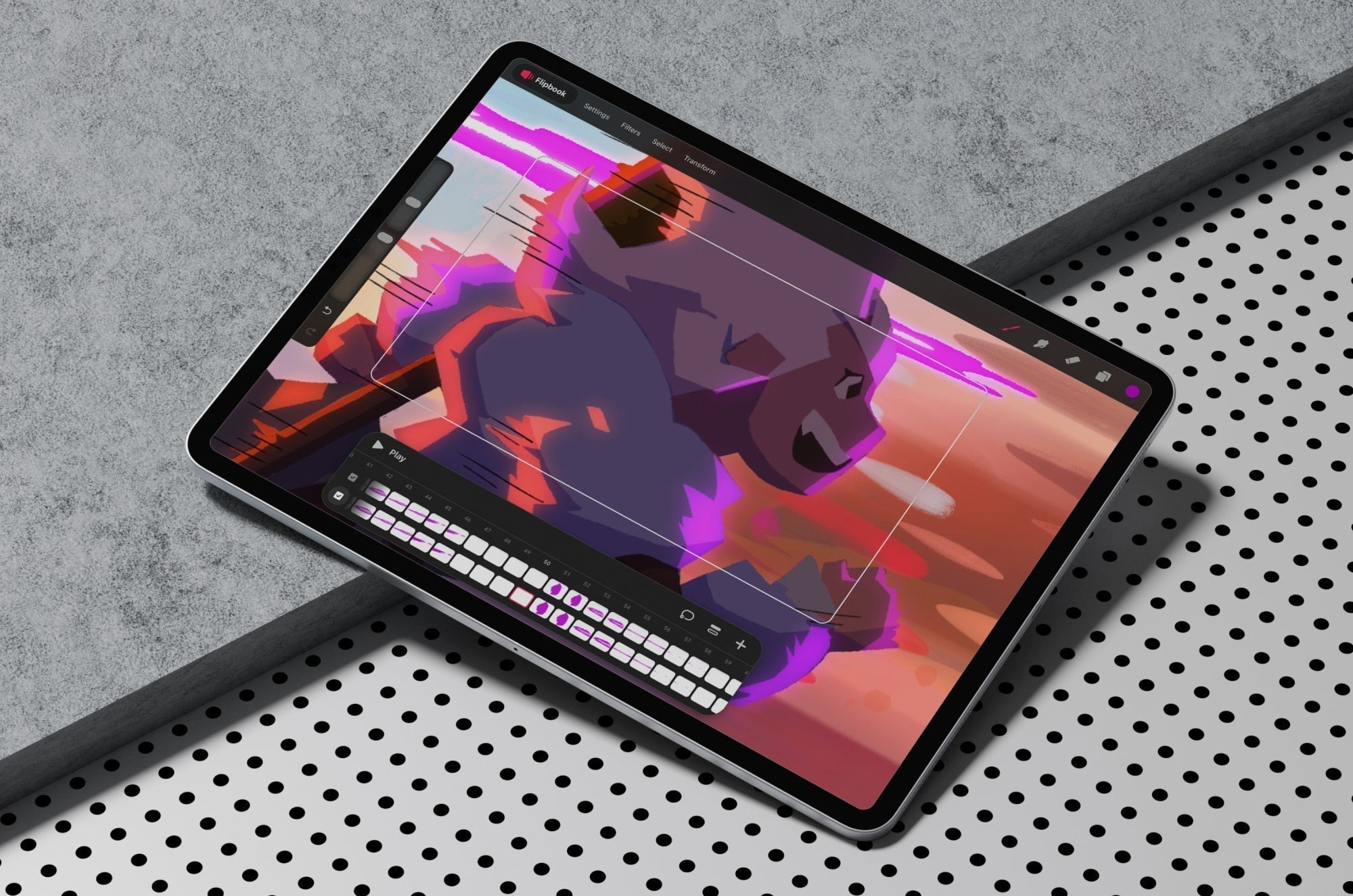
Instead of using the layers panel and a single timeline for frame-by-frame animation, you use Flipbooks. When you're editing a Flipbook, you can draw and paint much like you would in Procreate. Use layers, blend modes, and more with the added benefit of having multiple tracks. Tracks are what hold your animation content.

What kinds of animation can you create in Procreate Dreams?
In addition to frame-by-frame animation, you can animate using keyframes. With keyframes, you can modify a variety of properties to create smoothly animated transitions across your timeline.
These include scale, rotation, distortion, and more. It’s not only fun, but it also saves you time compared to frame-by-frame animation. Perform mode is another way to use keyframes, but in an even simpler way.
From your timeline, select Perform and start moving content on your screen. This automatically records all your movements, making it a fast way to move your work through a scene. Simply put, there are a lot more options for animating and bringing your work to life in Procreate Dreams than with Procreate alone.
Who it's best for
Procreate Dreams will take your animations to the next level. It’s great for Procreate artists who want to do more with their illustrations beyond simple frame-by-frame. It’s also for experienced 2D animators who want to create high-quality animation.
The app is still developing and listening to users, and it's released a lot of exciting updates since launching in 2023. Learn more about animating and creating in Procreate Dreams in this deep dive.

Procreate Pocket: what it's for
Procreate Pocket is the only non-iPad app in this guide. It was designed to optimize the Procreate experience exclusively for the iPhone.
As an iPad user for almost 10 years, I've been slow to adopt iPhone versions of apps. At first, I didn't see how it’d be possible to have such robust apps on your phone. Procreate Pocket showed me that it can work as a mobile art studio.

Is there a difference between Procreate and Procreate Pocket?
Procreate Pocket has a majority of the same features and capabilities as the iPad version. The menus and features are arranged slightly differently, but you can adjust over time.
The biggest difference is that it works for drawing primarily with your fingers, not a stylus. Even if you did use a supported Legacy stylus, it wouldn’t be anything near the sophistication of the Apple Pencil. That means getting used to a different brush feel. It also means sacrificing pressure-sensitive drawing, which is a red flag for a lettering artist like me. But I’d never create an entire lettering piece in Procreate Pocket.
Generally, drawing in Procreate Pocket felt weird at first, but it helps that the gestures are the same between the iPad and iPhone. I will also note that, for me, it feels great for quick, loose pencil brush sketching.
As similar an experience as Procreate Pocket is to the iPad version of Procreate, these are still separate apps. Pocket files don’t sync to Procreate on the iPad, and each app has its own Gallery. But that doesn't mean they can't work together. You can save your Pocket files as Procreate files and open them in Procreate on the iPad. It was a nice feature to see, even though the format going from my iPhone to my iPad looked a bit weird.
Who it's best for
For a one-time purchase of $5.99, this is for the on-the-go artist that just wants to get their ideas out quickly in as light a build as possible.
If you don't mind starting a basic idea on your iPhone and then saving your file to transfer to Procreate on your iPad later, this is also a great option. Explore it for yourself and see what you think.

Procreate Resources
Each app has an in-depth handbook. But if we’re being honest, that can be a lot of reading. If you’re more of a visual learner like me, you’re in luck. We put together these handy resources to cover a wide range of Procreate support that also match your skill level.
Check out these tutorials, tips, and resource guides for Procreate programs:
- 30+ Procreate Tips You Have to Know
- 50+ Free Procreate Tutorials for Digital Artists
- 15 Free Procreate Dreams Animation Tutorials
- Procreate Brush Studio Explained
- 30+ Best Procreate Coloring Pages
- 40+ Best Procreate Color Palettes
- 25+ Best Procreate Brush Sets for Lettering Artists
- 20+ Procreate Fonts & How to Use Them
There’s a lot to learn, but don’t freak out. Go at your own pace. These apps are well supported, with huge communities of artists worldwide who use them every day.
On the Procreate YouTube channel, you can learn from professional artists who use Procreate. Their Human Made Artist series features artists who explain their creative process and how they use different Procreate programs. I highly recommend it for any artist looking for inspiration on their creative journey.
Wrapping up
Three Procreate apps. Each is unique, but they also overlap in features and can be used together. But if you still don’t know which is for you, this quick breakdown will help. These are the types of people I’d recommend each Procreate app for:
Use Procreate if:
- You're a hobbyist and want to learn how to draw on the iPad.
- You're a 2D artist or 3D model painter.
- You have an iPad and an Apple Pencil 2nd generation or Pro stylus.
Use Procreate Dreams if:
- You're a 2D animator who wants to animate on your iPad.
- You’re a Procreate artist who wants a dedicated app for animating your Procreate drawings.
- You’re an illustrator or animator who wants to use motion graphics with your illustrations.
Use Procreate Pocket if:
- You're a Procreate artist who wants a way to draw on your iPhone.
- You’re comfortable creating non-pressure-sensitive drawings with your fingers or a rubber-tip stylus.
- You’re an iPhone user with a screen size you're comfortable with.
It’s not about finding the perfect single app, but finding the right app for the right job.
That’s the feeling I get when using accessories like the Paperlike™ Screen Protector. Having the right tools in place makes the process easier.
The added resistance gives me the control over my strokes I need. Whether you’re drawing, animating, or both, you’ll feel the difference it makes.
Frequently Asked Questions
Is there Procreate for desktop?
Not yet. Procreate for desktop is actively in development as of early 2026. Savage Interactive CEO James Cuda shared details about both Procreate 6 and Procreate Mac being developed concurrently on the Procreate Folio site.
Is Procreate only for the iPad?
Yes. Procreate was designed specifically for the iPad and Apple Pencil. They’re a relatively small team focused on making the best drawing, painting, and 2D animation experiences for Apple devices like iPad and iPhone.
Can I recover lost or deleted files in Procreate?
Procreate files can't be recovered if they're deleted. If your program crashes, you can try to recover corrupted or damaged files by selecting the Procreate logo in the Gallery and choosing “Gallery Recovery.” We recommend backing up your files to iCloud or another device, since Procreate doesn't offer automatic backups.
Is there a difference between Procreate and Procreate Pocket?
Yes. Procreate was designed specifically for the iPad and Apple Pencil. Procreate Pocket is optimized for the iPhone, where you can draw with your fingers or a third-party stylus. While they’re not recommended for Procreate Pocket, you can still connect select Legacy styluses.
Can you animate in Procreate?
Yes. You can create frame-by-frame animations in Procreate and Procreate Pocket using the Animation Assist feature. It turns your layers into a timeline that you can use to transform your illustrations into animations.
What kinds of animation can you create in Procreate Dreams?
You can create animations using frame-by-frame, keyframes, and real-time performance. Frame-by-frame works similarly to the way it does in Procreate. Keyframes and Perform mode use changes in a selected property's values to create motion. This could be position, scale, rotation, and more. These features are only available in Procreate Dreams.
Read next
 Alanna Flowers