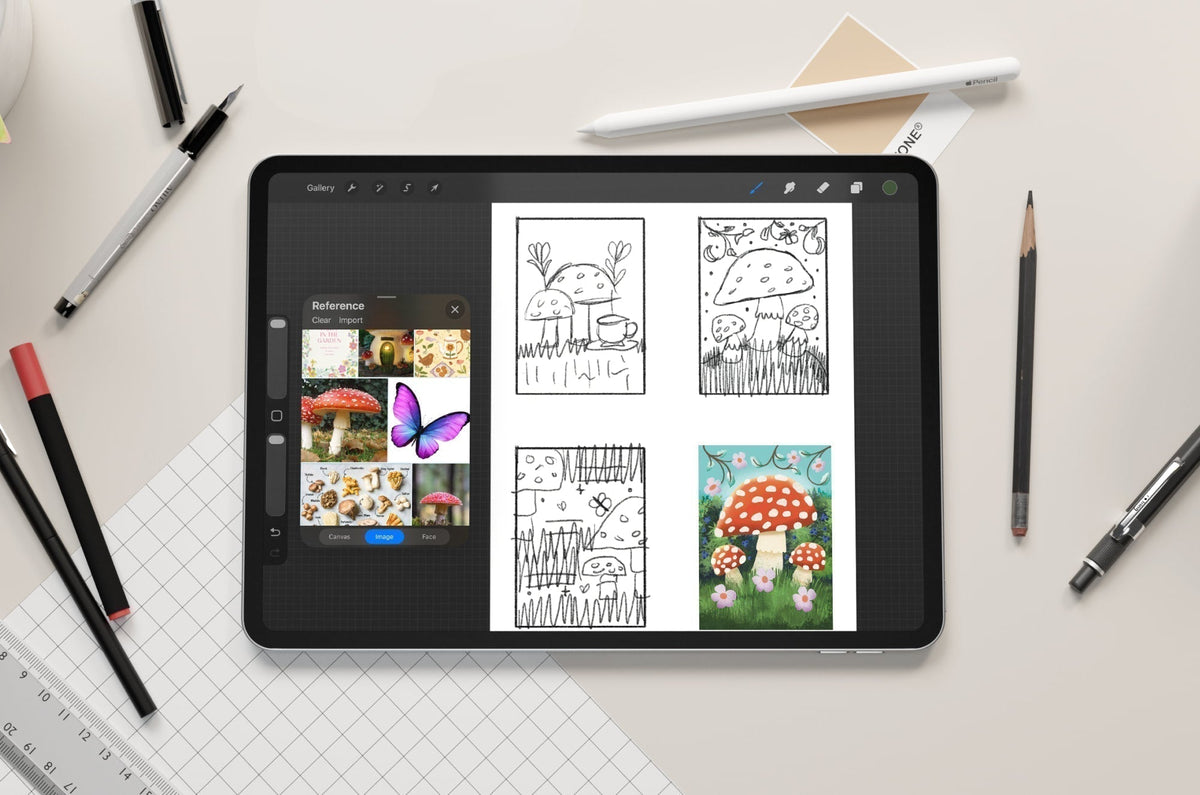

Professionals like architects, engineers, and character designers use 3D modeling software to sculpt, build, and bring their designs to life. Whether it’s for building design or feature animation, a 3D modeling program is an essential tool.
You used to need a powerful computer setup to do it. Now, the best 3D modeling apps are available for iPad, and they can get you started with creating in 3D, even if you’re a beginner.
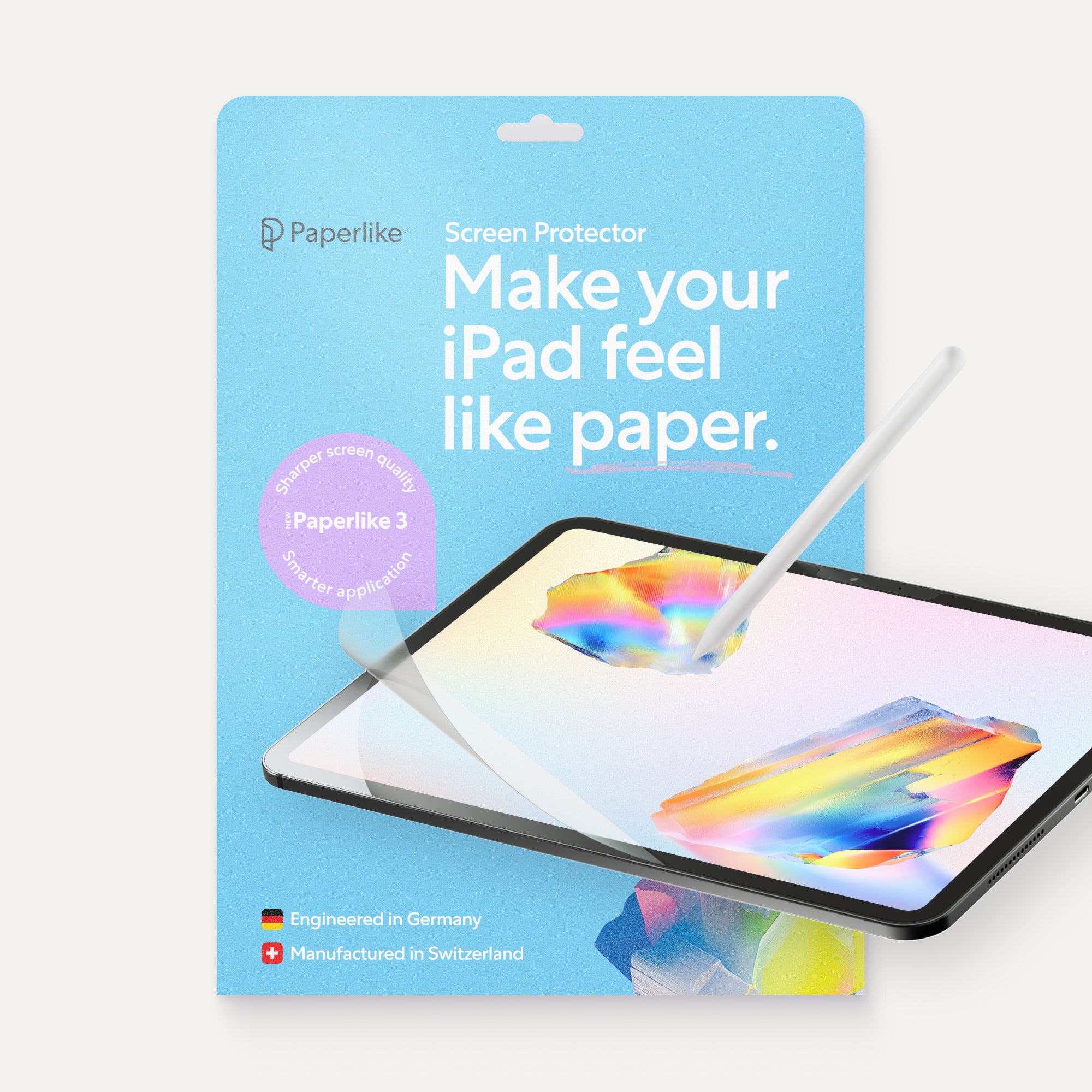
That means there are more ways than ever to create and use 3D models, like for 3D printing, VR, and AR. And with an iPad and accessories like Paperlike's Screen Protector, you'll have more control over your model's details thanks to the added friction.
Let's take a look at some of the apps that have made significant advancements in 3D modeling on the iPad.
3D modeling: Desktop vs. iPad
Before getting started with 3D modeling, you’re going to want to make sure your specs are up to the task. When they’re not, it can prolong render time and, even worse, lead to software crashes and possible file damage.
3D modeling programs that used to be exclusive to desktops are now available as iPad apps. You can use the Apple Pencil, touch, and gesture controls to make sculpting models feel more natural. The iPad is an exceptional tool for developing characters, architectural designs, and more.
And that's by design. The latest M-series chips feature a unified memory architecture that enables the CPU, GPU, and Neural Engine to access data efficiently, delivering faster performance while handling heavy computational loads (aka, the iPad is built to handle lots of memory and processing power—both necessary for 3D modeling).
Combined with Apple’s Metal framework, iPad apps can render advanced 3D graphics and complex scenes while you're running other tasks. The latest iteration of these chips (M5) is up to 30% faster in graphics performance than the previous generation.
As impressive as all of that is, the expectation isn't to completely eliminate desktop 3D modeling. Many of the apps on this list have desktop companions that can help you streamline your workflow depending on your needs. 3D models created on the iPad can be exported into compatible file formats and imported into other programs to take advantage of more advanced tools and features.
Choosing the right app
Drawing in 2D might feel distinctly different from 3D modeling, but they actually go hand in hand. Before even starting a 3D model, it's helpful to sketch out your ideas in apps like Procreate or Fresco. This is an important first step to help you visualize what you want to create before opening your 3D modeling app.
You'll also see 2D used to create 3D objects using what’s called a polygon mesh. This creates closed shapes with a series of polygons. You’ll find this used for video games, ads, and animation for its flexibility. Polygon meshes can represent both simple and complex shapes, making them an efficient way to create graphics to use for real-time applications.
Then there are digital sculpting apps that let you shape your model like virtual clay. This is a nice hybrid of digital drawing and 3D because the tools are similar, and it's more about shaping and drawing than about edges and surfaces.
For more technical designs, there's creating using points and values, such as angles and dimensions, called parametric modeling. This is most common in fields that use CAD (computer-aided design), such as engineering and architecture, because of its dimensional accuracy. They can be used to create products, buildings, and parts.
We'll also take a look at apps that don't neatly fit into any of these categories, but can still be used to create 3D models. The type of app you choose depends on what you're creating and what you'll use your model for.
Let's jump into the apps, see what they do, and if they might be for you.
Polygonal
These apps will build your models with a series of polygons. Common terms you might encounter are vertex, edge, and face.
Starting with the vertex, this is where two edges meet. An edge will be shown as a line, and when you have at least three edges joined, a polygon is made. The face is the flat 2D surface formed when you have a polygon.

Feather 3D
| Feature | Details |
| Price | $14.99 |
| App category | Polygonal |
| Compatibility | iPad, iPhone |
| Links | Download | Website |
Recommended for: 2D artists, hobbyists, designers, post-processing rendering
Feather 3D is aptly named because it has an almost weightless feel. With 2D drawing tools, transform your creations into 3D by manipulating and rotating your model with the 3D Joystick.
It’s a great hybrid program for artists who are used to creating in digital drawing apps. Use drawing brushes and guides to define your drawing area, create strokes, and adjust your camera angles to draw in 3D.
Additional tools like Liquify let you push and pull your strokes to add more detail. You can even add lighting and effects to your model to enhance realism.
One of the coolest features, in my opinion, is the Sequence feature. Use it to add camera shots from your 3D model and create an animation that makes it look like you’re moving through your scene.

SketchUp
| Feature | Details |
| Price | Free; $19.99/month |
| App category | Polygonal |
| Compatibility | iPad, iPhone, Mac, Windows |
| Links | Download | Website |
Recommended for: Architects, interior designers, contractors
SketchUp for iPad puts in the work for pros and beginners alike. It includes in-app tutorials in its toolbar to get you started. You can set your Pencil Mode between two settings: Click-Move-Click and Just Draw. Click-Move-Click mode is great for more precise, pressure-sensitive control. To finish creating your shape, click to confirm.
Just Draw mode is much more flexible, allowing you to drag shapes to create and move them. If you want to be more precise, you can go to the Measurements tab and enter them.
Inspired by your surroundings? Scan existing spaces with Scan-to-design and start designing on top of your environment. The full program also comes with a library of pre-made models for buildings, furniture, and more to give you a head start on commonly used objects.
And the 3D models you create aren't limited to objects, but can also be used for text as well. With the 3D Text Tool, choose your font settings, color, dimensions, and add them to your scene. This is great for creating signage, building numbers, and more.
If you're already a SketchUp user, you can access your desktop SketchUp files from anywhere and collaborate with clients and team members using TrimbleConnect.

3D Modeling: Design my model
| Feature | Details |
| Price | Free; From $5.99/month |
| App category | Polygonal |
| Compatibility | iPad, iPhone, Android |
| Links | Download |
Recommended for: 2D artists, hobbyists, character design, post-processing rendering
To start, choose from their Model library. Control your models by selecting the part of your model you'd like to control: edge, face, or vertex. This is represented by an icon for each. Using touch, it's easy to select, pinch, and manipulate each. Use the subdivide feature to help you smooth the appearance of the mesh on your models.
You can also use the Sculpting mode to pull, push, and smooth the mesh for added flexibility. To add details, render shadows, choose from over 15 materials, add texture, or paint your own.
To use your Apple Pencil, tap to select your model, then use your stylus to further manipulate it. This made using touch feel more comfortable for me, even on the iPad, as I didn't enjoy the more hybrid approach.
Digital sculpting
Also known as 3D sculpting, these types of apps will give you the freedom to form and manipulate models like virtual clay. This type of modeling is especially great for character design because you can shape features exactly as you want.
The features that you’ll see will give you the tools to roughly block up your sculpt, refine it, and then add details. There are also fun features that will enhance your workflow.

Nomad Sculpt
| Feature | Details |
| Price | $19.99 |
| App category | Digital Sculpting |
| Compatibility | iPad, iPhone, Android, Windows, Mac |
| Links | Download | Website |
Recommended for: 2D artists, sculpting, character design, 3D printing, post-processing rendering
If the thought of points and technical plotting intimidates you, Nomad Sculpt is a great program to try. It's one of the most popular 3D apps because of its easy-to-use interface and depth of features.
By default, Nomad starts you off with a sphere. The size of your brush will affect how much detail is applied to the sculpt.
Helpful features like mirroring make creation more efficient, along with the Layers menu for keeping track of edits to each object, and let you work on them non-destructively. Your shapes, objects, lighting, and cameras are organized in the Scene menu.
It also offers PBR (physically based rendering) to render your work in a realistic way. Effects such as lighting, shadows, and more can be applied to the shapes in your scene. Paint with your Apple Pencil to add textures or color in the Materials menu.

Sculptura 2
| Feature | Details |
| Price | $14.99 |
| App category | Digital sculpting |
| Compatibility | iPad, iPhone |
| Links | Download | Website |
Recommended for: 2D artists, hobbyists, character design, post-processing rendering
Push, flatten, inflate, and smooth are among the tools that you can use to sculpt your models in Sculptura 2. With the Tool Factory, you can customize your sculpting tools to fit your preferences. The Reference Tool lets you import a PNG file to use as a guide for your sculpt.
With the Advanced Volume Engine, your work renders smoother than with traditional polygon meshes. You can import a reference directly into your workspace to use as a guide. In addition to sculpting, you can also paint your models from a selection of customizable vector brushes.
Don't forget to take advantage of layers to organize your work and quick tools to speed up your workflow. Once you’re done, apply PBR materials to finish your model with realistic effects.

ZBrush for iPad
| Feature | Details |
| Price | Free; $9.99/month per license |
| App category | Digital sculpting |
| Compatibility | iPad, iPhone |
| Links | Download | Website |
Recommended for: 2D artists, product design, character design, 3D printing, post-processing rendering
Maxon is the company behind award-winning programs like Cinema 4D, ZBrush, and Redshift. Now with ZBrush for iPad, you can create with industry-standard software on the go.
Start with a New Sculpt from a library of spheres, cubes, human models, and more. The modifier wheel lets you customize different features and tools to aid your workflow. The SubTools menu is where you can find all of your objects in layers.
ZBrush has a library of over 200 digital sculpting brushes and thousands more you can upload from the ZBrush user community.
Have a model reference in mind? The photogrammetry feature lets you use your iPad camera to capture real-life models from all angles. One of the best parts of using ZBrush for iPad is that you can sculpt your model with a high polygon count, resulting in details similar to those in the desktop version.

Putty 3D
| Feature | Details |
| Price | $4.99 |
| App category | Digital sculpting |
| Compatibility | iPad, iPhone |
| Links | Download | Website |
Recommended for: 2D artists, hobbyists, character design, 3D printing, post-processing rendering
There’s nothing like an old-school toy to inspire you to create. With the power of the Apple Pencil and touch, you’ll have the precision you need to sculpt beautiful models.
You can sculpt by adding more putty or removing it from your model. The mirror tool will save you a lot of time when creating character faces or when you need symmetry in your design.
With PBR support, you can render your sculpt in a variety of materials, including plastic, ceramic, and even gold, finishing with realistic lighting without compromising performance.
Export your work to .OBJ and .STL formats for 3D animating and to continue your model in other programs. Overall, this app is a great way for 2D artists to start creating 3D models.
Parametric
This type of app is for professions that need precise technical specifications for their models. If you’ve ever been interested in product manufacturing or buildings, you’ll benefit from using this model type.
When you can create industrial designs anywhere, it adds significant value to teams and designers.

Shapr3D
| Feature | Details |
| Price | Free, From $37.99/month |
| App category | Parametric |
| Compatibility | iPad, iPhone, Mac, Windows |
| Links | Download | Website |
Recommended for: Industrial designers, engineers, product designers, post-processing rendering
When you first open Shapr3D, you’ll see a basic tutorial that covers gestures and features. It’s interactive, so you can directly apply what you’re learning after each section. Helpful hints, such as tool labeling and descriptions, are available as you continue using the app.
Start by creating a line or closed shape. Activate 2D mode by double-tapping any 3D surface of your object to add shapes and create openings or cutaways. Anywhere you see a numeric value, you can tap to adjust its dimensions.
Use Visualization mode to apply materials and environments, and to adjust camera settings. 2D Drawings create technical drawings of your 3D models with the proper projections, annotation support, and scale.
You can try it for free with limited features to get started before upgrading.

Prisma 3D
| Feature | Details |
| Price | Free, From $12.99/month |
| App category | Parametric |
| Compatibility | iPad, iPhone, Android |
| Links | Download | Website |
Recommended for: Animators, character designers, post-processing rendering
Prisma 3D takes what the other apps on this list do and pushes it a bit further. In it, you can not only model but also rig and animate your models.
Rigging is the ability to manipulate your characters and give them movement. When editing your rig in Prisma 3D, they call it adding bones to your model. These are points that you can use to manipulate different body parts.
If you’re curious about where to start, you can go through in-app tutorials to walk you through popular features. Add light, adjust your camera settings, and even add audio files.
The free version of the app has ads and watermarks on your exports, so keep that in mind.
Other
Some apps won’t fit neatly into a box, and that’s okay! This section is for apps that didn’t fit into other categories but still have a place on this list.
They either aid in finishing off 3D models or use a mix of different modeling techniques. These are great apps to have in mind if you’re new to 3D modeling and want a place to get started.

Procreate
| Feature | Details |
| Price | $12.99 |
| App category | 3D Model Painting |
| Compatibility | iPad, iPhone |
| Links | Download | Website |
Recommended for: 2D artists, hobbyists, 3D painting, post-processing rendering
You might be asking yourself, “Isn’t Procreate a digital painting app?” That’s because it’s among the few 2D digital drawing apps that support 3D painting.
It supports .OBJ and .USDZ files that you can paint, light, and add textures to. For example, you can start your model in another app and finish it using Procreate’s amazing brush library. To start, tap to select which surface of the model you want to paint.
This is a great option if you already have Procreate installed and don't want to invest in a high-priced 3D program.
If you don’t already have a 3D modeling app, Procreate comes with over 10 models for you to work with. To install them, go to Help under the Actions menu, and select Download 3D model pack. You can also use the View in AR feature to place the object in your space using your device's camera.

Tinkercad
| Feature | Details |
| Price | Free |
| App category | Direct modeling |
| Compatibility | iPad, iPhone |
| Links | Download | Website |
Recommended for: Hobbyists, product designers, 3D printing
Autodesk has created industry-standard software for use across industries from architecture to media and entertainment. Autodesk is also behind Tinkercad, an easy-to-use 3D modeling tool for 3D design, coding, and more.
Tinkercad uses a direct model, which has fewer constraints than traditional parametric modeling. This app made me feel like a kid again, with its playful interface, helpful in-app tutorials, and fun materials. You can also code your creations, using connectors to make them move.
Enroll in Tinkercad challenges to test your skills using the provided templates. You can access your creations on the web version of the app as well when you create a free account.
Wrapping up
You might not have ever considered using 3D modeling apps, but they can be a lot of fun. There are so many free, beginner-friendly iPad apps that people at all skill levels can benefit from the mobile workflow. I also like that pre-loaded models are normal to see across 3D modeling apps, so you don’t have to start from scratch.
Besides taking a sculpture class in college, I've never worked in 3D until I explored these iPad apps. As a 2D artist, I appreciate that I can leverage my analog experiences and bring them into 3D modeling apps. And drawing from that analog experience is something I value for everything I create on my iPad. The Paperlike Screen Protector makes my iPad feel like paper, giving me a tactile connection to what I'm creating. Consider it if you want more texture and feedback as you draw or take notes.
Frequently Asked Questions
Which 3D app is best for beginners?
A: Tinkercad is a great app thanks to its approachable interface and extensive library of models. It gives you the basics without overwhelming you too early on. If you want something less technical and more sculpting-focused, Putty 3D is also beginner-friendly, with a small, powerful toolset.
Do I need to know how to draw 2D before doing 3D art?
A: It can be helpful to have 2D drawing skills, including an understanding of proportion, color theory, and basic anatomy. They're highly transferable and will help you visualize your work in 3D. As with 2D drawing, using references for 3D modeling is normal and encouraged to help you with proportions and features.
When should I use a 3D modeling app vs. a 2D digital art app?
A: If you want to use your work for 3D animation, products, or objects, you should be using a 3D modeling app. Which 3D modeling app is best will depend on your use case and budget. If you want to create a sketch for your character or product design, first use a 2D digital drawing app, then import it into a 3D modeling app as a reference.
What's the difference between drawing in 3D and modeling in 3D?
A: Drawing in 3D is about creating the illusion of depth through perspective and shading. 3D modeling uses software to build or sculpt objects, characters, and more in three-dimensional space. This is why it's important to consider the practical application of 3D designs, while drawings can be used as concepts.
What is a gizmo, and why is it important?
A: The gizmo lets you move your objects in space. You can also use it to rotate and scale, and it is represented by a sphere and three arrows. The arrows represent your X, Y, and Z axes for width, height, and depth, respectively. These are key for when you're creating and manipulating your objects in your workspace.