Most people use their Apple Pencil for notes. Maybe some sketches. They find something that works well enough and move on.
Which is fine. It works.
The thing is, a few small setup choices change how the whole experience feels, and most people never make them because nothing really prompts them to. The wrong tip, one setting left at default, a model that doesn't quite fit how you work. None of it breaks anything, but it adds up.
This guide covers what actually makes a difference. Which model fits how you work. When your tip needs replacing (spoiler: it’s sooner than you'd think). And the settings that are worth adjusting.
Get those right, and the Pencil you already have will feel a lot better.
Apple Pencil models: Which one is actually right for you
Short answer: the right Apple Pencil depends on your iPad, how often you plan to use it, and how you use it.
| Model | Best for | Why you’d pick it | What to keep in mind |
| Apple Pencil (USB-C) | Casual notes, students, light use | Lower cost, simple setup, works with newer base iPads | No pressure sensitivity, fewer advanced features |
| Apple Pencil (1st gen) | Older iPads, basic note-taking | Affordable, still reliable for simple tasks | Charging is clunky, limited features, being phased out |
| Apple Pencil (2nd gen) | Daily note-takers, most users | Magnetic charging, double-tap shortcuts, easy to live with | Only works with supported iPads |
| Apple Pencil Pro | Artists, heavy users, precision work | Squeeze gestures, haptics, more control in creative apps | More than most people need for everyday use |
Your iPad will narrow this down quickly. Each model only works with certain devices, so that part is usually decided for you.
After that, it comes down to how often you're using it and what you need from it.
If you're mostly taking notes or marking things up here and there, the USB-C model covers the basics. It's simple, and for lighter use, that's enough.
If your Apple Pencil is part of your daily routine (writing, planning, annotating), the 2nd generation is where things start to feel more natural. It charges while it's attached to your iPad, and the double-tap shortcut is one of those small things you'll use more than you'd expect.
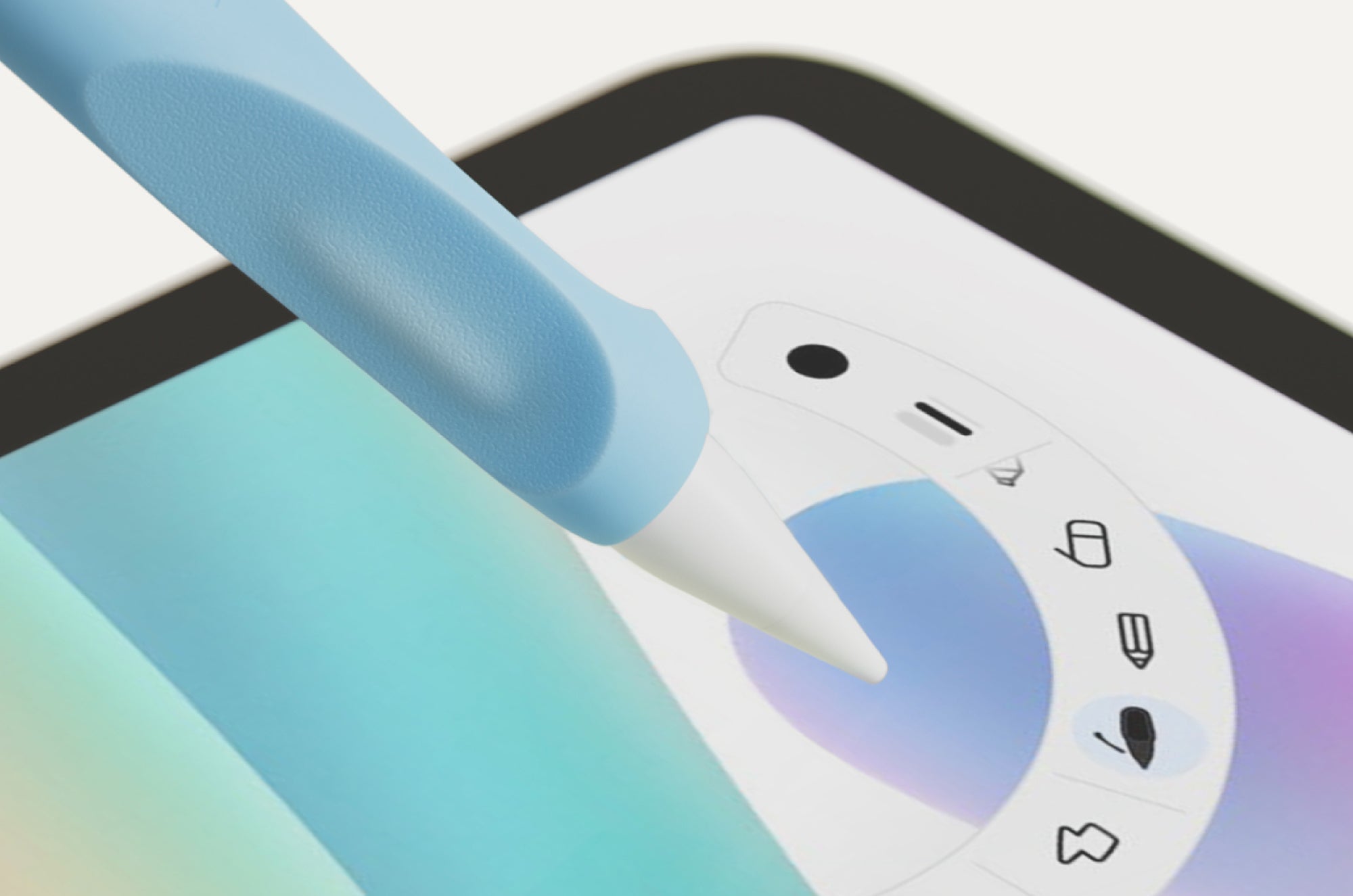
If you're drawing or spending longer stretches in creative apps, the Pencil Pro gives you more control. The squeeze gestures and haptic feedback sound like extras, but once you're spending real time in Procreate, you'll notice them.
And if you're on an older iPad, the 1st generation still works. Not the most convenient, but it gets the job done.
Once you've got the right model, the rest is just setup.

Apple Pencil tips: The part most people ignore
Most people don't think about their Apple Pencil tip until something feels off. And even then, you might think it’s lag or something wrong with the tool itself.
You start noticing that your lines aren't as clean. Small movements take more effort to control. You start correcting strokes more than you used to, even though nothing else has changed.
A lot of the time, it comes down to the pencil tip.
It wears down slowly. The shape softens, the surface gets smoother, and because it happens gradually, you adjust without really noticing you’re doing it. (You’re not getting worse at drawing. Your pencil tip is just giving out on you.)
What to look for:
- The pencil tip looks flattened, glossy, or slightly uneven.
- Your strokes feel less consistent than they used to.
- You're making more corrections while writing or drawing than you used to.
- The pencil tip feels even slightly loose (a quick twist usually fixes this).
Most people notice the change in feel before they actually see anything wrong with the tip itself.
You should also know that the pencil tip is where everything gets translated. Every bit of pressure, every tilt, every small movement all goes through that one tiny contact point. So when it's worn down, your strokes will be too.
That's why a fresh pencil tip can make a bigger difference than you'd expect, even if nothing else about your setup has changed.
And here’s the thing: if you’re using your Apple Pencil regularly, swapping out the tip every few months is pretty normal. Heavier use wears it down faster, lighter use stretches that out. It’s just part of maintaining the tool. (Think of it like replacing the head on your toothbrush. You know you’re supposed to. You just don’t always do it when you should.)
| Key truth | Apple Pencil tips are designed to wear down. If your lines are losing consistency, check the tip before blaming the stylus or your iPad. |
If you want something built to last longer, Paperlike Pencil Tips are worth a look, especially if you’re using your Pencil every day.
If swapping the tip doesn’t fix things, the problem might be something else. (I actually wrote a whole guide on Apple Pencil lag that covers the most common causes.)

How to get the most out of your Apple Pencil
Getting more out of your Apple Pencil doesn’t come from one thing. It’s a handful of small adjustments that change how it responds and how it fits into your workflow.
The good news? Most of them take less than a minute.
Start with these:
- Palm rejection. It’s automatic on the iPad, but it works best in apps built for handwriting or drawing. If something feels off, check your stylus settings inside the app first (in Goodnotes, that’s under Settings → Stylus). It’s usually the app, not your Pencil.
- Pressure sensitivity. You can usually adjust this inside whatever app you’re using. In Procreate, you’ll find it under Preferences → Pressure & Smoothing. If your lines feel too heavy or too light, it’s worth tweaking before you assume something’s wrong.
- Double-tap (or Squeeze on the Apple Pencil Pro). These are easy to overlook, but once you set them up, you’ll use them constantly. You can customize them in Settings → Apple Pencil. Switching tools, undoing strokes, jumping between modes — once you pick one, you’ll wonder why you didn’t set it up sooner.
Those changes help. But even with all that dialed in, a lot of people still feel like something isn’t quite right.
Your lines drift slightly. Handwriting looks a little worse than it should. You slow down just to stay neat, which kind of defeats the point.
Jan Sapper, the founder of Paperlike, noticed the same thing when he first tried writing with his Apple Pencil:
“Then the Apple Pencil came out and it was amazing. I went to an Apple Store directly, checked it out, tried it out, and noticed my handwriting is bad, but it's terrible now. So I thought okay maybe I can figure this out.”
That “maybe I can figure this out” moment is what led to Paperlike.
Spoiler alert: He figured it out. And the answer wasn't the Pencil. It was the surface.
On bare glass, there's almost no resistance. The tip glides easily, which sounds fine, but it means your hand has less to work with. So you compensate without realizing it. Your strokes slow down. Your grip gets tighter. And these small adjustments tire your hand out.
It's a bit like trying to write on a whiteboard with a regular pen. Technically, it works, but it never quite feels right, and you can tell in the output.
Once you notice it, it's hard to unsee. And it explains why settings alone don't always get you where you want to be. At a certain point, it's not about what the Apple Pencil can do. It's about how it feels when you use it.

Apple Pencil for note-taking: How to actually use it
Most people start the same way. Open a note-taking app, write a few pages, maybe highlight or underline a few things.
It works. And for a while, that's enough.
But once you're using your iPad for real note-taking (classes, meetings, research), small details start to matter more. You want your handwriting to be legible when you go back to it later, right? And you’ve got to be able to keep your notes organized once you have dozens of pages instead of just a few.
That's when your setup starts to change.
Some apps handle handwriting more cleanly. Some are better for structure and organization. Some make it easier to search and revisit your notes later. Goodnotes and Notability are the two most popular options, but they work pretty differently.
| In practice | Switch from bare glass to a paper-feel surface, and your Apple Pencil tip grips instead of slides. Most people notice it within the first few lines. |
The Apple Pencil is what makes all of this feel natural. You can write, annotate PDFs, mark up slides, and keep everything in one place without switching tools. That's why it's become such a staple for students, teachers, and anyone working with handwritten notes regularly.
The surface matters more than most people expect, though. On bare glass, your tip slides more than it should, and your hand ends up doing extra work just to compensate. (Sound familiar? It's the same problem Jan ran into.)
Add a paper-feel surface and something changes pretty quickly. Your tip grips instead of slides. Your strokes stop drifting. Your handwriting tightens up without any extra effort. You just write, the same way you would on paper, but with the flexibility of digital tools behind it.

Apple Pencil for drawing and creative work
For drawing, the Apple Pencil tends to click a little faster than it does for note-taking.
You open an app, pick a brush, start sketching, and it already feels close to what you expect. Pressure changes the line thickness. Tilt affects the stroke. You don’t have to think about it much.
| Quick note | The Apple Pencil Pro also lets you do a lot of cool things, like Squeeze, Hover, and Barrel Roll. |
And paired with something like Procreate or Adobe Fresco, it holds up surprisingly well against dedicated hardware like a Wacom tablet.
But once you move past quick sketches and start spending more time on detailed work, the same thing happens as with note-taking. Small details start to matter more.
Line control. Consistency. How stable your strokes feel when you slow down or zoom in. Whether palm rejection is working cleanly, so you’re not constantly fighting accidental inputs while you draw. (If it’s not, check your stylus settings inside the app first. That’s usually where the problem is.)
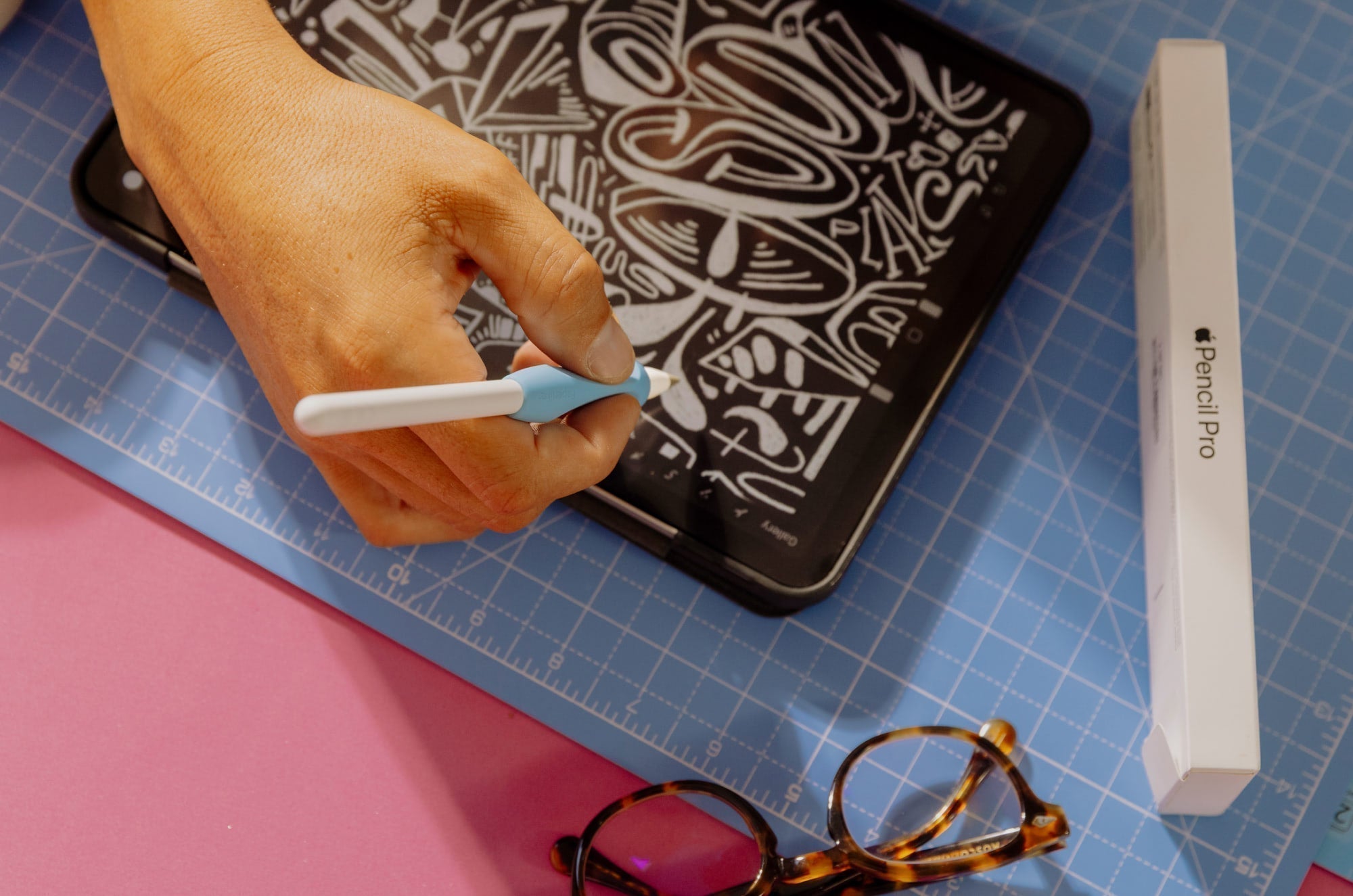
Hand comfort is the thing that gets overlooked most. If you're drawing for more than a few minutes at a stretch, your hand is going to be moving across the screen a lot. A drawing glove keeps things moving smoothly and stops accidental inputs from interrupting your work.
The surface matters here, too, maybe even more than it does for note-taking. On bare glass, detailed work is harder to control than it should be.

Apple Pencil troubleshooting: Quick fixes
If your Apple Pencil isn’t behaving the way you expect, it’s usually something small.
Before you start digging through settings or switching apps, run through these:
- Check the tip. We talked about this one earlier, but make sure it's tightened fully. If it looks worn down or uneven, swap it out. A worn tip can affect how your strokes register more than you'd expect.
- Check your battery. A low battery can make the connection feel inconsistent. (This is the one I forget about all the time.)
- Toggle Bluetooth. Turn it off, then back on. If that doesn't help, unpair and reconnect your Apple Pencil.
- Restart your iPad. There’s a reason this is the first thing most people tell you to do. It’s still one of the fastest ways to clear out small issues.
- Close and reopen your app. Some apps get bogged down, especially with larger files or longer sessions.
- Check your app settings. Palm rejection, stylus preferences, pen stabilization — any of these can affect how your Apple Pencil feels.
Most of the time, one of those fixes solves your problem.
If you’re still running into issues like skipping strokes or delays, you can check out this guide for more solutions.

The full Apple Pencil setup: What to pair it with
The Apple Pencil matters. But the rest of your setup matters too.
Once people start using their iPad more seriously for writing, planning, drawing, or editing, they almost always start adjusting the setup around it. Not because the Apple Pencil is lacking, but because small setup quirks add up the more you use it.
A good case changes how and where you use your iPad. The right stand angle makes longer writing sessions more comfortable. Things like grips or drawing gloves start to matter once you're spending hours with the Apple Pencil instead of just a few minutes at a time. (Your hand will let you know.)
And the more you use it, the more your iPad starts replacing other tools entirely. Notebooks. Printed PDFs. Loose papers from meetings or classes. Even parts of a laptop workflow. (Much to Apple’s chagrin.)
That's why most people eventually move beyond the default setup and start building something that fits how they actually work. (I put together a roundup of the best iPad cases and accessories if you're figuring out where to start.)
And then there's the surface.
| Hot take | Most people think the Apple Pencil is the experience. It’s only half of it. The surface it interacts with changes everything. |
That's the part a lot of people don't realize until they try it.
On bare glass, the Apple Pencil glides quickly across the screen. Some people like that at first. But over longer sessions, handwriting feels less controlled, and drawing feels less stable, especially when precision matters.
A paper-feel surface fixes that. The added resistance gives your strokes more control and makes writing and drawing feel a lot more like the real thing.
That's the idea behind Paperlike for iPad. It adds just enough texture to make everything feel more natural, without affecting the display or how the Apple Pencil reads the screen.
Final thoughts
The Apple Pencil is one of those tools that gets better the more you actually use it.
At first, it's easy to treat it like a nice extra. Something you pull out occasionally for notes or a quick sketch. And that's fine. It works.
But once the setup starts coming together (the right model, a fresh tip, apps that fit how you work, a surface that actually feels good to write on), something shifts. Writing feels cleaner. Drawing feels more controlled. Your iPad starts feeling less like a device you use and more like something you work on.
Most people are one or two small changes away from that. They just don't know which ones to make.
But once you do figure it out, the fun begins.
Frequently Asked Questions
Is the Apple Pencil worth buying?
Yes, if you're using your iPad for handwritten notes, drawing, annotating PDFs, planning, or creative work. It changes the iPad from something you mostly consume content on into something you actually work on. If you're mainly browsing and sending emails, you'll probably survive without it.
Which Apple Pencil is best for note-taking?
The 2nd generation is the sweet spot for most people. It charges magnetically, the double-tap shortcut is genuinely useful once you set it up, and it just feels seamless day to day.
Is the Apple Pencil worth it for non-artists?
Yes. Most of the people who swear by it aren't artists at all. Note-taking, annotating PDFs, planning, journaling, and marking up documents are where a lot of people get the most use out of it. If you prefer handwriting over typing, it's worth it.
Is the Apple Pencil Pro worth it?
Depends on how you use it. If you draw, design, or spend long stretches in creative apps, yes. The squeeze gestures and haptic feedback are subtle, but once you try them, you won’t be able to live without them. If you mainly take notes or mark things up occasionally, the 2nd generation is probably enough and will save you some money.
Is the Apple Pencil the best stylus for iPad?
Yes. It was designed specifically for iPad, so features like pressure sensitivity, palm rejection, and tilt support work more seamlessly than with third-party options. That's really the whole argument.
How often should you replace Apple Pencil tips?
Every few months, if you're using it regularly, sooner if you write or draw heavily. If your lines are starting to feel inconsistent or less precise, check the tip first before blaming anything else.
If you want to replace them less often, our Paperlike Pencil Tips are extra durable.
What makes the Apple Pencil feel more like writing on paper?
The surface. A paper-feel screen protector adds a layer of resistance between the tip and the screen, giving your strokes more control and making handwriting feel much more natural. It's one of those things that sounds minor until you try it. It's one of those things that sounds minor until you try it.