
Deciding whether to upgrade to the Apple Pencil Pro as a digital artist or note-taker isn’t a decision you should rush. Being too eager for the latest features can cost you in the long run because they might not even improve or complement your workflow.
So we're going to help you determine if you should even consider upgrading to an Apple Pencil Pro.
Before you open your wallet, this guide will help you understand the difference between it and its predecessor, the 2nd generation Apple Pencil, and what upgrading could offer you as an iPad artist or note-taker.

Apple Pencil (2nd generation) vs. Apple Pencil Pro
| Feature | Apple Pencil (2nd generation) | Apple Pencil Pro |
| Price | $129 | $129 |
| Hover | Yes (with select iPad models) | Yes |
| Barrel Roll | No | Yes |
| Squeeze | No | Yes |
| Magnetic charging | Yes | Yes |
| Haptic feedback | No | Yes |
| Double-tap shortcut | Yes | Yes |
| Pressure-sensitivity | Yes | Yes |
| Tilt-sensitivity | Yes | Yes |
You'll find that the 2nd generation Apple Pencil and Apple Pencil Pro are remarkably similar in many of their features. They even cost the same. This can make deciding whether to upgrade even trickier.
Both are also low latency, which means drawing or taking notes feels instantaneous and natural. If lag has ever been an issue, try troubleshooting before upgrading your Pencil.
But the three main features that make the Apple Pencil Pro stand out are Barrel Roll, Squeeze, and Haptic Feedback.
Barrel Roll uses rotation to give you the exact stroke angle you want. Squeeze and Haptic Feedback are related because when you squeeze the base of the Apple Pencil, you'll feel a subtle vibration that confirms selections. It's also present when using the double-tap function as well. But that's only the surface level.
Let's take a deeper look at what the Apple Pencil Pro offers digital artists and note-takers.

Apple Pencil and iPad Compatibility
| iPad Model | iPad Size/Generation | Apple Pencil (2nd generation) | Apple Pencil Pro |
| iPad Pro | 11” (1st-4th gen) | Yes | No |
| 12.9”(3rd-6th gen) | Yes | No | |
| 11” (M4-M5) | No | Yes | |
| 13” (M4-M5) | No | Yes | |
| iPad Air | 4th & 5th gen | Yes | No |
| 11” and 13” (M2-M4) | No | Yes | |
| iPad mini | 6th gen | Yes | No |
| A17 Pro | No | Yes |
Please don't get caught buying the wrong stylus for your iPad. It's an easy mistake to make as Apple releases more and more iPads. If you have an iPad older than those listed above, you might not be ready to make such a large leap to a stylus like the Apple Pencil Pro.
What about app compatibility? The main ones we'll cover are Procreate, Adobe Fresco, Goodnotes, and Notability. These are leading apps for digital drawing and note-taking, and all support Apple Pencils, including the 2nd generation and Apple Pencil Pro. Depending on which apps you use most, upgrading might also not make sense for you.
But don't count yourself out just yet. Keep scrolling to see if you're the type of iPad user who could justify the upgrade to the Apple Pencil Pro.

What Apple Pencil Pro adds
So what do Barrel Roll, Squeeze, and Haptic Feedback mean in practice for digital artists and note-takers? Let's look at each to get a clearer idea.
Barrel Roll
In programs like Procreate, Barrel Roll stands out for brush makers and calligraphers. It's a dynamic feature that complements Hover and Brush Preview, letting you set your stroke angle precisely before you put the stylus down.
Note-takers using programs like Goodnotes and Notability can use Barrel Roll to control the angle of their pen strokes for added precision. While this feature is great, consistency still matters, especially since your Pencil can rotate out of place once you start writing or drawing. Both apps let you lock your stroke angle so you can control when you want to use the Barrel Roll feature.
Squeeze & Haptic Feedback
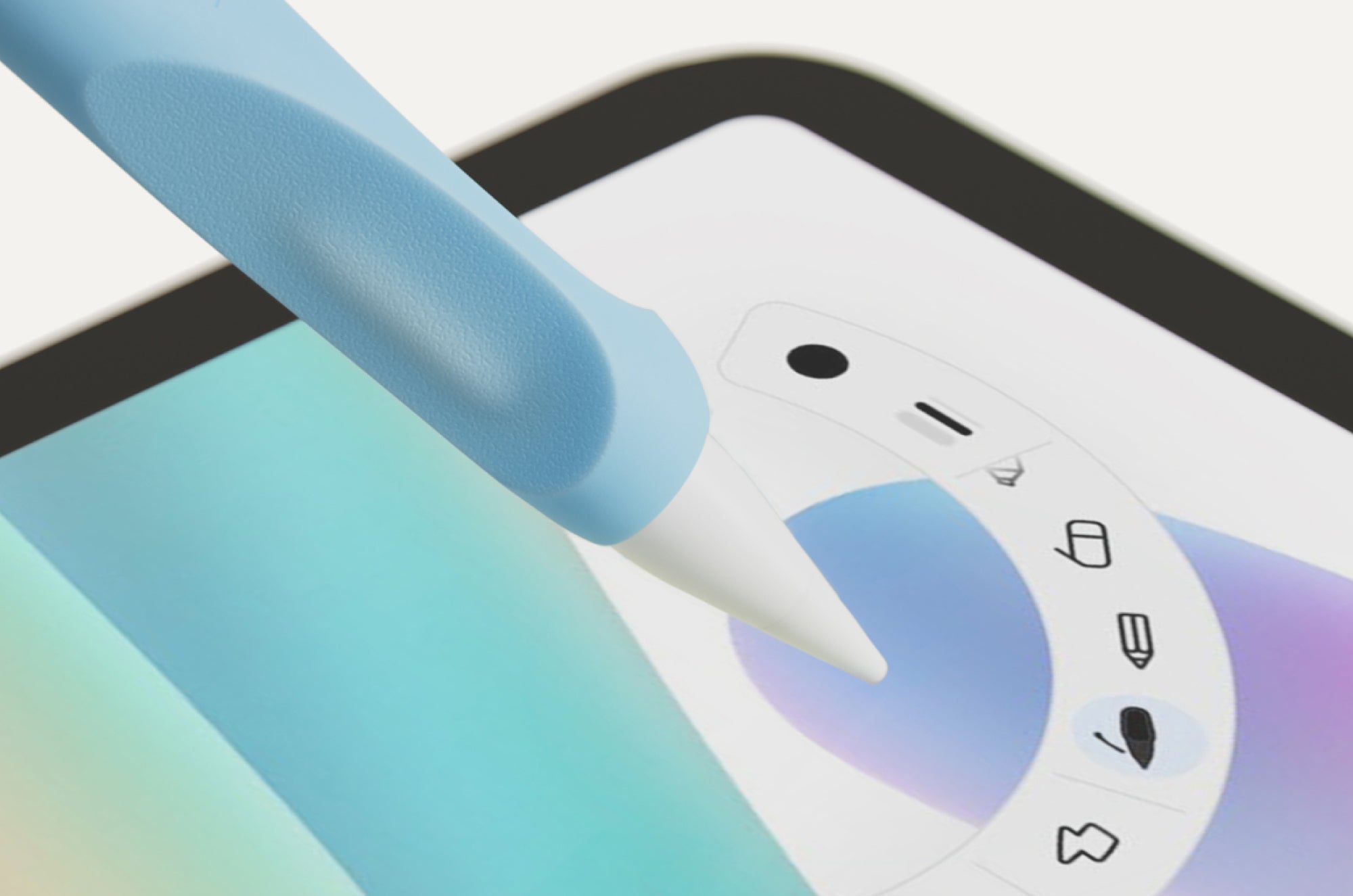
Squeeze mainly improves workflow efficiency. In Procreate, it opens the QuickMenu, triggers QuickShape, Layer Select, or the Eyedropper. The idea is to help you make selections faster and streamline color and layer selection without adjusting your grip.
We see less complexity in programs like Adobe Fresco, where Squeeze opens a shortcut toolbar that gives you access to brushes, colors, size adjustments, and undo and redo. Paired with Haptic Feedback to confirm selections and settings, it feels like a natural fit.
In Goodnotes, Squeeze opens the Palette Menu to change your writing tool, stroke color, and thickness, without interrupting your workflow.
Notability's Squeeze feature has more capabilities that depend on how long you squeeze your Apple Pencil. You can switch to your last-used tool by squeezing and holding your Pencil. When you release, you'll switch back to your previous tool. Like Goodnotes, you can also use it to open a secondary menu to access your tools, select, undo, stroke size, and colors.

Should you upgrade to an Apple Pencil Pro?
| YES if | MAYBE if | NO if |
| You use an iPad with an M4 chip or later. | You use an iPad with an M2 chip. | You use an older iPad that isn't compatible with Apple Pencil Pro. |
| Your iPad drawing sessions exceed 45 minutes. | Your iPad drawing sessions exceed 30 minutes. | Your iPad drawing sessions don't exceed 20 minutes. |
| You primarily use Procreate or Adobe Fresco on your iPad. | You primarily use Goodnotes or Notability on your iPad. | You rarely draw or take notes on your iPad. |
| Precision and detail in your strokes matter to you. | Having precision over your strokes matters sometimes. | You don't think about your strokes as you draw or take notes. |
| You're eager to adopt a more efficient workflow in your apps. | You're mostly satisfied with your current workflow in your apps. | You don't feel the need to improve your workflow in any apps. |
The Apple Pencil Pro will only enhance the iPad experience for the right user. And there's a chance that you're missing out on what your current stylus can do. So take time to evaluate what kind of iPad user you are.
If you use your iPad for long drawing or note-taking sessions, you'll benefit most from the Apple Pencil Pro's efficiency features and workflow upgrades.
But who's most likely to actually use and notice them? Illustrators, brush makers, and other creatives working professionally in programs like Procreate. Apple Pencil also helps artists focus on precision and stroke detail, which is a huge plus.
Even if you spend a lot of time on your iPad, casual sketching, student work, and note-taking don't need Apple Pencil Pro's capabilities, even if they're nice to have.
But the Apple Pencil Pro's feature upgrades aren't the only factors in an enhanced iPad experience. There's another side of the equation to consider: your iPad surface.

Why the surface matters as much as the Pencil
The surface your Apple Pencil touches matters as much as the stylus itself. And as expensive as iPads are, the surface isn't ideal for drawing or note-taking. That's because the glass screen is naturally slick, giving your stylus very little stability.
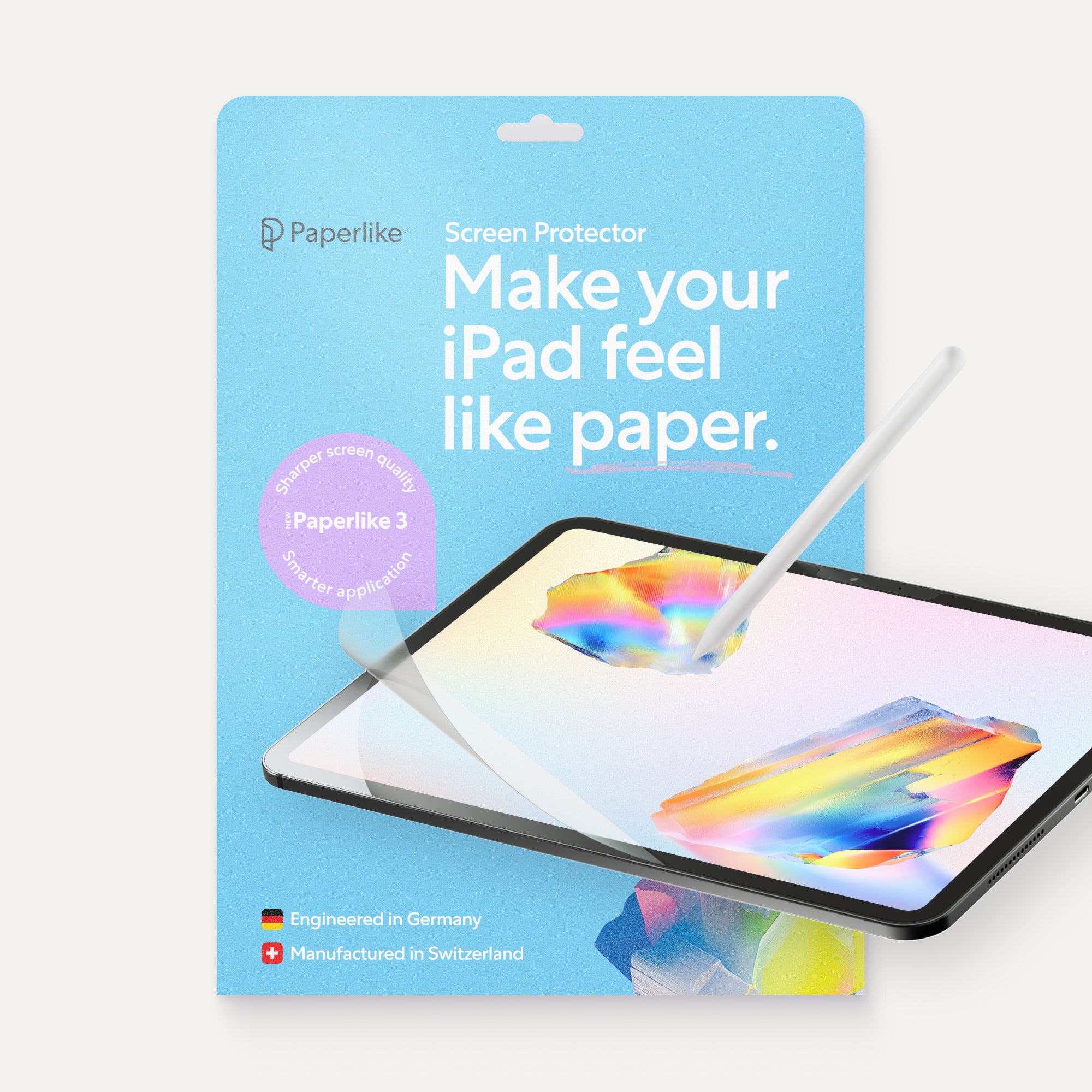
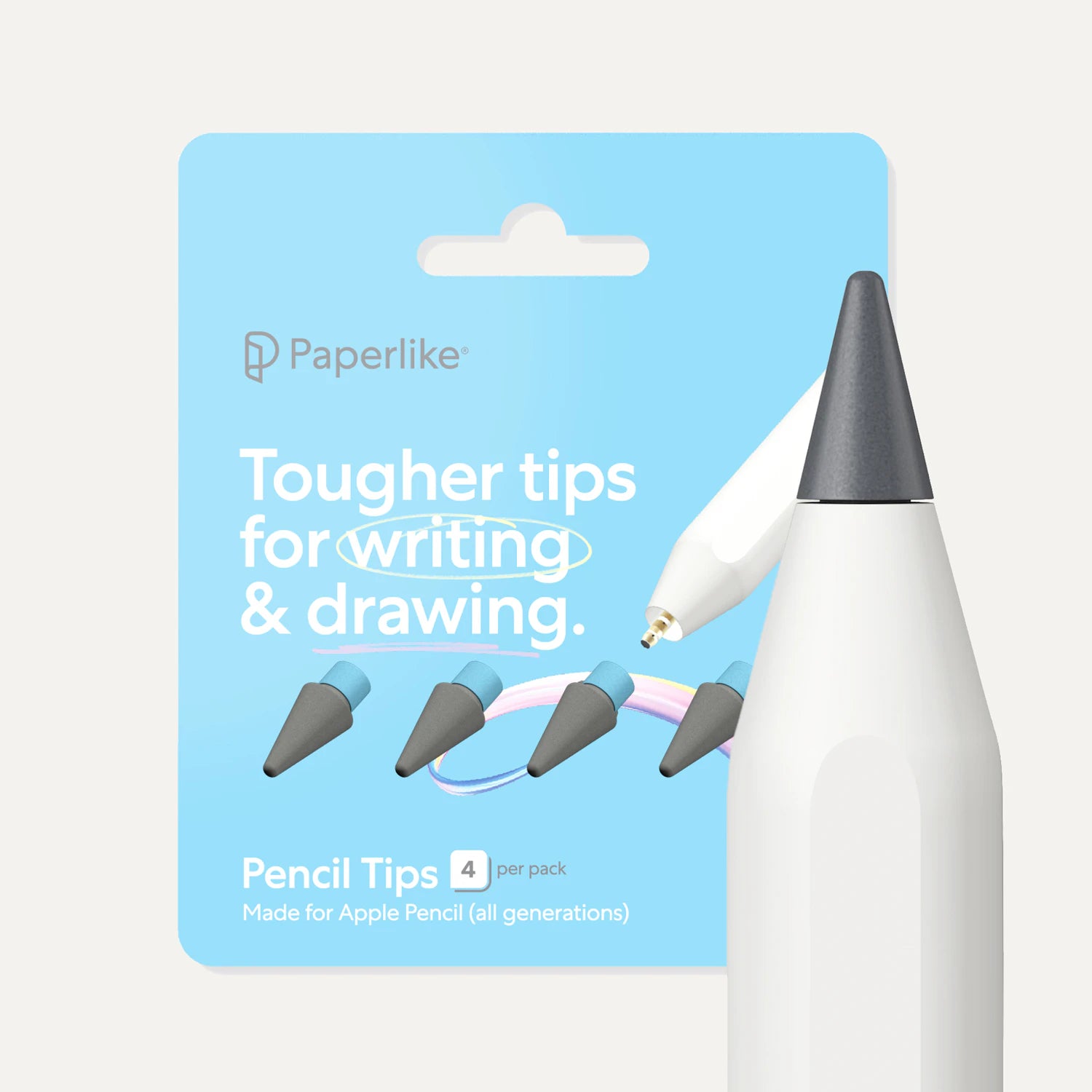
Alternatively, a Paperlike™ Screen Protector is an easy-to-install accessory that instantly improves your iPad experience. This is because of the added resistance that grips the tip of your Apple Pencil. Paired with Paperlike™ Pencil Tips, this means more control, less slipping, and a better way to take full advantage of the Apple Pencil Pro's advanced capabilities.
Wrap up
The Apple Pencil Pro takes iPad styluses to the next level. There's a lot to be excited about, but it's also not the right stylus for everyone.
The added features and capabilities that set it apart from the 2nd generation Apple Pencil won't matter to everyone, especially if you're primarily a casual sketcher or note-taker.
Instead, you can save the money you would've spent on the upgrade and put it toward other iPad accessories. These guides have plenty of great recommendations, whether you're a digital artist or a note-taker.
Frequently Asked Questions
How much is an Apple Pencil?
The price of the Apple Pencil depends on the model you buy. Both the Apple Pencil (2nd generation) and Apple Pencil Pro cost $129 and include free customizable engraving through Apple.
What is the best note-taking app to use with iPad and Apple Pencil?
This is a great question because we've actually compared two of the leading note-taking apps for iPad: Goodnotes & Notability. Either will work great on iPad with Apple Pencil, and both support Apple Pencil Pro, although the 2nd generation Apple Pencil is more than enough for note-taking.
Is the Apple Pencil Pro worth the extra money?
While the Apple Pencil Pro costs the same as the 2nd generation Apple Pencil, it might not be necessary depending on the type of iPad user you are. If you're upgrading to a newer device and use your iPad professionally for drawing, it's worth considering.
Is Apple Pencil Pro compatible with my iPad?
The Apple Pencil Pro is a newer stylus, so it has been designed to work with newer iPad models. You can check compatibility with your iPad using Apple's compatibility list.
Does a screen protector affect Apple Pencil precision?
Not only does it affect Apple Pencil precision, but it also improves it by giving it a resistant surface to glide on. It also does this without wearing unevenly on the Apple Pencil tip, so you don't have to change it out as often.