


Bullet journaling works because it’s simple. A pen. A blank page. A system that bends to your life instead of the other way around.
But paper can get annoying fast. You run out of room. You redraw the same spreads every month. You lose track of pages. And if you like keeping different logs or collections, one notebook is never enough.
Going digital keeps the heart of bullet journaling intact, while smoothing out those friction points. You still write by hand. You still use bullets and collections. But now you get infinite pages, reusable layouts, and everything in one place.
This guide walks you through how to use digital bullet journaling on an iPad, including the best apps, setup tips, and workflow ideas to help you get started.
What is bullet journaling?
Bullet journaling is a simple system for tracking your life. The stuff you need to do, the stuff you want to remember, and the stuff that’s floating around in your brain at 11:47 p.m.
It’s not a planner. It’s not a diary. It’s more like a choose-your-own command center.
The basic setup is built on rapid logging, which is just a fancy way of saying: write short, clear entries and move on. Tasks, notes, and events. Each item has a symbol, so you can quickly scan a page and immediately know what you’re looking at.
From there, you layer in structure as needed. Maybe that’s a monthly log so you can see what’s coming. Maybe it’s daily pages for the random, day-to-day stuff that doesn’t fit neatly anywhere. And then there are collections, which are basically a catch-all for the things you keep thinking about. Projects. Habits. Goals. Or that list you keep rewriting because sticky notes have a short lifespan.
Under all of it are three core ideas:
- Capture quickly. Write it down the first chance you get.
- Organize clearly. Bullets, signifiers, and an index keep everything easy to find.
- Customize freely. You build the spreads, trackers, and layouts that make the most sense to you.
Bullet journaling started as a pen-and-paper method for a reason. It’s meant to be fast, flexible, and forgiving. Some days, your pages will look clean and tidy. Other days, they’ll be a disaster.
Both count.
The point isn’t to make it pretty. The point is to make it useful. You start where you are, and the system gets better as you go.

Why switch to digital bullet journaling?
Bullet journaling already works. Going digital just removes the parts that slow you down.
Going digital gives your bullet journal some breathing room. You can reuse what works, change what doesn’t, and keep everything moving without rebuilding your setup every month.
You get flexibility, such as:
- Infinite pages, so you never run out of space.
- Reusable layouts that you can set up and duplicate to use again and again.
- Easy editing. You can move pages, duplicate spreads, and rearrange sections as needed.
- Searchable notes and tags, so nothing gets lost.
- Syncing across devices, so your journal is always with you.
- Room for photos, screenshots, PDFs, moodboards, and inspiration.
- Backups that keep everything safe.
- One system. One device. No stack of notebooks in your bag.
The best part? Switching to digital doesn’t mean starting over.
The difference between paper and digital bullet journals.
| What stays the same | What changes |
| You still write things out by hand. | Hyperlinks replace page numbers for faster navigation. |
| Bullets, signifiers, and rapid logging still drive the system. | Mistakes are easy to delete, move, or fix. |
| Monthly logs, weeklies, dailies, and collections all work the same way. | Layouts don’t need to be redrawn. Copy, paste, done. |
| Your journal stays personal and intentional. | Tools like shapes, layers, stickers, and templates speed things up. |
| Creativity stays wide open. Minimal or artistic, both work. | Search makes it easy to find notes, tasks, and collections. |
| The system adapts to you, not the other way around. | Backups and syncing keep everything safe and accessible. |
| Everything lives in one flexible system. | Handwriting can live alongside typed text, images, PDFs, and audio. |
Digital bullet journaling isn’t about changing the method. It’s about giving the method more room to breathe.

Setting up your digital bullet journal
This is where the magic happens. Not the “make it pretty” magic. The “this actually works for my life” magic.
Below is a step-by-step setup you can copy exactly, then tweak as you go.
Pick your format
Start by deciding what kind of notebook you want to open every day. Your format sets the tone for how structured or flexible your bullet journal will feel.
Option A: A prebuilt digital bullet journal (hyperlinked)
This is usually the quickest way in. Prebuilt digital bullet journals already have the basics set up for you, like tabs, links, and pages for monthlies, weeklies, trackers, and collections.
You’ll find plenty of them on Etsy, creator sites, and in the template libraries of some notetaking apps. Look for one that feels clean, easy to navigate, and not overloaded with pages you’ll never touch. Simple beats impressive.
Option B: A blank notebook
A blank digital notebook gives you total freedom. Most notetaking apps include dotted or grid pages you can duplicate as needed. This option works well if you already use a bullet journal on paper and want to recreate the same workflow digitally.
Option C: Mix and match with templates
This is where a lot of people end up after trying a few things. You start with a blank notebook, then add templates only when they actually solve a problem. A monthly overview to see what’s coming. A weekly layout if you like structure. Maybe a tracker or two. (More on this below.)
Templates are easy to find once you start looking. Creators sell them on their own sites, Etsy is full of options, and some notetaking apps include built-in template libraries.
Quick tip: Start small. You can always add more when you figure out what you’re missing.
Bring in templates
Templates are basically a shortcut. They reduced setup time, so you’re not spending all your time on that instead of using the journal, which is easy to do, especially at the beginning.
The basic types you might want to include are:
- Dotted pages: The classic bullet journal foundation. They’re flexible, forgiving, and good for lists, notes, half-finished layouts, or whatever you end up sketching out without much planning.
- Weekly spreads: These tend to show up once daily pages start feeling like too much to manage. It’s a single place to see what the week looks like, what needs attention, and what can probably wait, without tracking every little thing.
- Monthly spreads: You may want to have both monthly and weekly spreads. Monthly is great for deadlines, plans, and recurring stuff.
- Trackers: Habits, moods, sleep, workouts, spending. Some people love these. Some people forget to update them. Both experiences are normal.
- Vision boards: This is more of a visual space. Goals, screenshots, inspiration, and reminders of what you’re working toward. It doesn’t have to be tidy to be useful.
- Collections: Dedicated pages for categories like projects, routines, packing lists, gift ideas, books, and anything else you repeat.
- Tasks and project planning pages: Brain dumps, task lists, project breakdowns, timelines, and “next actions.”
You can always add more later. The goal is to start with pages you’ll actually use.
Create your spreads (step by step)
This is where your digital bullet journal starts to feel real. The key is to build spreads in the order you’ll actually use them, not all at once.
1. Start with a monthly log.
Open a new page and label it with the current month. At the top, write the month and year. That’s it.
Now add:
- A short list of important dates or deadlines.
- A small task list for things that need to happen this month.
- One focus line, like “This month is about…”
Keep it light. You can always add detail later.
Once you like how it looks, duplicate the page and save it for next month. That’s one of the biggest digital wins.
2. Add a future log.
Create a page for upcoming plans that don’t belong in this month yet.
To set it up:
- Divide the page into months or quarters.
- Write down big events, renewals, trips, launches, or deadlines.
- Add quick notes like “prep,” “research,” or “schedule” so future-you knows what to do next.
This page keeps long-term plans out of your daily logs, where they tend to get lost.
3. Build a weekly spread (optional, but helpful).
If you think in weeks, add a weekly page.
Simple setup:
- One column for each day.
- A task list for the week.
- A small notes area for things that come up.
If your schedule changes a lot, skip strict time blocks and stick to lists. You don’t have to plan in detail if that doesn’t work for you.
4. Set up daily rapid logs.
This is the heart of bullet journaling.
Create a dotted or lined page and start logging:
- Tasks.
- Notes.
- Events.
Use simple bullets or symbols so you can scan the page quickly. Don’t worry about filling a whole page per day. Some days will take one line. Some will take five pages.
That’s normal.
5. Add trackers (sparingly).
Pick one or two things you genuinely want to notice.
To build a tracker:
- Write the habit or signal at the top.
- Draw a simple grid or checklist.
- Fill it in once a day or once a week.
If you forget to use it, that’s a sign to simplify or remove it. Trackers should help, not nag.
6. Create goal pages.
Goals work better when they live outside your daily noise.
On a new page, write:
- The goal.
- Why it matters.
- What “done” looks like.
- Three next steps.
Link this page to your monthly or weekly spread so you see it often.
7. Use collections for everything else.
Collections are just pages with a purpose.
Use them for:
- Reading lists.
- Project planning.
- Brain dumps.
- Routines.
- Lists you keep rewriting.
When something keeps showing up in your daily logs, that’s your cue to give it its own collection page.
8. Duplicate what works.
Once a spread feels good, duplicate it. Name it clearly. Reuse it.
Digital bullet journaling isn’t about rebuilding your system every month. It’s about refining it.
Build a navigation system
A digital bullet journal only works if you can move through it quickly. Navigation is what keeps your setup feeling smooth rather than cluttered.
You don’t need every option below. Pick one or two and keep them consistent.
1. Start with a simple home base.
Create one page you can always return to. Think of it as your control center.
On this page, list or link to:
- Your current month.
- Your current week (if you use one).
- Daily logs.
- Trackers.
- Project pages or collections.
If your app supports hyperlinks, turn each item into a tappable link. If not, keep this page at the very front of your notebook so it’s always one swipe away.
2. Use hyperlinks where they matter most.
Hyperlinks are the biggest upgrade from paper.
Add links to:
- Monthly logs.
- Weekly spreads.
- Trackers.
- A project index page.
- Your home base page.
You don’t need links everywhere. Focus on pages you visit often. Fewer links. Less friction.
3. Create an index page for collections.
Even digitally, an index still earns its keep.
Set up a page called “Index” or “Collections” and list:
- Project pages.
- Ongoing lists.
- Reference pages.
- Anything that isn’t part of your daily flow.
Update it as you add new pages. If your app allows links, link each item directly.
4. Use color as a visual shortcut.
Color helps your brain recognize patterns quickly.
Choose a small color system, for example:
- One color for work.
- One for personal.
- One for health or habits.
- One for projects.
Use those colors consistently for headings, highlights, or side markers. Skip complicated legends. If you can’t remember it easily, it’s doing too much.
5. Add sidebars or page markers.
Sidebars act like tabs without needing actual tabs.
You can:
- Draw a narrow bar along the edge of a page.
- Label it with the month, week, or section name.
- Color-code it to match your system.
When you scroll, those markers help you instantly see where you are.
6. Organize pages in a clear order.
Most apps let you reorder pages. That’s a handy feature that you should take advantage of when bullet journaling.
A simple structure:
- Planning (future log, monthly, weekly).
- Daily logs.
- Trackers.
- Collections and projects.
Group similar pages together so you’re not jumping all over your notebook.
7. Name your pages clearly.
This matters more than it sounds.
Instead of:
- “Notes.”
- “List.”
- “Page 12.”
Use:
- “June 2025 monthly log.”
- “Project: website refresh.”
- “Reading list.”
Clear names make searching faster and help your system stay usable over time.
8. Refine as you go.
Your navigation system doesn’t need to be perfect on day one. It just needs to get you where you’re going.
If you find yourself scrolling too much or losing pages, that’s your cue to add one small improvement. A link. A color. A better label.
That’s how digital bullet journals get good. Not all at once. Over time.

Creative layout ideas
This is the fun part. Not “decorate everything for three hours” fun. The kind that makes your journal feel inviting enough that you actually come back to it.
The nice thing about digital layouts is that you can experiment without commitment. Try a page. Duplicate it. Change it. Delete it. Nothing is permanent.
Below are layout ideas you can use as-is or as starting points.
Productivity layouts
These pages are built to help you move things forward. Clean, clear, and easy to update.
Weekly dashboard
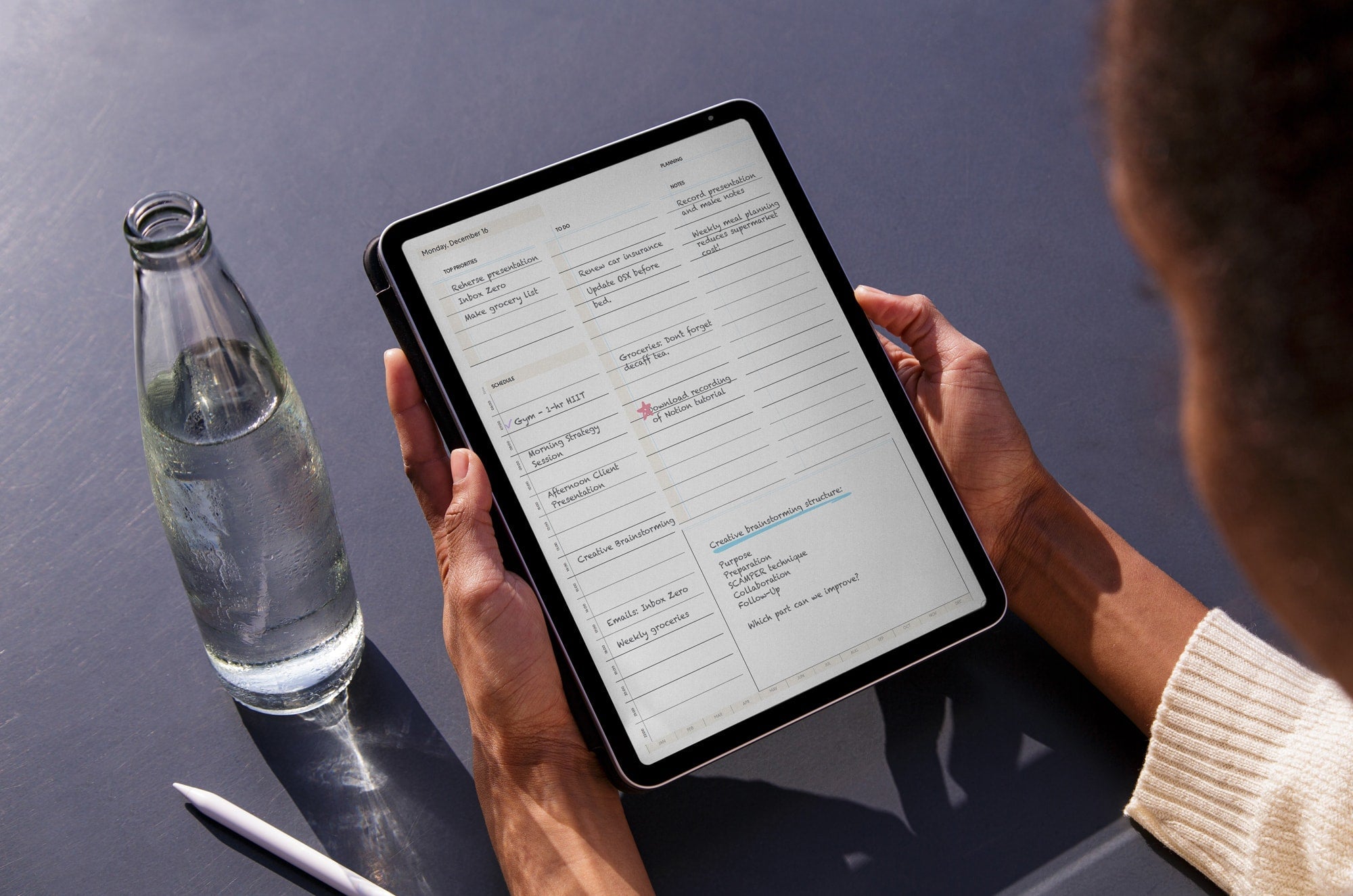
A single page that shows you the whole week at a glance. Try including:
- Top three priorities.
- Appointments or deadlines.
- A short task list.
- A notes section for any items that come up.
This works well if you don’t want to manage separate daily pages.
Time-blocking spread
If your days are packed, a time-based layout can help.
- List hours down one side.
- Block time for work, meetings, breaks, and personal tasks.
- Leave space to adjust as things shift.
Digital makes this easier since you can move blocks around instead of crossing everything out.
Project breakdown page
Create one page per project with:
- The goal or outcome.
- Tasks or next actions.
- Deadlines.
- Reference material like screenshots or PDFs.
Link this page to your weekly or monthly spread so it stays connected to your planning.
Wellness layouts
These layouts are less about checking boxes and more about noticing patterns.
Habit tracker
Keep it simple.
- Pick one habit you actually want to build.
- Use a small grid or checklist.
- Fill it in once a day or once a week.
If you skip it for a week, that’s feedback. Adjust or drop it.
Mood or energy tracker
Instead of tracking feelings in detail, try:
- One word per day.
- A color-coded dot system.
- A scale from low to high.
Over time, patterns start to show up without a lot of effort.
Routine pages
Morning routines, evening wind-downs, weekly resets. Write them once. Reuse them whenever you need a reset.
Creative layouts
These are the pages that give your journal personality.
Brain dump pages
No structure. Just space.
- Write everything down.
- Circle what matters.
- Move useful ideas into other pages later.
Digital is great here because nothing gets wasted.
Mind maps
Perfect for planning, brainstorming, or visualizing ideas.
- Start with one idea in the center.
- Branch out.
- Add notes, arrows, and images.
Vision boards
Drop in screenshots, photos, color palettes, quotes, or reminders.
- One board per goal.
- One board per season.
- One board just for motivation.
Life admin layouts
Not glamorous. Extremely useful.
Reading journal
Keep track of:
- Books you want to read.
- Books you finished.
- Short notes or highlights.
You can even paste in screenshots or quotes.
Finance or subscription tracker
List:
- Monthly subscriptions.
- Renewal dates.
- Bills.
- Savings goals.
Digital makes this easy to update without rewriting everything.
Master lists
Gift ideas. Packing lists. Running to-dos.
If you keep rewriting the same list, it deserves its own page.
A quick layout tip: When a page works, duplicate it. Name it clearly. Reuse it.
That’s the real creative advantage of digital bullet journaling. You don’t need to reinvent your system every month. You refine it.

Choosing the right app for digital bullet journaling
There’s no single “best” app for digital bullet journaling. The right one depends on how you think, how much structure you want, and what you plan to use your journal for.
Some apps shine when it comes to planning and structure. Others are better for freeform thinking or visual layouts. Below is a quick breakdown to help you find your fit.
Goodnotes
| Feature | Details |
| Price | Free; $28.99/lifetime for the full version |
| Best for | Hyperlinked planners, templates, stickers, and structured setups. |
| Links | Download app | View website |
Goodnotes is one of the most commonly used apps for digital bullet journaling on the iPad. It’s built around notebooks, sections, and pages, making it easy to recreate a traditional bullet journal structure without the constraints of paper.
You can use blank dotted pages, import templates, or work inside a fully hyperlinked planner. Pages are easy to duplicate, rearrange, and reuse, which is especially helpful for monthly and weekly spreads you don’t want to redraw. If you like your bullet journal to feel organized and predictable, Goodnotes is often a comfortable place to land.
Notability
| Feature | Details |
| Price | Free; $7.99/month for Plus; $20/month for Pro |
| Best for | Daily logs, rapid notes, and simple planning. |
| Links | Download app | View website |
Notability works well for people who treat their bullet journal more like a running log than a designed planner. It’s fast, minimal, and easy to jump into, which makes it a good option for daily pages and rapid logging.
In addition to handwriting and typing, Notability supports audio recordings that sync with your notes. That can be useful for meetings, classes, or situations where you want context alongside your written entries.
Noteshelf
| Feature | Details |
| Price | Free; From $9.99/month for Premium |
| Best for | Tidy layouts and clean handwriting. |
| Links | Download app | View website |
Noteshelf is a good middle ground between structure and simplicity. It offers helpful tools like shape recognition and clean pen strokes without pushing you into a complex system.
For bullet journaling, it works well if you want your pages to look neat but don’t want to spend time managing heavy customization. It’s especially useful for people who prefer straightforward weekly spreads, trackers, and daily logs with minimal setup.
CollaNote
| Feature | Details |
| Price | Free |
| Best for | Budget-friendly setups and experimentation. |
| Links | Download app | View website |
CollaNote is one of the strongest free options for digital bullet journaling. It offers a surprising amount of flexibility, including community-made templates, custom pens, and layout tools.
It’s a solid choice if you’re just getting started or want to experiment with different styles before committing to a paid app. While it may not feel as polished as some paid options, it gives you plenty of room to build a system that works for you.
Apple Freeform
| Feature | Details |
| Price | Free |
| Best for | People who want handwritten notes converted into clean text. |
| Links | Download app | View website |
Freeform doesn’t follow the traditional notebook model (if you prefer that, you can try Apple Notes), which is exactly why some people love it. Instead of pages, you get an open canvas where you can spread ideas out, group things visually, and rearrange content freely.
It’s useful for collections, vision boards, goal planning, and brainstorming. Many people use Freeform alongside a more structured journaling app rather than as a full replacement.
MyScript Notes (formerly Nebo)
| Feature | Details |
| Price | $1.99/month; $7.99/year; $24.99/lifetime |
| Best for | People who want handwritten notes converted into clean text. |
| Links | Download app | View website |
MyScript Notes focuses on turning handwriting into clean, editable text while still letting you write naturally on the page. You can write, sketch, or diagram, then convert content into typed text or shapes when you want things cleaned up.
It supports both freeform boards and structured pages, which makes it useful for bullet journalers who like clarity and legibility but still want the flexibility of handwriting. If your journal tends to blur the line between notes and planning, this app fits well.
| Quick tip: | You don’t have to pick just one. Many people use one app for structured planning and another for brainstorming or reference pages. The goal is to support your workflow, not force it into one box. |

Final thoughts
Bullet journaling sticks because it’s flexible. You’re not locked into a format or a look, and you’re not behind if you miss a day.
Going digital doesn’t change the system itself. It just gives you more room to work, fewer do-overs, and a setup that can move with you. The rest is personal. What you track, how neat it looks, and how often you use it.
That part is up to you.
Frequently Asked Questions
What is the point of a bullet journal?
A: For most people, it’s about having one place where things don’t immediately fall apart. Tasks, notes, plans, and half-formed ideas all live together instead of being scattered across notebooks or apps. The system stays loose on purpose, so you can adjust it as your life changes. Some pages will look organized. Some won’t. What matters is being able to see what’s important without overthinking it.
Should I go digital or stick with paper for my bullet journal?
A: Short answer: You don’t have to choose.
Paper is familiar and straightforward, and for many people, the physical act of writing is the main appeal. Over time, though, limitations tend to show up. Space runs out. Layouts get redrawn. Reorganizing pages is not exactly easy.
Going digital usually changes how the system feels. There’s more room to work with, and once you’ve set something up, you don’t have to keep recreating it every time plans shift. Being able to move pages around helps too, especially when weeks get messy. The adjustment is mostly physical.
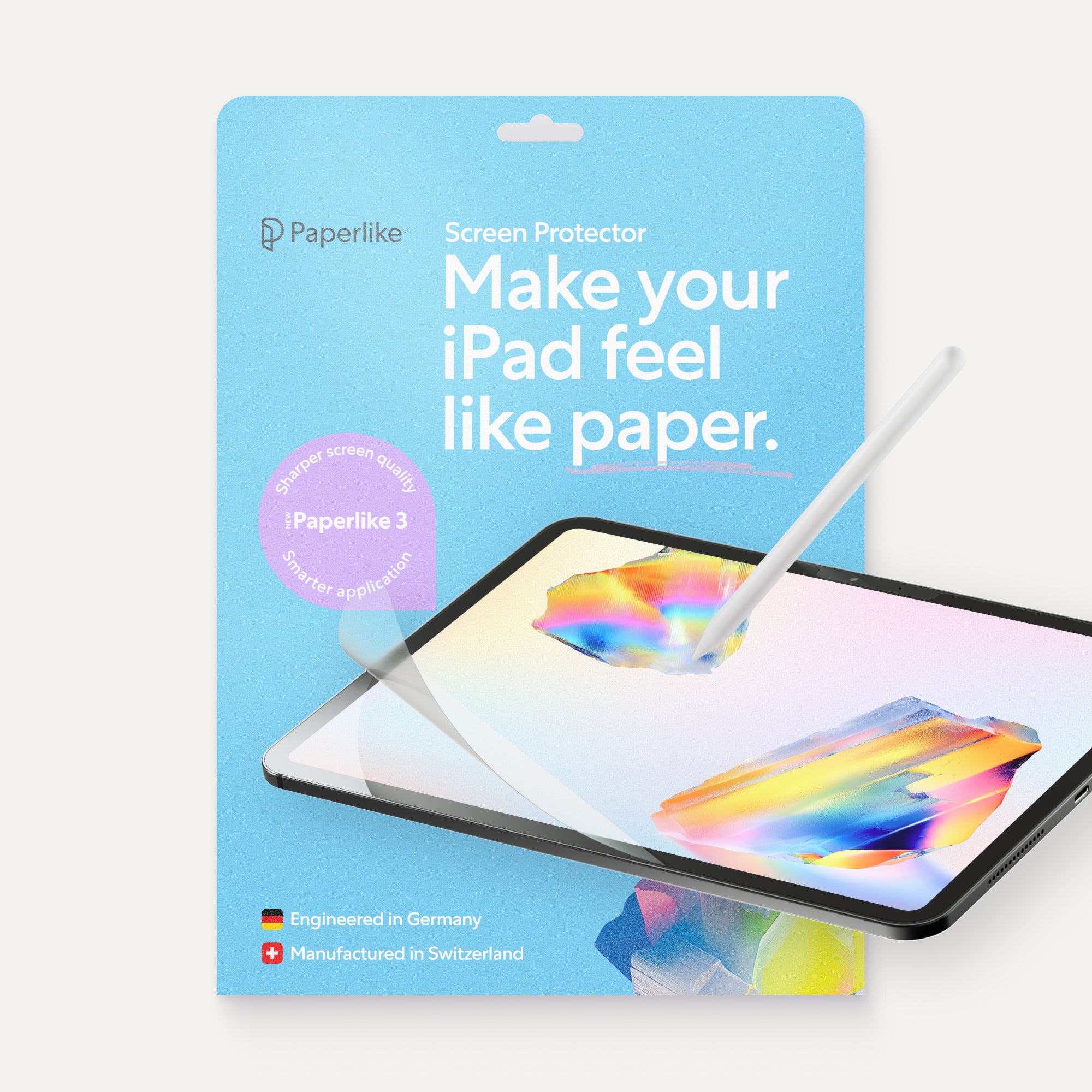
Writing on glass can feel strange at first. That’s where Paperlike™ helps. The added texture provides your Apple Pencil with some resistance, making writing on an iPad feel closer to paper while remaining digital.
Do I need a template to start bullet journaling?
A: No. A blank dotted page is enough. Templates can save time, especially for monthlies, weeklies, and trackers, but they’re optional. Many people start with one or two simple templates and build from there.
If you’re not sure how to get started, you can check out page four of the free 15-Day Mindfulness Method Journal. It’s a simple reflection and habit-tracking template that may inspire you to create your own.
Can I still bullet journal if I’m not creative?
A: Yes. You don’t need artistic skills to bullet journal. A lot of people never draw anything beyond lines and boxes. Lists, headings, and basic bullets do the heavy lifting. Digital tools can help keep things neat if that matters to you, but decoration is optional. Always has been.
How do I stay consistent with my bullet journal?
A: Start simple with only the pages you need. The setup is usually what trips people up, not the journaling itself. That’s one reason digital planners are easier to live with. Once a layout exists, it exists. You don’t have to remake it every time. Being able to duplicate pages or jump in quickly makes a bigger difference than it sounds. You can also use shortcuts or widgets to jump in quickly and make writing more comfortable with the right tools for longer sessions.
Weiterlesen
 Lindsay Armstrong
 Lindsay Armstrong
