


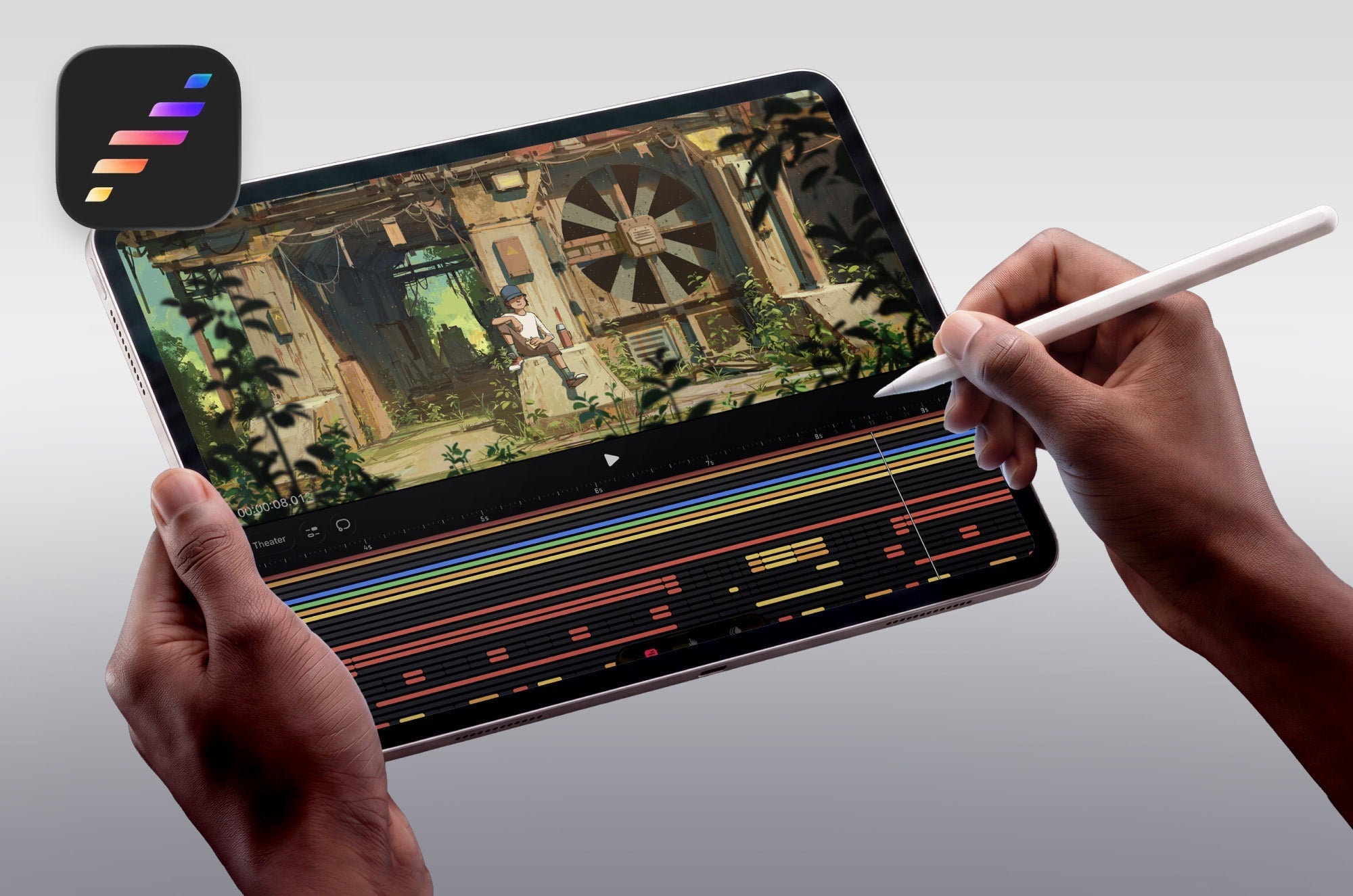
If drawing is a difficult skill to master, animation is even harder. How could a beginner learn animation if they're interested in the medium but don't understand the process? This is where the iPad comes in to save the day.
Apps can bring your work to life with a few taps, and there's also a lot of support for seasoned animators and professionals to streamline their workflows.
Animation has never been more accessible, thanks to tools like the iPad and powerful apps like the ones we'll explore. Let's dig into what makes these apps great and how to use them.
Digital animation
Animation has lived many lives since its early beginnings in the late 19th century. We've seen the transition from traditional hand-drawn animation with cel sheets to the ability to animate on the go with our iPads. A lot has changed.
And even within animation, there are many different styles and ways to play with the medium, making it uniquely magical each time. While feature-length and commercial-grade animation is seen as being the work of big studios with the best tools, the apps on this list might surprise you with the power of their capabilities.
You might've already seen our guide on the 15 best iPad digital drawing apps, and we'll see some of those same apps here. We'll focus on apps that offer a range of capabilities, including animation, and on dedicated animation apps. Let's see how to choose the right app type for iPad animation.
Choosing the right app
While many digital drawing apps offer animation features, they differ from apps designed solely for animation. That's why you'll find two types of apps on this list: general and specialized.
General apps are digital drawing apps with animation features, but that's not their primary and only function. They're known for their beautiful brush libraries and how well they streamline your drawing process.
Digital drawing apps offer animation features that won't overwhelm you with too many complex options, so they're ideal for beginners. You'll find that creating short, simple scenes is easier in apps like this.
Specialized apps that were built for animation typically offer more fine-tuned control over your animations and additional features you might not find in a general digital drawing app.
The good thing is that even basic knowledge of common digital drawing apps gives you a good foundation for using animation apps. Many specialized apps also let you add audio tracks, allowing you to create entire features.
Depending on your comfort with digital drawing apps and the level of detail and control you want in your projects, you'll choose the app type that's best for you.

Procreate
Recommended for: Beginner animators, animating GIFs, creating animated scenes, animating illustrations
| Feature | Details |
| Price | $12.99 |
| App Category | General |
| Compatibility | iPad, iPhone |
| Links | Download | Website |
Procreate was one of the first digital drawing apps for the iPad, launching in 2011. Since then, it's grown into one of the most popular iPad drawing apps, with millions of users worldwide. For animation, the Animation Assist feature transforms your layers into frames.
You can find the feature in the Actions menu and turn it on with a simple toggle. From there, your timeline will appear at the bottom of your screen with Playback, Settings, and an Add Frame option. Your settings will be where you access your frames per second and Onion skins. The Onion skins help you preview previous and future frames on your timeline, creating more fluid motion.
Once you're done, you can export your work as a GIF, PNG sequence, or MP4. It's pretty amazing the types of results you can achieve, and it's relatively easy for users of all skill levels. You can get started learning how to animate in Procreate with this short video on their YouTube channel.

Procreate Dreams
Recommended for: Intermediate to advanced animators, animating GIFs, creating animated scenes, animated features with audio, and animating illustrations
| Feature | Details |
| Price | $12.99 |
| App Category | Specialized |
| Compatibility | iPad, iPhone |
| Links | Download | Website |
Procreate Dreams is the newest app from Savage Interactive, the company behind Procreate. It's a 2D specialty animation app that was designed with more tools and features, like Flip Book, which lets you create entire animations within a single Track.
Tracks work like layers, keeping your content organized and in sequence. Anything added to tracks, such as Flipbooks, videos, and audio, is called content. A unique aspect of animating in Procreate Dreams is its three modes: Compose, Perform, and Keyframe. Compose is used to organize tracks; Perform can be used to record your elements' movements to create automatic keyframes; and Keyframe allows you to add, edit, and modify properties over time.
You can create with the beauty of the Procreate brush engine, and import or drag your files from Procreate to animate. Unlike in Procreate, you can import audio files into Procreate Dreams to make entire movies in the app. Procreate Dreams 2.0 is ready for you to animate and reimagine your illustrations.

Adobe Fresco
Recommended for: Beginner animators, animating GIFs, creating animated scenes, and animating illustrations
| Feature | Details |
| Price | Free; Premium from $9.99/yr. |
| App Category | General |
| Compatibility | iPad, iPhone |
| Links | Download | Website |
Adobe Fresco is a digital drawing app with a massive brush library and beginner-friendly animation features. This includes animation types: motion path and frame-by-frame.
You can use frame-by-frame to transform any layer into an animation timeline. From there, you can add an unlimited number of frames to your timeline to create dynamic movement. On your timeline, you'll also find Settings where you can control your frames per second, playback settings, and Onion skins.
For animation novices, motion paths are available. This lets you take any element on your canvas and have it follow the path of any drawn stroke. There's also the Pose feature, which lets you reposition your illustrations to create simple motion.
In your Layer properties menu, you can add one-tap motion presets from 10 different options. There are also Advanced settings that let you fine-tune your work using sliders and values such as Grow/Shrink, Rotate, and more.
Any of these forms of animation can be combined to create more complex animations. Under the Learn tab on the homescreen, take an in-app tutorial on the different ways to animate in Adobe Fresco.

Adobe Express
Recommended for: Beginner animators, creating animated scenes, animating social media posts, adding audio, and animating Adobe assets
| Feature | Details |
| Price | Free; Premium with Adobe subscriptions |
| App Category | General |
| Compatibility | iPad, iPhone |
| Links | Download | Website |
Adobe Express is a template-based design app that lets you create anything, from social posts and videos to GIFs and web pages. Among its robust features are one-tap animation tools that bring your work to life almost instantly. Your timeline uses scenes to build out your animation. You can split them, add transitions, and add additional media. Choose animation presets from dozens of options, and then edit them further with sliders to adjust duration and other effects.
Using Animate All automatically applies dynamic motion to your content, including objects and text. It ensures your work's movement looks natural while still allowing you to go back and make edits. Because Adobe Express isn't a drawing app, you can use Linked Assets that can import your work from other Adobe programs like Photoshop and Illustrator.
Not an illustrator? You can choose from a selection of animated characters and add audio to sync with their avatar. You can search through different backgrounds, adjust their scale, and more. Get the most out of animating in Adobe Express through their guide.

Linearity Move
Recommended for: Beginner animators, creating animated scenes, animating social media posts, adding audio, and animating Adobe Illustrator assets
| Feature | Details |
| Price | Free; $14.99/month |
| App Category | Specialized |
| Compatibility | iPad, iPhone |
| Links | Download | Website |
Linearity Move is the companion app to Linearity Curve, a vector-based design app. Linearity Move is for designers and motion creatives who want a more fluid animation experience. Even if you don't have Curve installed, you can create your designs using Design mode before switching to Animate mode.
You can control your animations based on keyframes you assign and edit. They include properties like blur, opacity, rotation, size, position, and more. If you don't want to edit your own keyframes, you can use Presets to save time and reduce the learning curve.
One of the benefits of using Move for animation is its easy-to-navigate UI. Each animation is made of scenes that have their own layers to keep your graphics or illustrations organized. You can also use their pre-made animated assets, such as bells, buttons, and charts. Their educational tutorial library is free to help you learn how to make the most of the app's features.

Clip Studio Paint
Recommended for: Intermediate to advanced animators, creating animated scenes, cel animation, adding audio, animating GIFs, and illustrations
| Feature | Details |
| Price | Free; From $4.89/month |
| App Category | General |
| Compatibility | iPad, iPhone, Android, Windows, Mac |
| Links | Download | Website |
Clip Studio Paint is a widely supported drawing app that's great for illustrators, comic book, and manga artists. When it comes to animating within the program, if you have a Pro version of Clip Studio Paint, you'll have a few limitations, such as single-page animations and a frame limit. With the Ex version, you can enjoy animating without restriction.
Their timeline is where you'll start to create frame-by-frame animation. In Studio Mode, you have extensive control over menu and toolset customization, and I recommend adjusting your Quick Access Settings so you have all the tools you need at hand.
A unique part of using Clip Studio Paint for animating is that you can also use cel animation. These allow you to create quick, repeatable actions, such as blinking, waving, or talking mouths, without having to constantly duplicate frames.
An added benefit is that you can draw in vector or raster to give your work the look and feel you want. Combine camera effects with frame-by-frame animation to create dynamic movement and effects in your scenes. Clip Studio Paint has a library of helpful animation tutorials on its site and across YouTube.

Rough Animator
Recommended for: Beginner animators, creating animated scenes, and animating illustrations
| Feature | Details |
| Price | $7.99 |
| App Category | Specialized |
| Compatibility | iPad, iPhone |
| Links | Download | Website |
Animator Jacob Kafka created Rough Animator for beginner and advanced animators. The app has enough power for professionals while still being intuitive enough for those just starting their animation journey.
It uses basic tools and a clean layout to help you create beautiful frame-by-frame animations. Start from a new project or import your own work to start animating. What the program lacks in flair, it makes up for in a clean interface. You'll also enjoy unlimited layers, playback preview, and scrubbing along your timeline.
The brush engine only has three options, but it feels like animating by hand on real paper. You can also import audio for lip-syncing and background music. Jump into learning RoughAnimator for iPad and creating fun animations with their helpful user guide.

ToonSquid
Recommended for: Beginner animators, creating animated scenes, animating GIFs, adding audio, and animating illustrations
| Feature | Details |
| Price | $9.99 |
| App Category | Specialized |
| Compatibility | iPad, iPhone |
| Links | Download | Website |
In ToonSquid, you can animate in the traditional way, frame-by-frame, or let its key frames do the work for you. It's easy to get started thanks to its simple interface and basic tools you'd find in any digital drawing app. It also features fully customizable pixel and vector brushes for sketching, inking, coloring, and more.
Where ToonSquid stands out is its ease of frame control. They're easy to drag and extend across your timeline, and you can add new frames between existing ones.
Each of your frames has its own set of layers, similar to Procreate Dreams. This helps keep your work organized as you add more Animation Layers to your timeline.
You save time by animating an element once and being able to apply changes to all instances. Keyframes are also approachable because they can be copied and pasted anywhere on your timeline. Keyframe paths can also be edited directly on your canvas to change how your animation moves.
To learn more about how to use ToonSquid, watch their videos on YouTube.

Animation Desk
Recommended for: Beginner animators, creating animated scenes, animating GIFs, adding audio, and animating illustrations
| Feature | Details |
| Price | Free; Premium from $4.49/month |
| App Category | Specialized |
| Compatibility | iPad, iPhone, Android, Windows |
| Links | Download | Website |
Animation Desk stands out for its fun, workspace-inspired interface and helpful features that make animation easier. It's nice to see that they offer in-app tutorial pop-up videos to help you learn key tools and features and get started.
You start by creating a sequence. There's an expanded frame view to help you see all your frames on screen at once, which can be helpful when working on animations with a lot of frames.
To better organize your frames, add labels and colored tags to make them easy to identify. Onion skins are available in the settings menu, along with grids, and any other edits you want to make to your sequence.
You can even import Photoshop layers and export your project to Photoshop to create more dynamic animations on your desktop. You'll also have fun adding music from your device to your animations.
One of the few drawbacks of the app is the presence of ads and limited tool options. If you're not ready to upgrade to premium, you can unlock a number of premium features with a free Kdan ID.

FlipaClip
Recommended for: Beginner animators, creating animated scenes, animating GIFs, adding audio, and animating illustrations
| Feature | Details |
| Price | Free; $5.99/month |
| App Category | Specialized |
| Compatibility | iPad, iPhone |
| Links | Download | Website |
FlipaClip emphasizes being simple, intuitive, and fun for pros and beginners. It helps you get started with a basic bouncing-ball animation using an in-app tutorial.
While its toolset may feel limited, it shows its focus on the basics. They also do a great job of showing you preview examples to demonstrate animation concepts, such as frames per second.
To start your project, choose your resolution and frames per second. In your project timeline, your Onion skins are automatically enabled, so you can keep track of your previous and future frames. For premium users, each of your frames can have up to 10 layers to help you add details.
If you upgrade, you’ll also be able to use their special Voice Maker AI features and remove the FlipaClip watermark from your exports. Import your own existing video clips to add additional animations and flair directly in the app.
FlipaClip has a massive library of in-app challenge files that you can use as starting points for learning new animation concepts. It’ll also help you develop storyboards, characters, and other skills that can help strengthen your overall animation.

Canva
Recommended for: Beginner animators, creating animated scenes, animating social media posts, adding audio, and animating Adobe assets
| Feature | Details |
| Price | Free; Premium from $15/month |
| App Category | General |
| Compatibility | iPad, iPhone |
| Links | Download | Website |
Canva is a powerhouse design suite that you can use to create social posts, spreadsheets, emails, and more. Among its impressive features are easy-to-use animation and video tools that can transform your static designs.
Unlike many of the other apps on this list, Canva is not primarily a drawing app; it’s more like Adobe Express, InDesign, and Photoshop.
To animate, select any element on your canvas and choose from the preset options. Similar to Adobe Express, you can animate everything on your canvas with Page animation features. If you’re a Canva Pro user, you can take this to the next level with Magic Animate to apply dynamic motion to all pages of your document.
Similar to Fresco, your elements can also follow drawn motion paths on your canvas. There are plenty of options for users to animate text, images, and more with one tap. If you upgrade to Canva Pro, you’ll gain access to fine-tuning slider features like intensity, speed, and direction.
Through Canva Design School, you can learn all about animating in the program with hands-on activities.
Final thoughts
Animation doesn't have to be intimidating. The drawing and animation apps for iPad are designed to help you succeed. No matter which app you choose, there's no wrong way to animate. Remember to have fun and embrace the basics. If you're willing to be a playful beginner again, you’ll succeed no matter which app you choose.
If you want to build a strong foundation, the principles of animation are a great place to begin. From there, you can try to animate your own work. It’s an opportunity to see your art in a new light and take risks, all while learning something new.
Frequently Asked Questions
What are Onion skins?
A: Your frames are where you draw your animation, and Onion skins are what let you see what you’ve already drawn on your other frames. This is how you’ll know what to draw next to create fluid motion. This concept is borrowed from traditional animation, where it was done on semitransparent paper.
Much like its name, you build your animation through layers of frames. Keyframes are a bit different from frame-by-frame animation. You start by assigning values to properties of keyframes. Those properties could be size, rotation, color, etc. Then you can add keyframes of different values along your timeline to create your animation. This is at the core of motion graphics programs like Adobe After Effects.
Which animation app is best for beginners?
A: The app you choose will come down to your personal preferences and your current digital drawing apps. For example, transitioning from Procreate to Procreate Dreams makes sense with your current workflow. Any background in digital drawing will also make it easier to switch to a specialized app with a more straightforward interface, like Animation Desk, FlipaClip, or ToonSquid. Other apps, like Canva and Adobe Express, have one-tap animation features that don't require you to animate manually.
Are general apps better than specialized apps for animation?
A: You might already be using a digital drawing app that offers animation. Apps like Procreate and Fresco are among the most popular drawing apps and offer animation tools. Using either is a great way to familiarize yourself with the basics of animation before jumping into a dedicated animation app. You can learn more about Procreate and Adobe Fresco and how their animation capabilities compare.
Is animating in Procreate Dreams better than using Procreate?
A: You can achieve impressive results in animation with either program. It's easier to get started in Procreate because you don't have to worry about as many tools and features. Procreate Dreams offers more robust features and settings to help you create more complex animations that can also include audio tracks. Procreate is a great app to learn for beginners in digital drawing and animation.
Can I create good animations with a free app?
A: You don't have to pay to start in digital animation. While apps like FlipaClip, Canva, and Linearity Move are free, you will start with limited tools and features. It’s great because there’s no barrier to entry, but you’ll have to weigh potential trade-offs as you progress. Apps like Procreate let you pay once, without worrying about subscriptions, and offer high-quality brushes that you can use for drawing and animation.
What are the key features I should look for in an animation app?
A: A good animation app will offer a solid brush selection and a timeline that lets you adjust your frame settings. Standard settings include adding frames, frame speed, and opacity. Adjusting your frame speed will make your animation smoother. Adjusting the opacity of your Onion skins will give you the level of visibility you want when drawing your next frame.
It's also recommended to animate using your Apple Pencil or stylus rather than your fingers. Paperlike Pencil Tips and Pencil Grips will make it more comfortable and give you more control as you work.
Weiterlesen
 Alanna Flowers
 Alanna Flowers
