When you first get an iPad, writing on glass is a novelty. It’s smooth, fast, and visually sharp.
But after testing it for a bit, you might notice that your handwriting or drawings are sloppier and your hand feels more fatigued.
That’s because the glass “default” doesn’t have the drag that you’d feel when writing on paper. Your lines and strokes don’t land where you intended, so you start to press harder to gain control.
Over time, those small adjustments add up. Your hand aches from the pressure, and your focus shifts from drafting the idea to stabilizing your hand.
But you know all of this. That’s probably why you’re reading this review.
So the question remains: does adding tactile resistance actually do anything to improve daily use?
| The 2.4M+ User Test | |
| If you primarily use your iPad for... | Paperlike Verdict |
| Daily handwritten notes (Goodnotes, Notability) | ✅ Worth it |
| Long drawing sessions (Procreate, illustration) | ✅ Worth it |
| PDF annotation for school or research | ✅ Worth it |
| Professional writing or drafting | ✅ Worth it |
| Occasional Apple Pencil use | ⚖️ Depends |
| Mostly streaming, browsing, or media | ❌ Not necessary |
| You prefer an ultra-slick glass feel | ❌ Not for you |
The physics of focus
Writing is physical before it’s mental.
On glass, the Apple Pencil moves almost too easily. It glides with very little resistance. That’s fine if you don’t use a stylus often, or if tapping on the screen is good enough.
But if writing or drawing is part of your daily life, the lack of friction on the screen forces your hand to tighten your grip or work more slowly for better control.
The bad news? Most of that happens without you realizing it.
Plain glass also tends to collect fingerprints and other debris, which can affect your Apple Pencil's performance. Dust or dirt might cause your lines to skip, while greasy smears can cause squiggly strokes.
So be on the lookout for these two signs that glass just isn’t cutting it: your handwriting or drawings look sloppy, and your hand starts to cramp if you work for any substantial length of time.
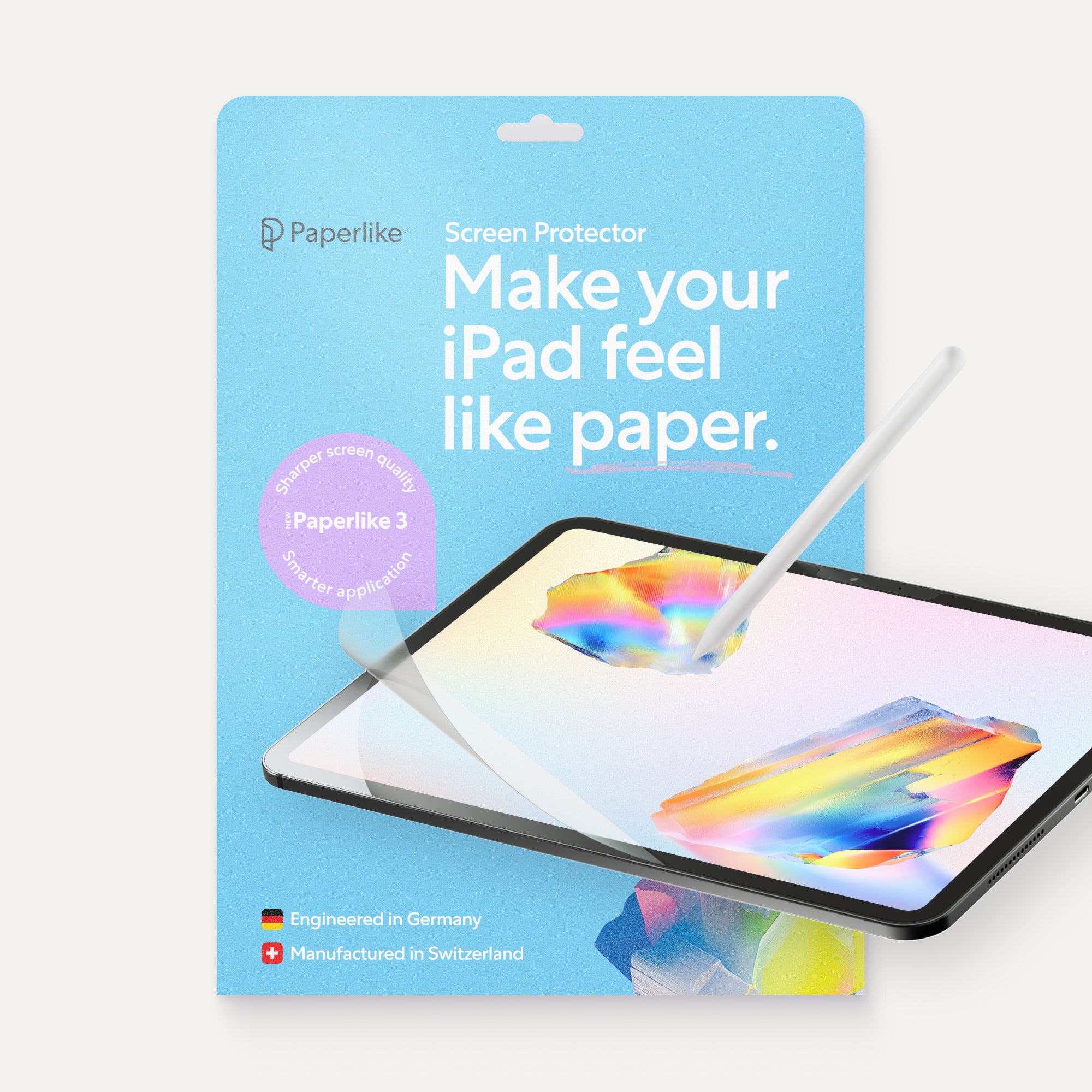
Enter: Paperlike.
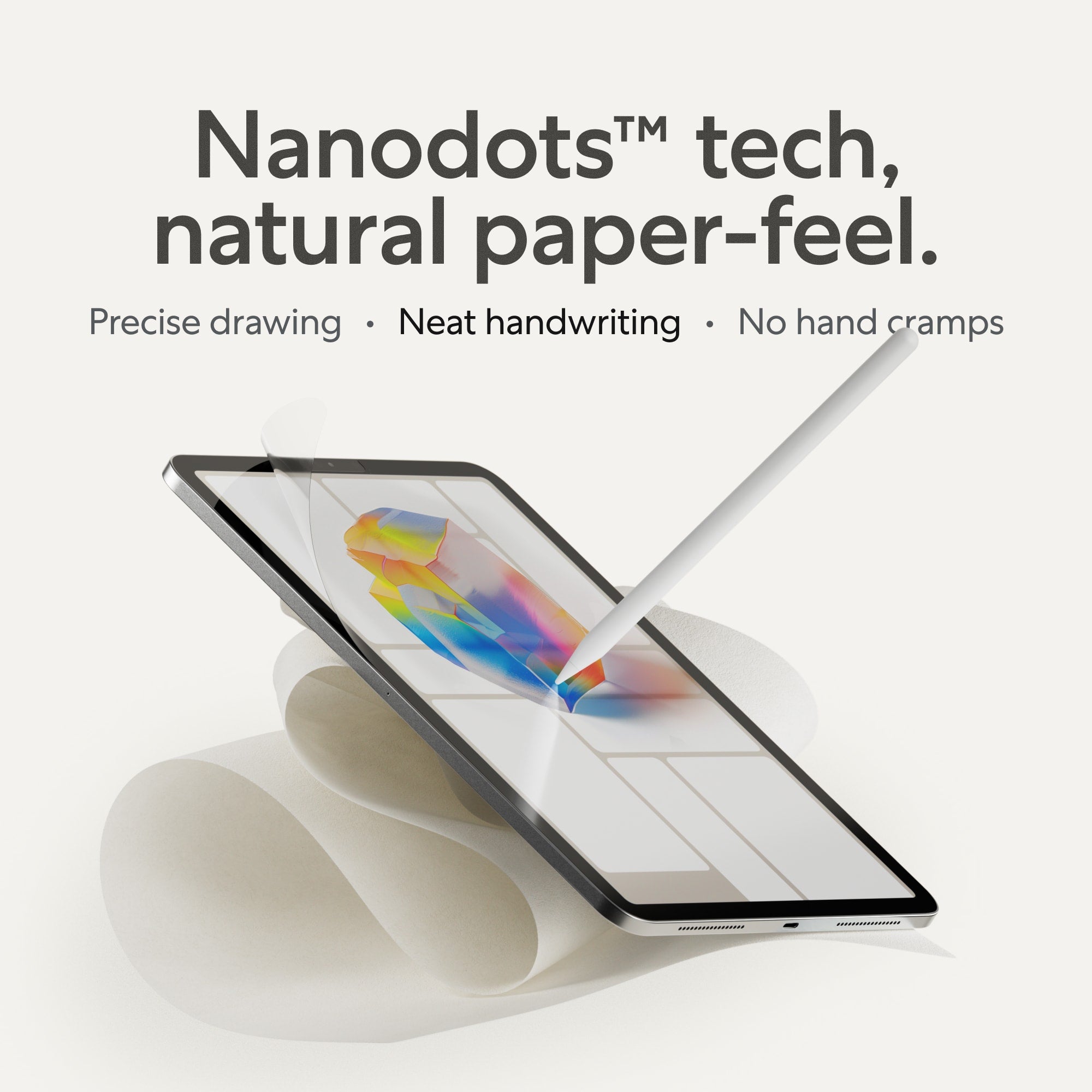
Its Nanodots™ surface technology adds micro-texture to the entire screen, providing the ideal friction your hand naturally expects when writing on paper.
This tactile resistance puts control of your strokes back in your hands. Added texture means no wayward lines slipping on glass. No tensing your hand or pressing as hard with the Apple Pencil to keep your lines straight and true.
The Nanodots technology also mitigates the issues caused by a dirty screen. Because it creates tiny peaks that the Apple Pencil glides over, dust and debris naturally fall between them so that your Pencil never touches them. This gives you a smooth stroke every time.
It seems like a small thing. But across pages of notes or a long sketch session, it adds up. Now you can have more time concentrating on notes, on art, on study guides — and less time worried about the process.
That’s the physics behind it. A thin layer of friction that helps the Pencil behave more like it would on paper.
And when your hand feels steady and more comfortable, it’s easier to stay focused on your work.

What 2.4+ million users say
A single review is an opinion. More than two million users is a pattern. Here’s what that pattern looks like across creatives, students, and everyday professionals.
Creatives
For artists and writers, friction affects how the Pencil moves. On smooth glass, it’s easy for strokes to drift slightly or run a little longer than intended. Paperlike gives your iPad the natural feel of paper.
I’ve been using an iPad as a professional illustrator for the past 10 years, and I’ve tried nearly every screen protector out there. Most of them still felt like drawing on glass, which was a huge turnoff for me. When I tried Paperlike five years ago, I immediately noticed the difference: drawing felt more natural and intuitive, without my hand slipping across the screen or that annoying plastic sound other protectors make. I’d never go back: if you want an iPad that feels more like drawing on paper, Paperlike is the answer.
Illustrator, @art_bymemo
Drawing on glass just feels wrong! That‘s why Paperlike is a necessity for me to animate comfortably all day on the iPad.
Lettering and animation, @stefankunz
This one is our favourite, providing easy use, solid protection, and a wonderful drawing experience. Made with (and by) design professionals and artists, this protector is designed to give your iPad the feel of paper under your stylus – and that's exactly how it performed when we tested it.
We didn't understand the craze for digital drawing until we got a Paperlike Screen Protector. Now, we're able to keep the handmade touch in all our projects, while speeding up our workflow and experimenting with new tools. We honestly can't imagine working without it!
Owners of Goodtype
I was a bit skeptical about the Paperlike Screen Protector when I first heard of it. I do a lot of illustration on my iPad, and I've always hated that slippery feeling of drawing with the Apple Pencil on the screen. The Paperlike Screen Protector absolutely changed my experience and turned it into something pleasurable. Just like they advertise, it feels like writing on paper. I just LOVE it so much! I recommend it to anyone who works on their iPad. It's such a wonderful product! Thank you guys for creating something for those of us who create on the iPads! LOVE! LOVE! LOVE IT!
Across artist reviews, the theme isn’t hype. It’s relief. The surface feels natural enough that they stop fighting it and start focusing on the work.
Students & professionals
When your iPad replaces notebooks entirely, friction becomes a necessity. Long study sessions, heavy PDF annotation, and handwritten notes for meetings demand comfort and endurance. Paperlike makes that possible.
It honestly feels like writing in my real notebook again. During university, I spent hours taking digital notes, and switching from a clear glass protector to Paperlike made my handwriting more precise and comfortable, even during long study sessions.
Lifestyle, beauty & wellness creator, heyyamandav
I used my iPad like a giant phone. I really started to wonder why I bothered getting an iPad in the first place. But then... I got Paperlike and found Goodnotes (thanks to your blog or newsletter, I can't remember which) and - wow! That completely changed how I use my iPad. Now my iPad is for thinking, journaling, and working out how to approach a new video or a construction problem. And I use it to illustrate instructions for videos, blog posts, and answers to emails.
I love the paper-feel texture that makes drawing and notetaking feel so much more natural. For someone who loves the feel of pen on paper, it’s the thing that finally made my iPad feel like a creative tool instead of just a screen.
Tech, self-care & productivity, @studywithara
I like to write, although I don’t have nice handwriting. My once obsession was looking for comfortable fountain pens to write with… but with the computer and keyboard, it’s much less today. Now, I use my iPad.
The nanodots on Paperlike 3 is far better than the earlier ones. It does not leave scratches or indents so easily.
So, with these experiences, I say your solutions are essential for me to work better on my iPad.
I’ve been using Paperlike for almost a decade as an iPad Pro-first user, and it’s still the first accessory I recommend to anyone getting a new iPad. The paper-feel resistance makes using the Apple Pencil feel amazing.
9to5Mac
Students and professionals aren’t just raving about comfort. It’s about the shift in how the iPad gets used. It stops being a screen and starts becoming a place to think.

Paperlike vs. the field
When choosing your next iPad screen protector, don’t just consider brand names. (Though, we do admit, we are the OG paper-feel brand.) Think about what you want your screen protector to do.
They all offer some protection for your screen, but most also include at least one additional feature.
Writing on a glass screen (whether it’s the iPad itself or a glass screen protector) feels smooth, and your Apple Pencil glides effortlessly. Clarity is usually the top priority.
If budget is top of mind, you may have been eyeing the cheap alternatives (i.e., $5 Amazon knock-offs). Great for the wallet, not great for the long term. They offer protection but often compromise on feel and durability.
Then there are screen protectors that are engineered specifically for handwriting and drawing. These add texture to the screen, giving it that ‘paper feel.’
The difference between these options may look and feel cosmetic. But the real value lies in how the surface responds to the Apple Pencil.
Paperlike vs. Glass
Let’s start with the default. Glass is how the iPad appears right out of the box, so is a glass screen protector the same thing? It does provide the same level of clarity and very little resistance when writing as plain glass does.
For media and general navigation, this makes sense. You want to quickly scroll through your feed or search for the latest TV show or movie with as little friction as possible (metaphorically and literally).
But if you’re using an Apple Pencil regularly to take notes, draw, or use a digital planner, glass falters. Your Pencil tip slips and slides, making it harder to control your strokes.
Even beyond that, glass screen protectors are much thicker (three times thicker than Apple’s recommended thickness), which interferes with the sensors that track the Apple Pencil. In short, they can cause perceived lag, as well as broken and stuttered lines.
Paperlike changes the whole feel of your screen. It offers the same bit of resistance you’d feel if you were writing with a pen on paper. It’s also thinner than a human hair, which means it meets Apple’s standards, a.k.a. it won’t affect Apple Pencil responsiveness and precision.
And here’s the tea: yes, it does reduce your display’s brightness. But so does anything you’d put on top of the original screen (that’s physics). The refined Nanodots surface keeps this effect to a minimum, especially compared to other paper-feel protectors.
If you care most about a smooth, untouched display, glass delivers that. If you care about how the surface feels while you’re actually writing, that’s where the experience starts to differ.
| Paperlike vs. Glass | ||
| Feature | Glass | Paperlike |
| Friction | None | Controlled |
| Clarity | Perfect | Slight diffusion |
| Stroke stability | Lower | Higher |
| Best for | Media consumption | Handwriting & drawing |
Paperlike vs. Amazon alternatives
Search Paperlike on Amazon, and you’re bound to find a bunch of screen protectors that claim to give the iPad a paper feel. So, how are these different from Paperlike?
Low-cost screen protectors provide that feeling by adding a rough texture to your iPad's surface. Its gritty, sandpaper-like feel does the job, but not without its drawbacks.
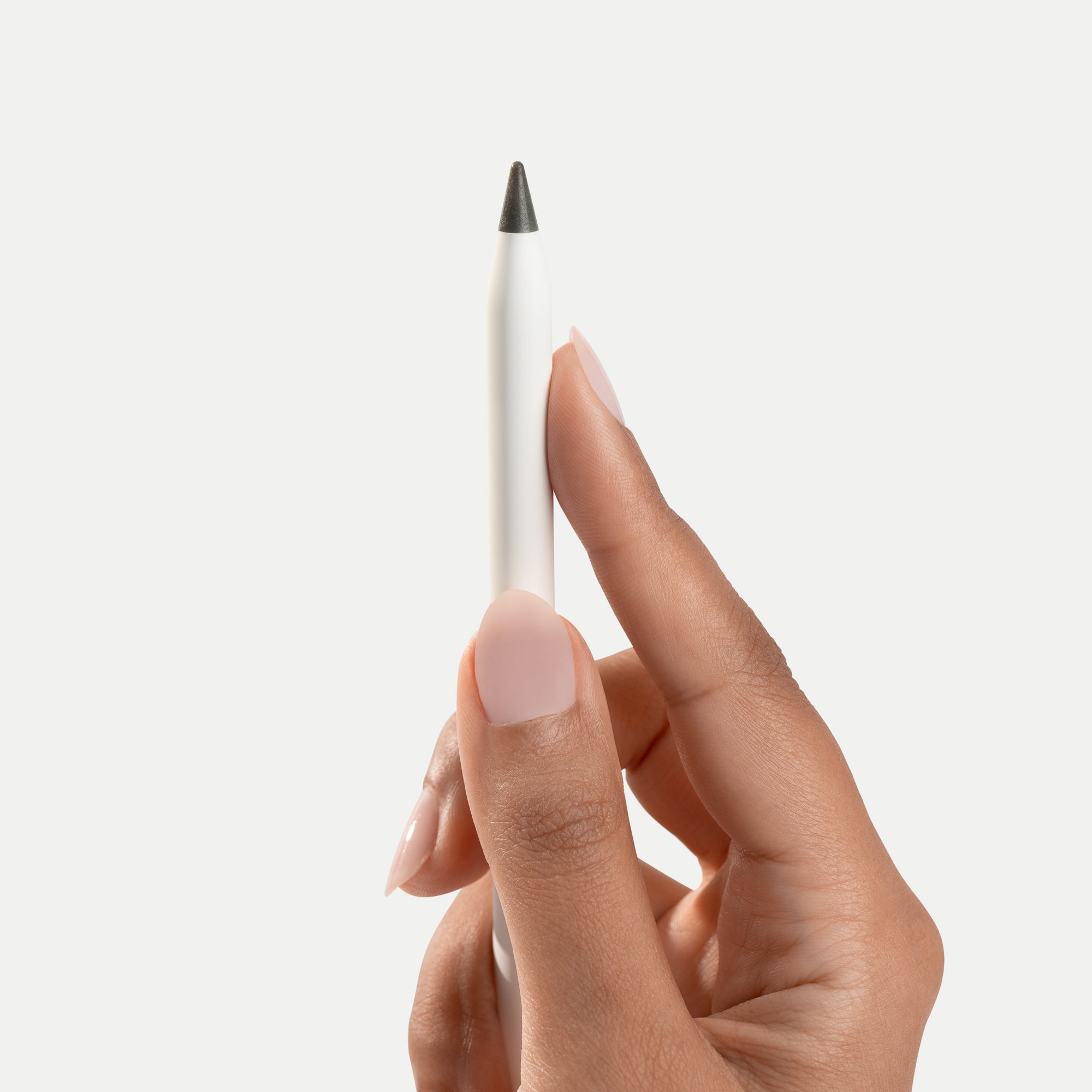
While you do get more friction from its artless surface texture, the grit wears down your Apple Pencil tip, which could lead to scratches in the future.
“Sure,” you might think. “If it’s only a few bucks, I can just replace the screen protector more often.” But those purchases add up, and that’s not even including how it affects stylus sensitivity.
Cheap alternatives use thicker material (though not as thick as glass protectors), which exceeds Apple’s specified maximum foil thickness. As mentioned above, the more space between the screen and the Apple Pencil Tip, the more room for error. These thicker screen protector options make the Apple Pencil less responsive and cause your writing to be wobbly or slightly off. The material also bends the light coming from your iPad’s LEDs or OLEDs, causing refractions and rainbow effects.
Paperlike has rigorously tested the Nanodots surface to balance friction and smoothness without chewing through your Apple Pencil. (Siri, cue “Best of Both Worlds” by Hannah Montana.)
Even better: it’s so thin it won’t affect your Apple Pencil performance. When it comes to clarity, the Nanodots surface technology has been iterated and refined over years of customer feedback, so you get a clear screen with minimal light refractions.
| Paperlike vs. Amazon alternatives | ||
| Feature | Amazon alternatives | Paperlike |
| Friction | Can feel rough, like sandpaper | Controlled resistance |
| Clarity | Refractions and rainbow effects | Minimal refractions |
| Responsiveness | Reduced | Preserves full Pencil accuracy |
| Nib wear | Can increase wear quickly | Optimized for minimal wear |
| Best for | Fast & easy fixes for those on a budget who don't use their iPads a lot. | Quality, long-term solution for hobbyists & professionals alike. |

Is Paperlike right for you?
Paperlike isn’t a universal upgrade. It’s a performance upgrade.
Whether it’s worth it depends entirely on how you use your iPad. Ask yourself one question. Is your iPad primarily for consuming content or creating it?
It’s likely right for you if:
- You write or draw for 30 minutes or more at a time. That’s when the slickness of glass starts to show up. The tiny adjustments you make to stay precise begin to compound. A textured surface can ease that constant tension in your hand, making longer sessions feel noticeably more comfortable.
- You take handwritten notes daily. When most of your input happens through the Pencil, how the surface feels matters. After a few pages, you notice whether you’re fighting against glass or settling into the flow.
- You want neat handwriting on the iPad. Glass doesn’t give your Apple Pencil any grip, leading to sloppy letters and overshot strokes. A bit of texture changes that. With a little more tactile feedback, your friend who’s copying your notes will thank you later.
- You annotate PDFs or study heavily. Marking up dense documents for an hour or two is different from jotting a quick note. If the tip keeps sliding, your strokes don’t always land where you want them to. A bit of resistance helps things stay more reliable, especially when you’re moving quickly between highlights, underlines, and margin notes.
- You use apps like Goodnotes, Notability, or Procreate seriously. These apps are built around precision. Paperlike complements that by providing a more natural experience for writing and drawing.
It’s probably not for you if:
- You mainly watch Netflix or YouTube. If visual sharpness is your top priority, you may prefer having plain glass.
- You rarely use an Apple Pencil. Friction only matters when you’re writing or drawing regularly.
- You love the ultra-slick glass feel. Some people genuinely prefer zero resistance. There’s nothing wrong with that.
Paperlike isn’t about changing how your iPad looks. It’s about supporting how you work.
FAQs
Is Paperlike worth it for notetaking?
If handwritten notes are a core part of how you use your iPad, then Paperlike is well worth the purchase. The resistance that it adds to your screen makes digital notes feel as natural as pen on paper. Not only is this more comfortable for your hand and wrist, but it also makes it easier to keep your handwriting neat and legible.
If you only take occasional notes, the difference may feel less significant.
Does Paperlike wear out Apple Pencil tips?
Any textured surface will wear a Pencil tip down faster than bare glass. That’s the trade-off when you add friction.
The difference comes down to how aggressive that texture is. Some matte protectors feel almost gritty and can chew through a tip surprisingly quickly. Paperlike’s texture is much finer, so while you will see gradual wear over time, it isn’t harsh or sandpaper-like.
Most people who write regularly end up replacing their Pencil tip every six months, depending on how heavily they use it. If you write daily, you’ll notice wear sooner. If you sketch occasionally, it may take longer.
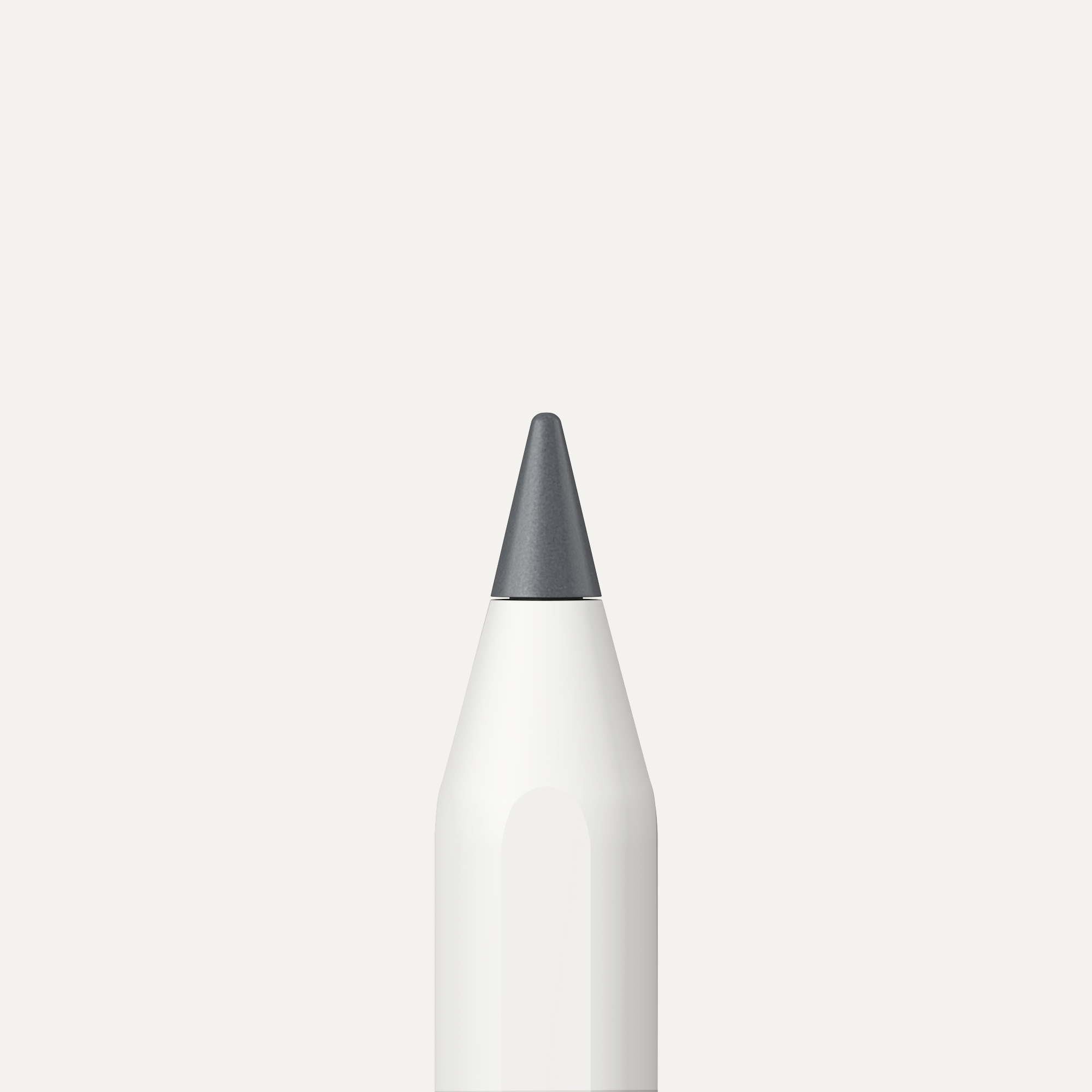
If durability is a priority, reinforced Pencil tips are also available and can further extend lifespan.
How long does Paperlike last?
It depends on usage. If you’re a heavy user (think daily writing or drawing), Paperlike can last several months to years. If you’re an occasional user, you might never need to replace it.
The good news is that every pack comes with two screen protectors, so you’ve got a backup when you need it.
Does Paperlike affect Apple Pencil latency or palm rejection?
No. Paperlike doesn’t change the iPad’s ability to detect the Apple Pencil, the refresh rate, or software behavior. It only changes the surface texture. Since Paperlike is under Apple’s maximum screen protector thickness (thinner than a human hair!), latency and palm rejection function the same as they would on bare glass.
Can you remove Paperlike without damaging the screen?
Yes. You can remove it cleanly without harming the display underneath. Like most screen protectors, it uses an adhesive layer that can be removed safely when done carefully.
Is Paperlike hard to install?
Paperlike 3 uses the new Butterfly Application System, which is designed to make setup easier, cleaner, and more reliable than older screen protectors.
The kit includes an interactive on-screen guide you can follow step by step. There’s also a Helper Tool and a built-in dust-capture process that help with alignment and reduce bubbles and dust during application.

Is it worth it?
Listen: glass is great for a lot of things. Writing just isn’t one of them.
Don’t get us wrong. The iPad is our founder Jan’s favorite tool. The display is sharp, the Pencil is precise, and there are new and better apps and upgrades every year. But that doesn’t change the fact that when you’re writing or drawing, you’re still working on a sheet of glass.
If you use the Apple Pencil regularly, how the iPad's surface feels is important. It affects how your handwriting looks, how comfortable you feel during long notetaking sessions, and how natural your sketches look and feel.
By adding a subtle texture and resistance to the screen, your handwriting and drawing feel more natural, as easy and familiar as putting pen to paper.
And that’s the point. Feel isn’t a finishing touch. For us, it’s the whole product.