
When I was in college, I lugged around a backpack full of half-used notebooks and assorted pens and highlighters. I wish iPads had been around then. It would have made things so much easier.
With an iPad, you can take notes, make flashcards, organize assignments, and prep for exams, all on one device. Plus, now there are all kinds of study apps to make it even easier.
I’ve gathered some of the best study apps for college students that I’d recommend and divided them up based on their use cases, so you can find the ones that will work best for you. Let’s take a look.
| Best for... | Study apps |
| Flashcards & memorization | Quizlet, GoConqr |
| Handwritten notes | Goodnotes, Notability |
| Turning handwriting into text | MyScript Notes |
| Research & PDF annotation | LiquidText, MarginNote 4 |
| Homework & study help | Chegg, Brainly, Nerd AI |
| Projects & presentations | Freeform, Canva, Prezi |
| Staying focused | Forest, Freedom, FocusPomo |
| Managing deadlines | Paperlike Pro Planner, Todoist |
Best for flashcards & memorization
Flashcards have been around forever, and we all know how useful they are when it comes to memorizing information, whether that’s vocabulary, important dates, or key concepts.
There are a ton of options out there (see our guide on the top choices), but these two both stand out for different reasons.

Quizlet
| Price | Free; $35.99/year for Quizlet Plus; $44.99/year for Quizlet Plus Unlimited |
| Best for | Memorizing vocabulary, definitions, and key concepts. |
| Links | Website | App Store |
I love using Quizlet to memorize information. It’s so much easier than when I was in school. You can create your own flashcard sets, but the cool thing is that you’ll have access to a ton of sets that other students have already made, so you might be able to find what you need with practically no effort.
What I really like about Quizlet is that there are a bunch of ways to study. You can flip through the flashcards, but you can also test yourself with practice questions or take quizzes to see how much you already know.
You can use it on desktop or your iPad, and that convenience makes it easy to study in the dorm or on the go.

GoConqr
| Price | Free; $12.99/year for Student plan |
| Best for | Combining flashcards with visual study tools like mind maps and quizzes. |
| Links | Website |
If you’re more of a visual learner, GoConqr is another good option. It has flashcards and quizzes, like Quizlet (though I do prefer Quizlet’s), but it also lets you create mind maps, flowcharts, and notes.
What I like about this approach is that you’re not stuck with just memorizing facts. For example, if you’re in a biology class, you could use flashcards to test yourself on the vocab, but then switch to true or false questions to learn the concepts. Sometimes mixing it up helps you remember everything better.
While it’s not available as an iPad app, the website does offer a mobile-friendly version that’s easy to use. And, like Quizlet, you can also explore materials that other users have shared, so you’re not stuck creating everything from scratch.
Best for handwritten notes
I prefer taking notes by hand (and you remember more when you do), but I’d still use an iPad paired with a great note-taking app rather than hauling around a separate notebook for each class.
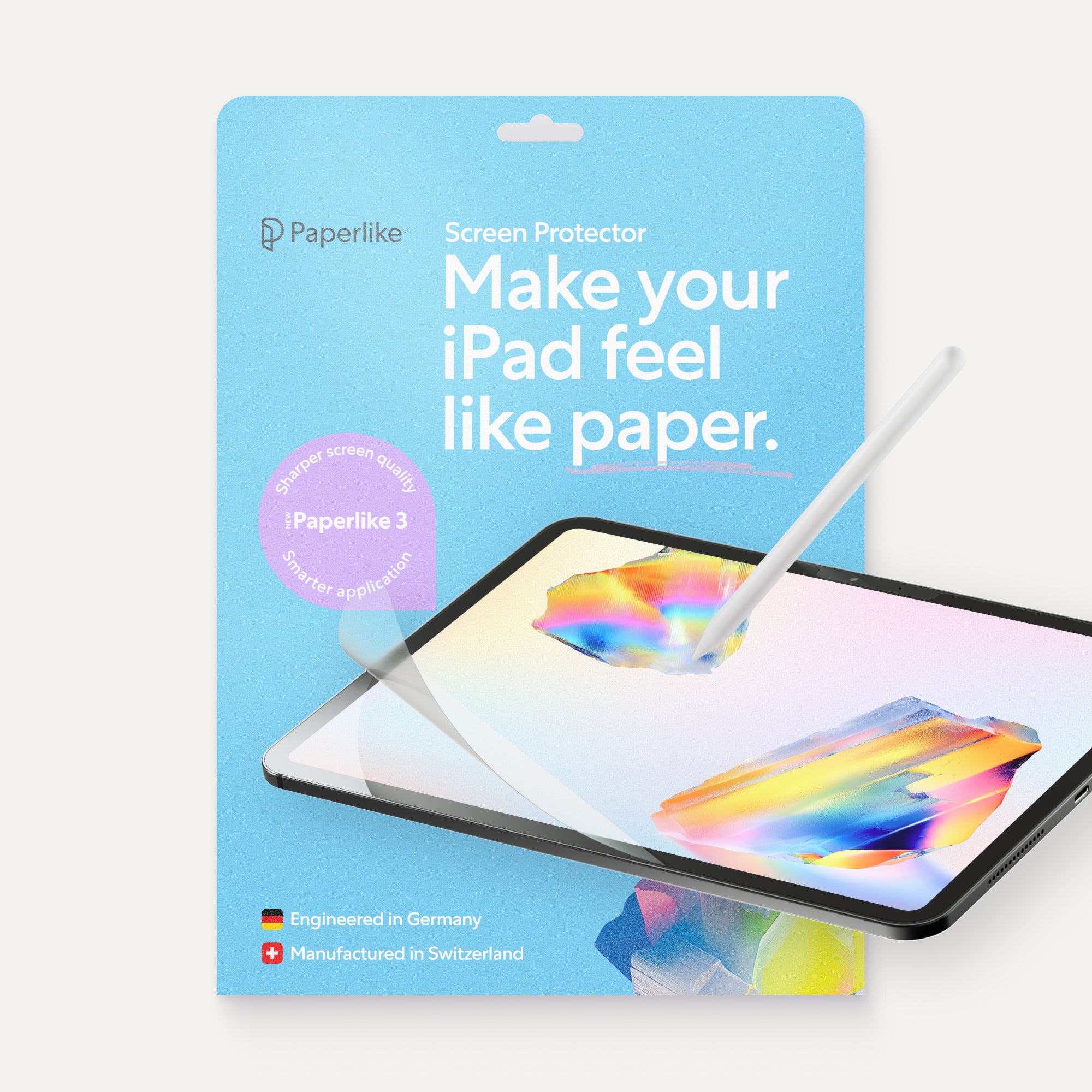
Even though writing on a glass screen is intimidating, there are lots of iPad accessories for note-taking, including the Paperlike Screen Protector, that make it feel more natural.
Two of the most popular note-taking apps for iPad are Goodnotes and Notability.

Goodnotes
| Price | Free; $11.99/year for Essential; $35.99/year for Pro |
| Best for | Keeping your class notes organized. |
| Links | Website | App Store |
Goodnotes was my go-to note-taking app for a very long time, and I still love the way you can build a whole system for your notes.
You can create separate notebooks for each class, and organize everything into folders and subfolders with unlimited nesting. You can even import lecture slides and PDFs and annotate them.
I like that you can search your handwritten notes, instead of having to scroll through everything to find what you need.
One of the most unique things to this app is the ability to change the layout or page template on individual pages within a notebook. All other apps force you to change the entire notebook to the same template, which is annoying when you need something different. Think science or math, when you need to write out notes, but also have room for working problems.

Notability
| Price | Free; $11.99/year for Lite; $15.99/year for Plus; $79.99/year for Pro; $39.99/one-time payment for Classic |
| Best for | Taking quick notes and recording audio. |
| Links | Website | App Store |
Notability has become my new favorite lately because it has a tendency to be the first to add new features that are really handy. Goodnotes usually follows, which is why I’ve gone back and forth between the two so much. (Check out my full comparison of the two here.)
Audio recording is one of Notability’s top features, especially because it was the first app to add it. What makes it special is that on playback, it will highlight the text that was written during the recording. This is super helpful when you’ve got a fast-talking professor and you’re worried you missed something during the lecture.
It also takes a simpler approach to note-taking. In Goodnotes, you have to set up your notebook and make a bunch of choices before you can start writing. In Notability, you can quickly create a new note and get moving. The caveat is that you might have to go back and move things around to keep it all organized.
Best for turning handwriting into text
Even though taking notes by hand helps you learn better, if you can’t read what you wrote, it’ll be harder to study later. If you’ve got messy handwriting, like I do, you might want an app that’ll convert your notes into text.
Having them typed makes them easier to read, edit, organize, and share.

MyScript Notes
| Price | Free trial; $1.99/month; $7.99/year; $29.99/one-time payment for full access |
| Best for | Converting handwriting into typed, editable text. |
| Links | Website | App Store |
Most of the note-taking apps have text conversion, but MyScript Notes’ is on another level. It will recognize the messiest handwriting (ask me how I know), and it shows what it’s reading in real time, so you can fix it before you convert it.
It’s also one of the few apps that lets you effortlessly mix handwritten and typed text on the same page. That means you can quickly switch from one to the other, without having to create a new block like you would in other apps.
MyScript Notes also includes Boards, which are basically digital whiteboards, so you can draw or create mind maps. Check out our full review of the app here.
Best for research
Whether you’re writing a paper, researching your dissertation, or just trying to keep track of all your PDFs, you need an app that can handle it all.
LiquidText and MarginNote 4 were both created with that in mind. They help you annotate what you’re reading, pull out the important parts, and connect those ideas across a mind map.

LiquidText
| Price | Free; $89.99/one-time purchase for Pro |
| Best for | Annotating PDFs and connecting ideas across documents. |
| Links | Website | App Store |
If you’re working through dense course material or writing a research paper, LiquidText will be your best friend. Instead of just annotating a PDF, which is all most note-taking apps let you do, it gives you a workspace next to the document where you can pull out excerpts, create a mind map, or just take notes.
What I like best is that you can have multiple documents in one project, so you don’t have to flip back and forth between them constantly. You can highlight, pull out quotes or entire paragraphs, and organize as you go.
I also like that LiquidText’s interface is straightforward, so it’s much easier to use than MarginNote 4.

MarginNote 4
| Price | $12.99/one-time purchase for Pro; $16.99/year or $51.99/one-time purchase for Max |
| Best for | Turning research and PDFs into study materials. |
| Links | Website | App Store |
MarginNote 4 takes things a step further than LiquidText, which is why it has a little bit more of a learning curve. Once you get a hang of the different types of workspaces, though, you’ll get a lot more use out of it.
It puts more emphasis on the entire study process. Like LiquidText, you can annotate documents, create excerpts, and build mind maps. But you can also turn your notes and excerpts into flashcards, which helps you study and review the concepts.
For example, if you’re studying psychology, you could annotate a PDF on memory, pull out the major theories, and organize them into a mind map. Then, when it’s time to study for your exam, you can turn your mind map nodes into flashcards and use those to test yourself.
If you’re not sure which is right for you, take a look at our full comparison between LiquidText and MarginNote 4.
Best for study help
Even if you take great notes, that doesn’t mean you automatically understand everything. You might still get stuck on a math problem or need more explanation on how something works.
These next two apps will help you with that.

Nerd AI - Math Problem Solver
| Price | Free trial; $6.99/week; $39.99/one-time payment for Pro |
| Best for | Getting explanations for difficult problems and concepts. |
| Links | Website | App Store |
I’ll be honest. I’ve never liked math. I still passed my classes, but it was a struggle. If only Nerd AI had been available back when I was in school.
This app lets you scan a question and get a step-by-step explanation of how to solve it. I appreciate being able to see the process, instead of just the answer, so I can figure out how to work the problem myself or see exactly where I went wrong when I tried it.
You can also ask follow-up questions, get help with writing or coding, and even summarize videos or audio transcripts.
The only problem with it is that it was designed for the iPhone. You can use it on the iPad, but the display stays the same size as it would be on a phone.

Khan Academy
| Price | Free |
| Best for | Reviewing course material and practicing difficult concepts. |
| Links | Website | App Store |
Khan Academy is a great resource when you don’t quite understand something from class. It has video lessons, interactive exercises, quizzes, articles, and more across practically every subject you can think of.
My kids use Khan Academy to help them get ahead in school. What I like about it is that it lets them work at their own pace. They can watch a lesson and practice as much as they need to until they feel confident.
It even lets you download videos to watch offline, so you can study even when you don’t have reliable Wi-Fi available.
Best for projects
I’m a writer for a reason, and that reason is that I don’t like talking to people. As you can imagine, group projects and especially presentations were not my favorite.
Now, there is no app that’s going to help with that, but there are some that will make brainstorming, project planning, and presentations easier, so at least there’s that.

Apple Freeform
| Price | Free |
| Best for | Brainstorming and collaborating on group projects. |
| Links | App Store |
When you need to start throwing out ideas or see how project ideas fit together, Apple Freeform is a great tool to use.
It gives you a giant whiteboard where you can add text, drawings, images, sticky notes, PDFs, links, handwritten notes, or anything else you can think of, without worrying about running out of room or even keeping everything neatly arranged. The beauty is you can move everything around later.
You can create a board for a project, collect sources and ideas, map out your argument, and invite classmates to contribute. Everyone can work on the board in real time, too, so you don’t have to try to piece everything together from a bunch of messages.

Canva
| Price | Free; $18/month or $144/year for Pro |
| Best for | Designing presentations, infographics, and visual projects. |
| Links | Website | App Store |
When you need a project to have a polished look, Canva is the app for you. You can use a template and customize it to create a class presentation, infographic, poster, diagram, or any other visual assignment. (And yes, you can also use it to create posts or videos for your socials.)
There are templates for just about anything you can think of, but you can also start from scratch and create whatever you want. For example, you could turn your research findings into an infographic, or you can build your presentation with consistent fonts, colors, and layouts.
You can work on your desktop or your iPad to easily add images and other design elements, and you can even share your work with classmates when you’re ready.
Best for staying focused
iPads offer amazing versatility, which is awesome, until you’re trying to study and a notification buzzes. You go to check one thing, and next thing you know, you’re scrolling for 20 minutes.
If you're having trouble ignoring distractions and staying focused, these apps can help.

Forest
| Price | Free; $35.99/year for Plus |
| Best for | Staying off your device and building consistent focus habits. |
| Links | Website | App Store |
If you find yourself checking your phone every five minutes when you’re supposed to be studying, Forest gives you a fun reason to put it down. You start a focus session, plant a virtual tree, and it will grow while you work. Any time you pick up your phone or leave a session early, your tree withers.
You can set specific apps to block, so if you’re studying on your iPad, it won’t ding you for using a note-taking app, but it will if you use your socials (or whatever apps you’ve chosen to block). You can also set the timer for whatever amount of time you’d like, so you’re not tied to the 20-minute pomodoro, like a lot of focus apps use.
Over time, you’ll build a virtual forest, unlock new tree species, and even help plant real trees.

Freedom
| Price | Free; $8.99/month, $39.99/year, or $99.50/one-time payment for Premium |
| Best for | Blocking distracting apps and websites during study sessions. |
| Links | Website | App Store |
Sometimes willpower isn’t enough. Yes, having a reward (your virtual tree in Forest) is great, but it may not be as compelling as your notifications. That’s where Freedom comes in. It blocks everything out.
You create your own blocklist for all the apps and websites that tend to distract you, and then you create and schedule your study sessions. The best part is that it syncs across all your devices, so even if you set it up on your iPad to study, you won’t be able to just pick up your phone to use a blocked app.
That’s what helped me the most because I’m always checking my phone while I’m working. With Freedom, I don’t have to rely on myself to ignore distractions because it blocks everything, everywhere.

FocusPomo
| Price | Free trial; $3.99/month, $17.99/year, or $29.99 one-time payment |
| Best for | Using timed focus sessions to study more consistently. |
| Links | Website | App Store |
You’ve probably heard of the Pomodoro Technique. It’s one I first tried just a year or so ago, and there are a lot of things to like about it. The idea is that you break up your study sessions or work sessions into smaller, more manageable chunks. That usually means 20-25 minutes of work followed by a break.
FocusPomo was designed to put that into practice, with a focus timer, customizable work and break intervals, and statistics that show you how you’re spending your time.
You can assign sessions different tasks, too, so you can see how much time you’re putting in on certain classes or projects.
Best for managing deadlines
As a college student, you’ve got a lot to manage. Your class schedule, when your assignments are due, project deadlines, and exam dates, just to name a few.
A digital planner or task app can take some of the load off your shoulders, so you can concentrate on more important things.

Paperlike Planner
| Price | Free for Lite; $12.99 one-time purchase for Pro for life |
| Best for | Handwritten planning, assignment tracking, and organizing your semester. |
| Links | Website |
I would have had a ton of late assignments and failed exams if I hadn’t had a planner to track everything when I was in college. Of course, I had to carry around a paper planner, but you don’t! The Paperlike Planner is a PDF that you can use on your iPad to map out your priorities.
Both the Free Digital Planner Lite and Pro Planner include pages for planning your day, your week, your month, or even your year (are you singing along?), plus space for to-do lists, priorities, and notes.
While it’s not an app of its own, the PDF is meant to be uploaded into the note-taking app of your choice, and it includes hyperlinked tabs for quick and easy navigation to any page.

Todoist
| Price | Free for Beginner; $7/month or $60/year for Pro |
| Best for | Tracking assignments, setting reminders, and managing deadlines. |
| Links | Website | App Store |
If a planner’s not enough for you, Todoist is another option. It’s an app that lets you create (you guessed it) to-do lists.
You can add assignments with due dates, break bigger tasks down into smaller steps, and even set reminders so deadlines don’t sneak up on you. I especially like the idea of organizing tasks by class, which the app lets you do, so you can keep everything separate and easy to see.
I also appreciate that you can do the majority of this with the free plan (though only 5 projects), so you might even be able to get away without paying for the subscription.

Which study method fits you?
Chances are you’ll end up using more than one of the apps on this list, based on what you’re doing. But what also might help you choose the right app is knowing how you learn best.
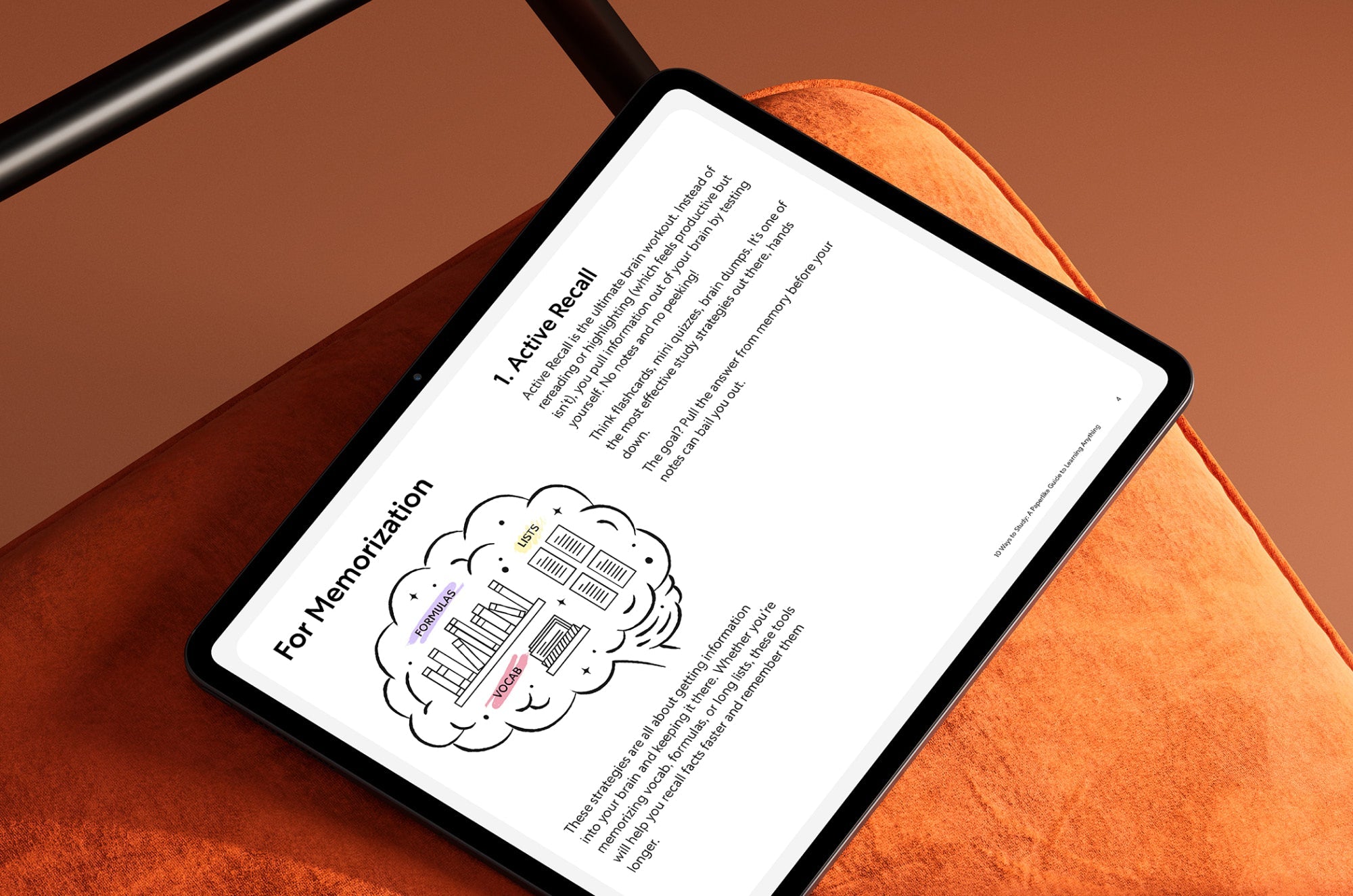
Take our 10 Ways to Study quiz to discover your study style and find the technique that works for you. Then you can pair that with the app that’ll help you put that into practice.
Wrap up
Once you’ve found the right study apps, you may want to think about how it feels to use them. Writing on a glass screen with the Apple Pencil can be frustrating because it slips and slides. By adding just the right amount of friction and resistance, a Paperlike Screen Protector can make writing on your iPad feel more natural, like putting pen to paper.
Frequently Asked Questions
Are there free study apps for college students?
A: Yes, there are a few study apps that are completely free, like Apple Freeform and Khan Academy. Most of the other apps on this list also offer a limited free version or a free trial to test out the app to see if you like it before purchasing.
What are good note-taking apps for college students?
A: Goodnotes and Notability are the top two note-taking apps for college students. They both offer a variety of tools that make note-taking easy on the iPad. Check them, as well as other recommended note-taking apps, out here.
Can I use an app to convert handwritten notes into text?
A: Yes, most note-taking apps offer handwriting conversion, but MyScript Notes is one of the best. It interprets your handwriting live, so you can correct any mistakes before you convert.