
Most people use their iPad like a giant iPhone.
It’s where you watch Netflix, scroll social media, answer a few emails, and, if you’re lucky, you might get a little work done in between.
That’s not the iPad’s fault. It’s an incredibly versatile tool, and the way you set it up determines how you use it.
Mine stopped feeling like an entertainment device (though I use it for that, too) the day I stopped treating it like one.
Here’s how I turned mine into a workstation and how you can do the same.
Step 1: Remove the temptation
The biggest change I made wasn’t a new app or some secret productivity hack. It was making my iPad a little less fun to look at.
Think about what happens when you unlock yours. If Instagram, YouTube, or whatever game you’re currently addicted to (mine is Duolingo) is sitting right there on the first screen, your brain clocks it. It doesn’t matter if you opened your iPad to check your calendar or to study. Those icons are just sitting there, whispering that something better is one tap away.
That doesn’t mean that I deleted those apps. I still watch plenty of Netflix on this thing. I just moved it so it’s not the first thing I see.

What my Home Screen looks like
There are multiple ways to set up your iPad, so this is just what works for me. Your mileage may vary.
My first Home Screen is almost entirely work: calendar, email, GTD shortcut, Goodnotes, and a few others I use daily. I keep Files and Safari on my dock at all times. These are the only apps that I use for work, so they’re the only ones that belong on this screen.
If you’re a student, you might group your note-taking app, Files, and study app instead. Or, if you’re an artist, it would probably be Procreate and Pinterest side by side. The point is fewer decisions when you unlock your iPad, so you start faster.
Social media, streaming, games, and all the other apps that I open on autopilot, live on a second screen or get buried in the App Library. Could I still go find Netflix if I wanted to? Sure. But now I have to go looking for it.

How to set it up yourself
There are three different ways you can do this.
Option 1: Remove apps from your Home Screen
If temptation is too much for you, this is the one you should use. I don’t, only because I have just enough self-control to keep myself on the first screen when I need to be productive.
- Touch and hold an app.
- Tap Remove App.
- Choose Remove from Home Screen.
The app isn’t gone; it’s just in the App Library, where it’s one search away.
Option 2: Move distractions to another page
This is my favorite because I can just swipe over when I’m done with work.
- Touch and hold an app.
- Tap Edit Home Screen.
- Drag it to another page.
Option 3: Use folders
You can also create folders around your workflows. Instead of categories (which is kind of the default option the iPad gives you), match how you work, not what type of app it technically is.
- Touch and hold an app.
- Drag it onto another app that you want in the same folder.
- Touch and hold the folder.
- Tap Rename. (Writing, School, Design, Planning, or whatever you need.)
None of these options is about making your iPad look pretty (you can do that with a cool wallpaper, though). It’s about making it easier to start work and stay focused.

Step 2: Let Focus Mode do the hard part
Cleaning up my Home Screen got rid of the distractions I could see. Focus Mode got rid of the ones I couldn’t.
I’ll admit it. When Apple first introduced Focus Modes, I thought they were just a fancy version of Do Not Disturb. I couldn’t have been more wrong.
Sure, they silence notifications, but that’s the boring part. They can also swap which Home Screen you see, hide distracting apps, filter who gets through, and sync all of it across your iPhone, iPad, and Mac.
My Work Focus
I have a Work Focus that turns on whenever I sit down to get things done. When it’s active:
- Instagram, texts, notifications from any app (except Slack, in case my editor is reaching out), and basically anything not work-related stays silent.
- The ONLY Home Screen I see is the one with my work apps on it. (See, it’s fine that I keep my fun apps on screen two, because I can’t see them anyway.)
- It kicks in on my iPhone too, so it’s not sitting next to me buzzing every four minutes while I’m trying to write.
That last one is the real blessing. I didn’t even realize how often I glanced at my phone until it no longer gave me a reason to.

How to create a Work Focus
It takes about two minutes to set up. Here’s what I did:
- Open Settings > Focus.
- Tap the + button and choose Custom (or Work, if it’s available).
- Give it a name, then choose an icon and a color.
- Select the people and apps you want to allow to notify you. (All others will be silenced.)
- Under Customize Screens, choose the Home Screen that only contains your work apps.
- If you use multiple Apple devices, make sure Share Across Devices is turned on.
The cool thing is that when you customize your screen, you can choose the one you already made for your first screen (you did that already, right?), or build a new one from scratch.
Maybe you’d rather keep entertainment apps or a mix of everything on your main Home Screen day to day. That’s fine. This just means you can build a separate work-only page that only shows up when the Work Focus is on.
| Bonus tip: | You can set your Work Focus to turn on automatically at a set time, when you arrive somewhere, or even as part of a Shortcut that opens your apps and starts a timer for you. |

Step 3: Put your priorities front and center
Did you know you can set up your Lock Screen, too?
I used to unlock my iPad, open my calendar, check my task list, then decide what I needed to work on. It wasn’t a lot of effort, but I found a way to get to my work faster by adding widgets to my Lock Screen.
Choose widgets you’ll actually use
It’s easy to fill your Lock Screen with widgets because they look cool. Weather, photos, battery percentage, motivational quotes. It’s all fun, but none of it is especially useful.
If you’re building a workstation, every widget should answer one question: What do I need to know before I start working? For me, that’s three things.
- My calendar, so I don’t forget a meeting or a deadline. (With all virtual meetings, I can easily get caught up in what I’m doing and forget to log on.)
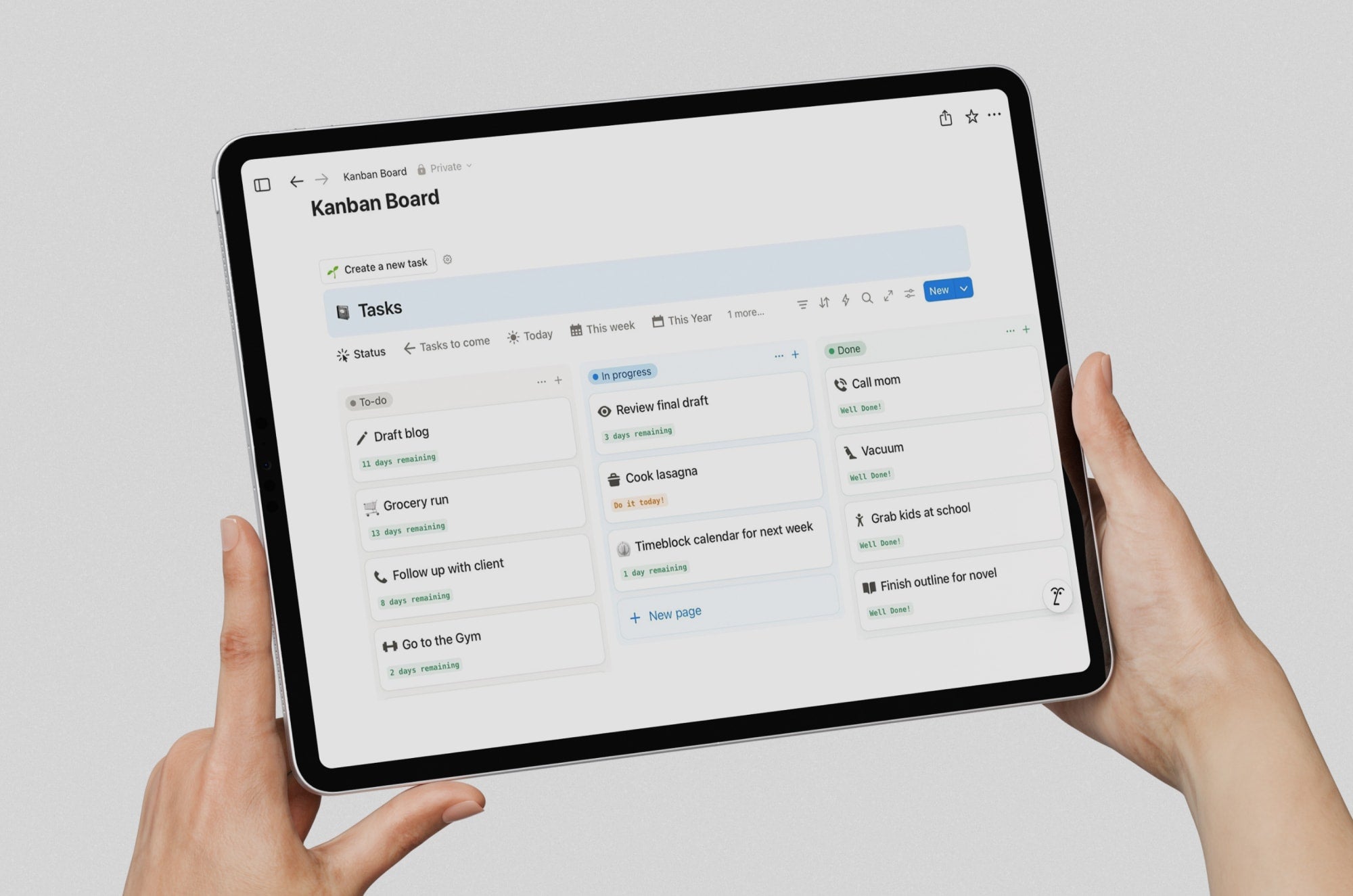
- My task list, so I know what’s actually due today. (I typically just check out our Notion workbench.)
- A Shortcuts widget, so I can jump straight into whatever I’m working on.

Don’t overlook Today View
In all honesty, though, I use Today View more than my Lock Screen. One swipe gives me my calendar, reminders, and shortcuts without opening a single app. It’s basically a dashboard for my whole workday.
You can customize yours however you want, but resist the urge to add everything. The more widgets you cram in, the harder it gets to find the one you need the most.
How to customize your widgets
Whichever you choose to use (Lock Screen or Today View), the setup is easy.
To add Lock Screen widgets:
- Touch and hold your Lock Screen.
- Tap Customize.
- Tap Add Widgets.
- Add the widgets you want.
To customize Today View:
- Swipe right (pulls your screen from the left) from your Home Screen or Lock Screen.
- Scroll to the bottom and tap Edit (or touch and hold the screen, depending on your iPadOS version).
- Add, remove, or rearrange widgets until the important stuff is easy to find.
I only recently started using Today View, but it’s now my favorite way to get to my work quickly.

Step 4: Create a one-tap work routine
By now, your iPad is already set up to help you focus. The only problem is that you still have to remember to turn everything on.
Enable your Work Focus. Open your task list. Pull up your planner or notes. Maybe start a timer. None of that takes long on its own, but it adds up to a lot of tapping around before you can start your work.
That’s why I use a Shortcut. I’ve mentioned this a few times in previous sections, so now I’ll get to the details.
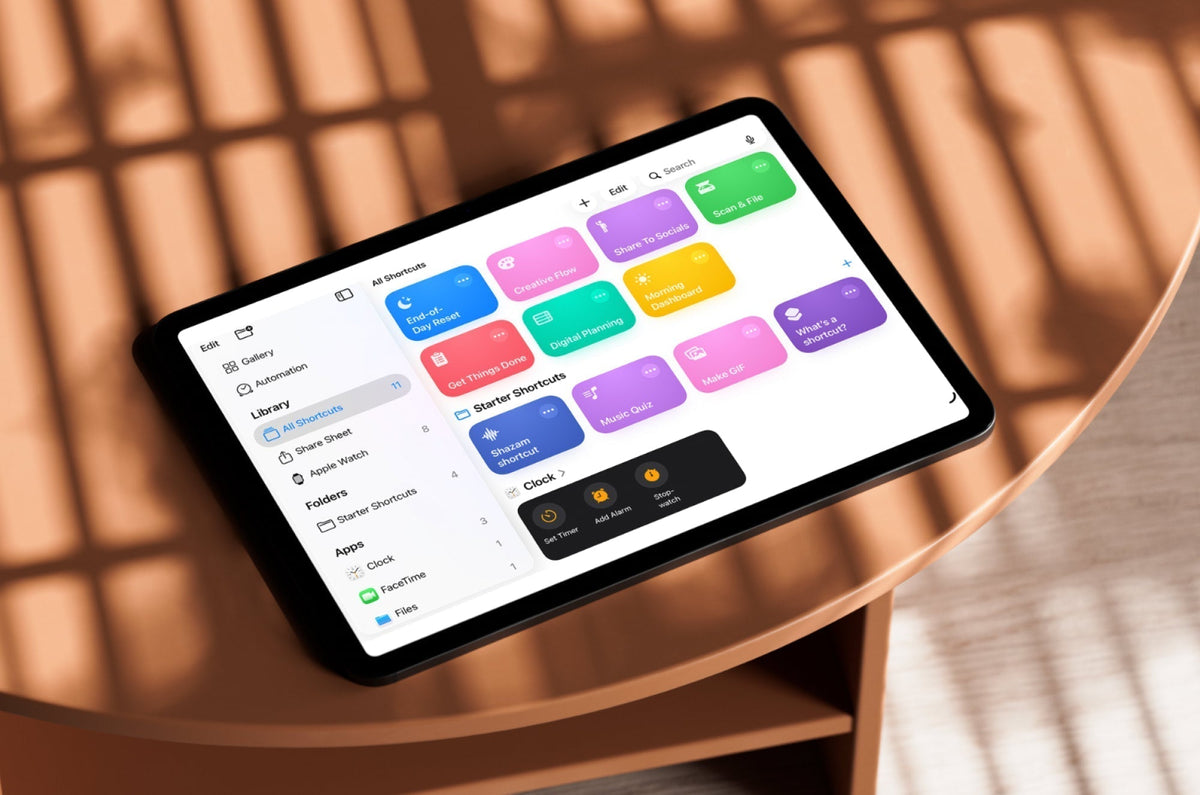
My “Get Things Done” shortcut
Instead of opening or starting three to four apps every morning, I tap one button. It opens Notion, turns on Do Not Disturb, and starts a 25-minute Pomodoro timer.
That’s usually how I like to start my day, because Notion is where my workbench/tasks live, and I try to break up my workday into smaller chunks. When I’ve finished that first session, and after I’ve taken a short break, that’s usually when I use the Work Focus.
Yours doesn’t have to look anything like mine.
A student might open Goodnotes, a digital planner, and turn on a Study Focus. (You can create whatever kind of Focus you want; that’s what’s so great about these Focus Modes.) A content creator could open Photos, Resize them, Convert them to a JPEG, and post to Instagram, all in one tap of a button!

How to build one
If you’ve never used Shortcuts before, I put together a full guide that walks you through the process, including the “Get Things Done” shortcut I use every day. (Although I originally had Todoist in there in place of Notion, I found I use Notion more often to track my tasks.)
- Open the Shortcuts app and tap the + button.
- Add a Set Focus action for whichever Focus you built in Step 2.
- Add an Open App (or Open Document) action for whichever app you use first every day.
- Add a Start Timer action if you use something like the Pomodoro method.
- Name it something you’ll remember, and add it to your Home Screen, Today View, Lock Screen, and, heck, throw it on your entertainment screen in case you find yourself over there when you should be working.
One more thing: If you want your shortcut to open more than one app, like a planner next to your notes, you’ll want them visible at the same time instead of just replacing one full-screen app with another. If you don’t already know how to use the iPad’s multitasking features, you can learn about Full Screen, Windowed Apps, and Stage Manager here.

Step 5: Make your iPad feel like a work tool
At this point, you’ve done all the software work. Your Home Screen is organized, your Focus Mode is ready, and your work routine is a tap away.
The last piece of the puzzle has nothing to do with settings. It’s how the iPad feels in your hands.
I know that sounds strange, but it makes a bigger difference than I expected. When I sit down with mine now, it doesn’t feel like the same device I use to watch Netflix in bed. It feels like somewhere I go to work.
Start with the writing experience
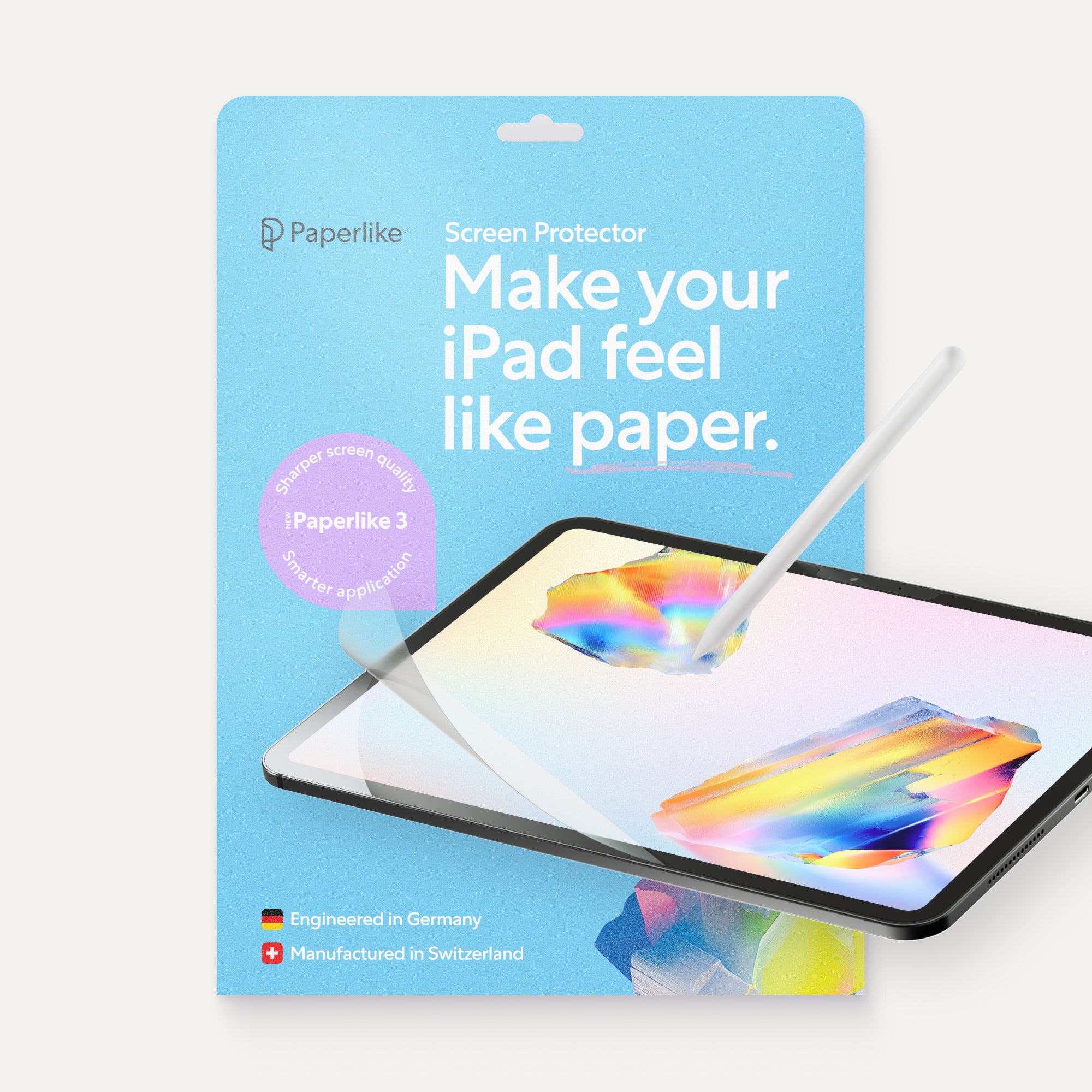
I’ve used my Apple Pencil on bare glass, and I’ve used it with a Paperlike Screen Protector. I have no interest in going back.
My handwriting always looked messier than it is. (Since I don’t have great handwriting to begin with, that’s a real problem.) Paperlike takes away that slippery feeling and adds the resistance that I was missing. Now it feels more like writing in a notebook and less like ice skating with my Apple Pencil as the skates. (You just pictured that in your head, didn’t you?)
Round out the rest of your setup
There are a few smaller things that help out, too. At my desk, I usually put my iPad on a stand, instead of flat on the table, and if I’m typing instead of handwriting, I also have a keyboard.
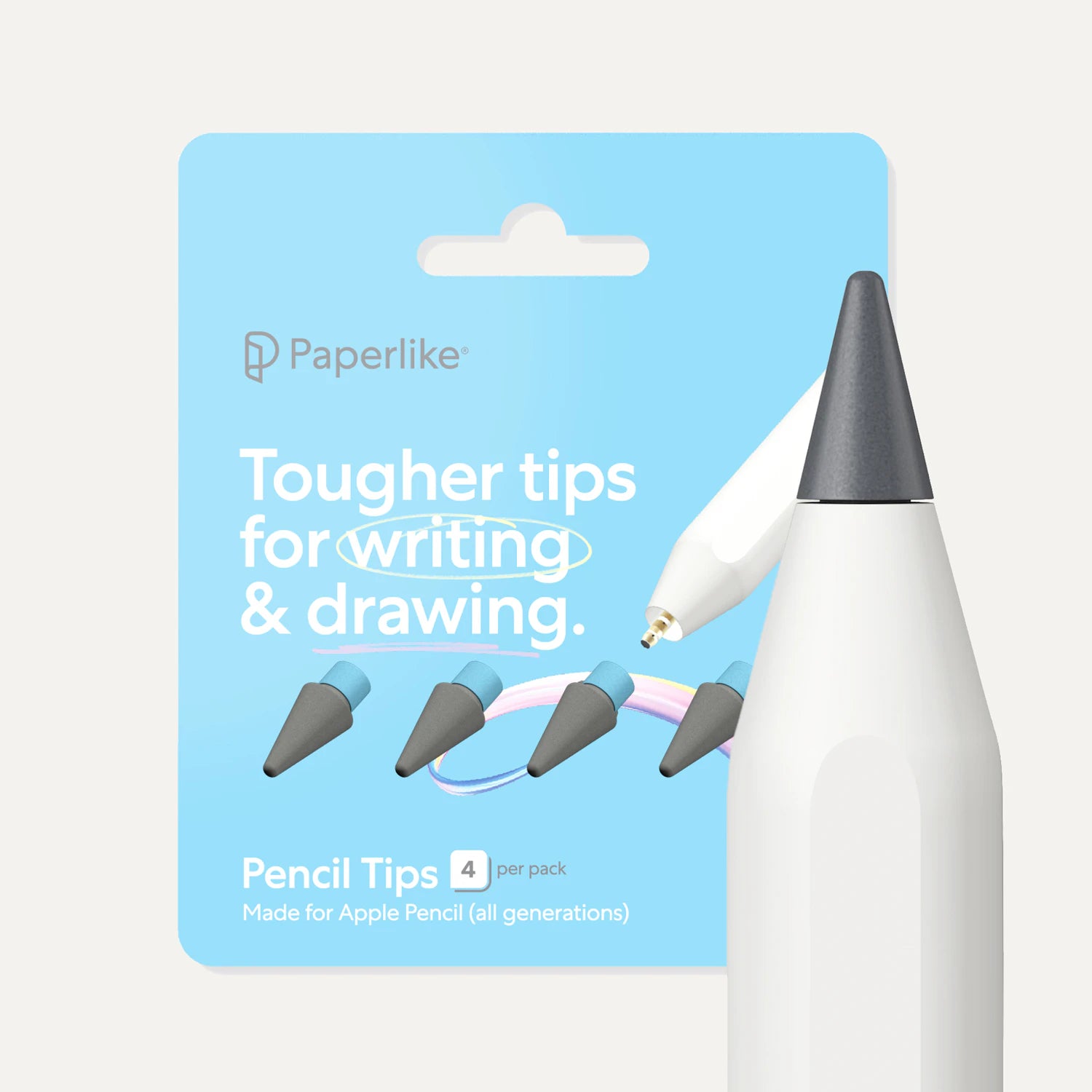
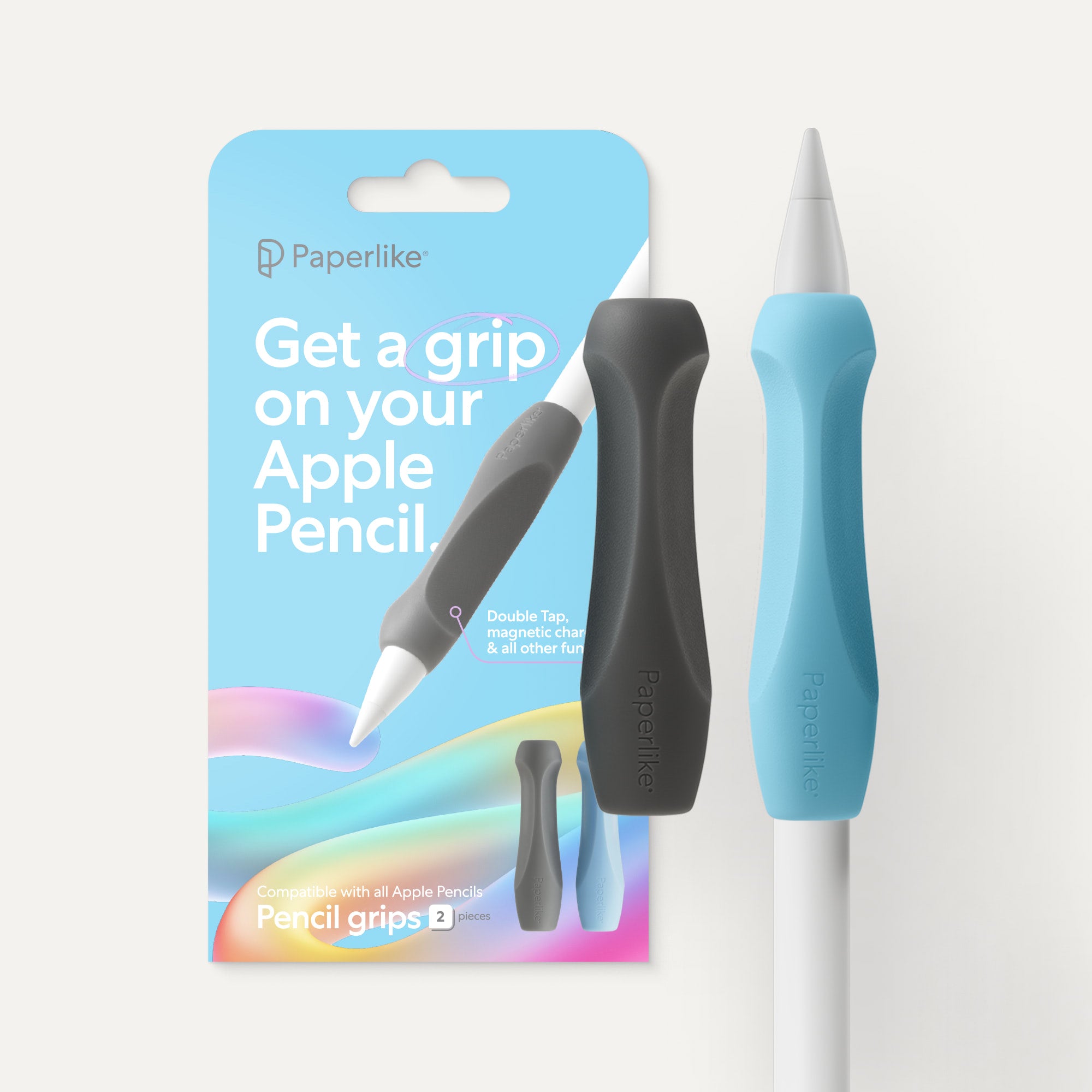
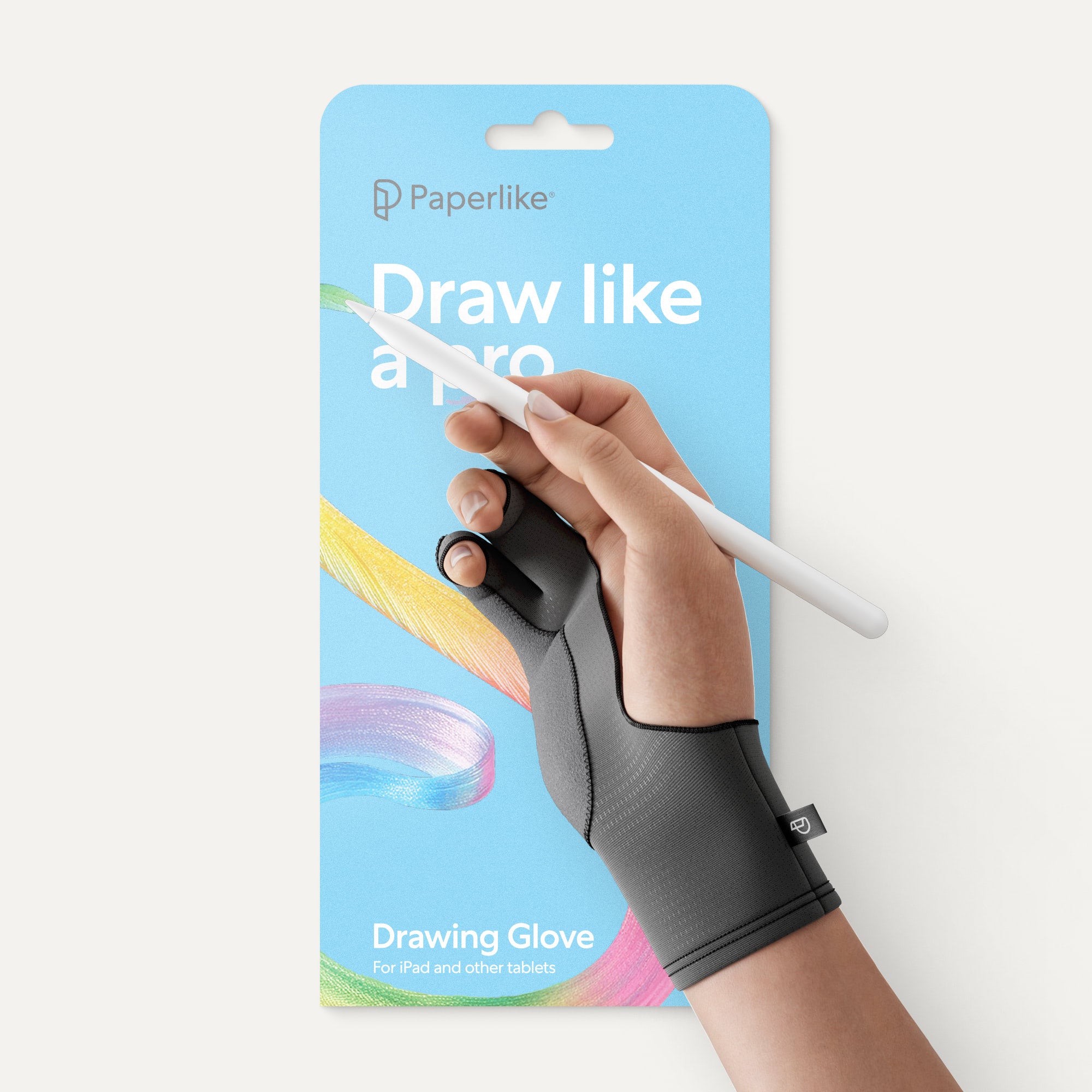
If you’re writing or sketching for long stretches, a Pencil grip makes it more comfortable, and if your Pencil tip has seen better days, swapping it out brings your handwriting back to normal.
None of this is required, but small upgrades add up, and now your iPad isn’t just set up to work. It actually feels good to use.
Final thoughts
None of these changes is groundbreaking on its own. Moving a few apps around, turning on Focus Mode, building a Shortcut, none of it sounds like much.
But look at what they have in common. Every one of them works by taking something away. Fewer apps and notifications. Fewer decisions before you start. (Let me tell you, decision fatigue is real.)
People usually treat that as the iPad’s weakness: that it can’t do everything a laptop can. I used to think that, too. But an intentionally set-up iPad only shows you what you told it to show you, and that’s not a downgrade. That’s an advantage.
My iPad still gets used for Netflix and Duolingo. But when it’s time to work, it only shows me what matters, because that’s what I told it to do.
Frequently Asked Questions
How do I set up my iPad for productivity?
A: Start with your Home Screen. Move entertainment apps off your first page or into the App Library, so they’re not the first thing you see. From there, create a Work Focus that hides unnecessary notifications to minimize distractions.
What is the best Focus Mode setup for productivity on iPad?
A: A custom Work Focus is usually the best option. Set it to silence non-essential notifications, show only your work-related Home Screen, and sync across your iPhone, iPad, and Mac, so all your devices are quiet. The fewer interruptions you have, the easier it is to stay in your flow.
How do I create a Focus Mode for work on iPad?
A: Go to Settings > Focus, tap the + button, and choose Custom (or Work, if it’s available). Choose the apps and people that are allowed to notify you, and select a Home Screen with only your work apps under Customize Screens.
What apps should be on my iPad Home Screen?
A: Only the ones you use every time you sit down to work. That will be different for everyone, but the important thing to remember is to organize around your workflow and don’t add too many apps.
How do I sync Focus Mode across my iPhone and iPad?
A: Turn on Share Across Devices when you’re setting up your Focus. You’ll find it near the bottom of the Focus settings. Once it’s on, activating Work Focus on one Apple device turns it on for all of them.
Do I need accessories to make my iPad a workstation?
A: No, but the right accessories can make long work sessions much more comfortable. A Paperlike Screen Protector adds resistance for a natural writing feel, Pencil grips improve comfort for extended writing or drawing sessions, and a stand makes desk work more ergonomic.
Weiterlesen
 Lindsay Armstrong