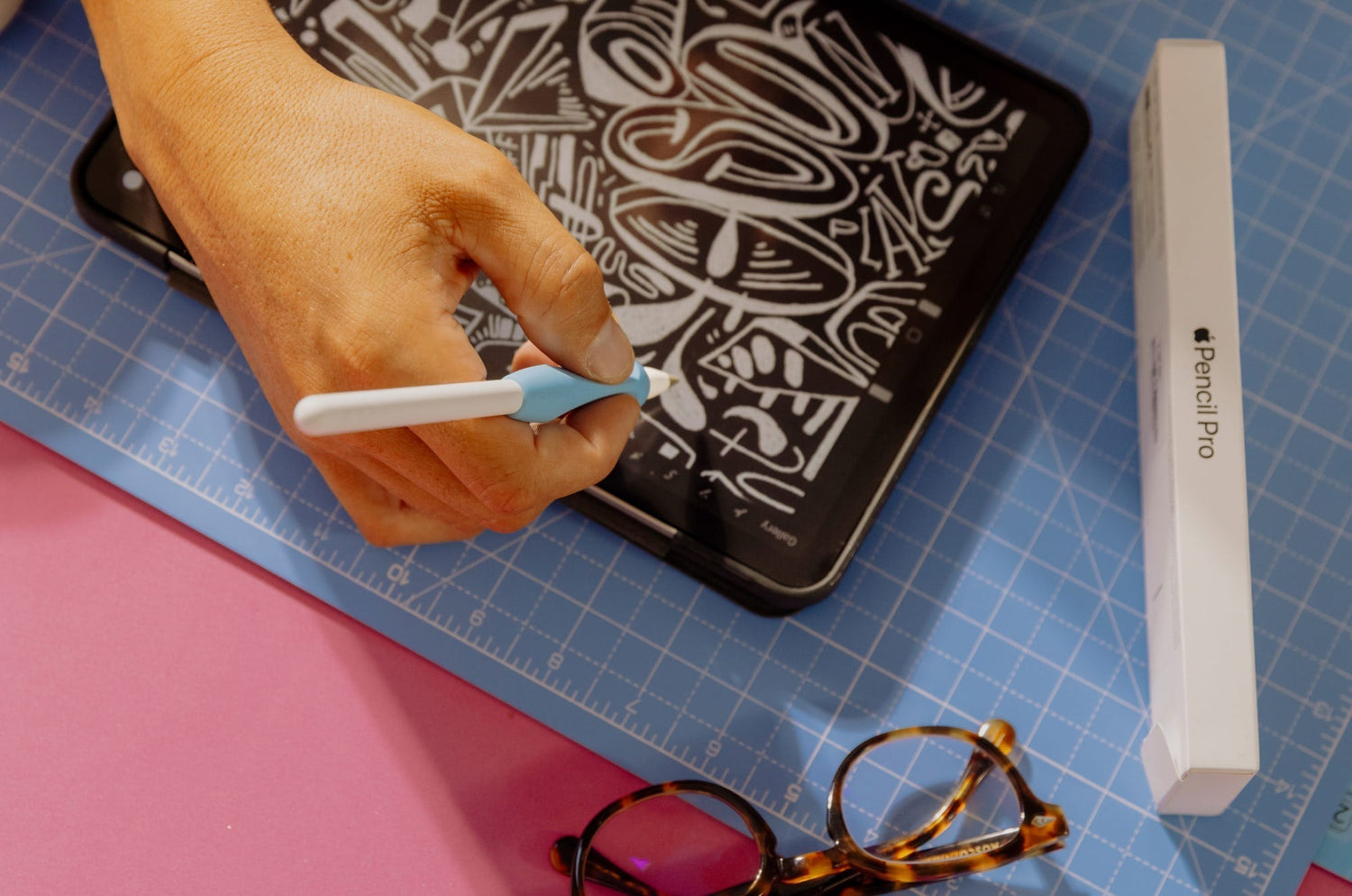
When your strokes trudge behind your Apple Pencil like a Husky on a walk (you know the videos), that’s called lag.
Luckily, your Apple Pencil lag is easier to solve than your dog, who’s stubbornly decided this is NOT the way we’re going today (for the cat lovers: think trying to get your cat to do anything).
Your Apple Pencil’s sensitivity to the iPad screen relies on multiple factors, including the tip's condition, iPadOS settings, the app you’re using, your Bluetooth connection and battery, and even the surface of your screen.
If something is wrong with even one of those things, the result can feel like frustrating delays or a loss of precision.
In this guide, we’ll walk through five quick fixes that restore responsive, real-time writing and drawing on your iPad. (Dog and cat responsiveness not included.)

The 30-Second Fix
If you’re experiencing Apple Pencil lag, start here. These three checks take less than a minute and solve a surprising number of problems.
Tighten the tip
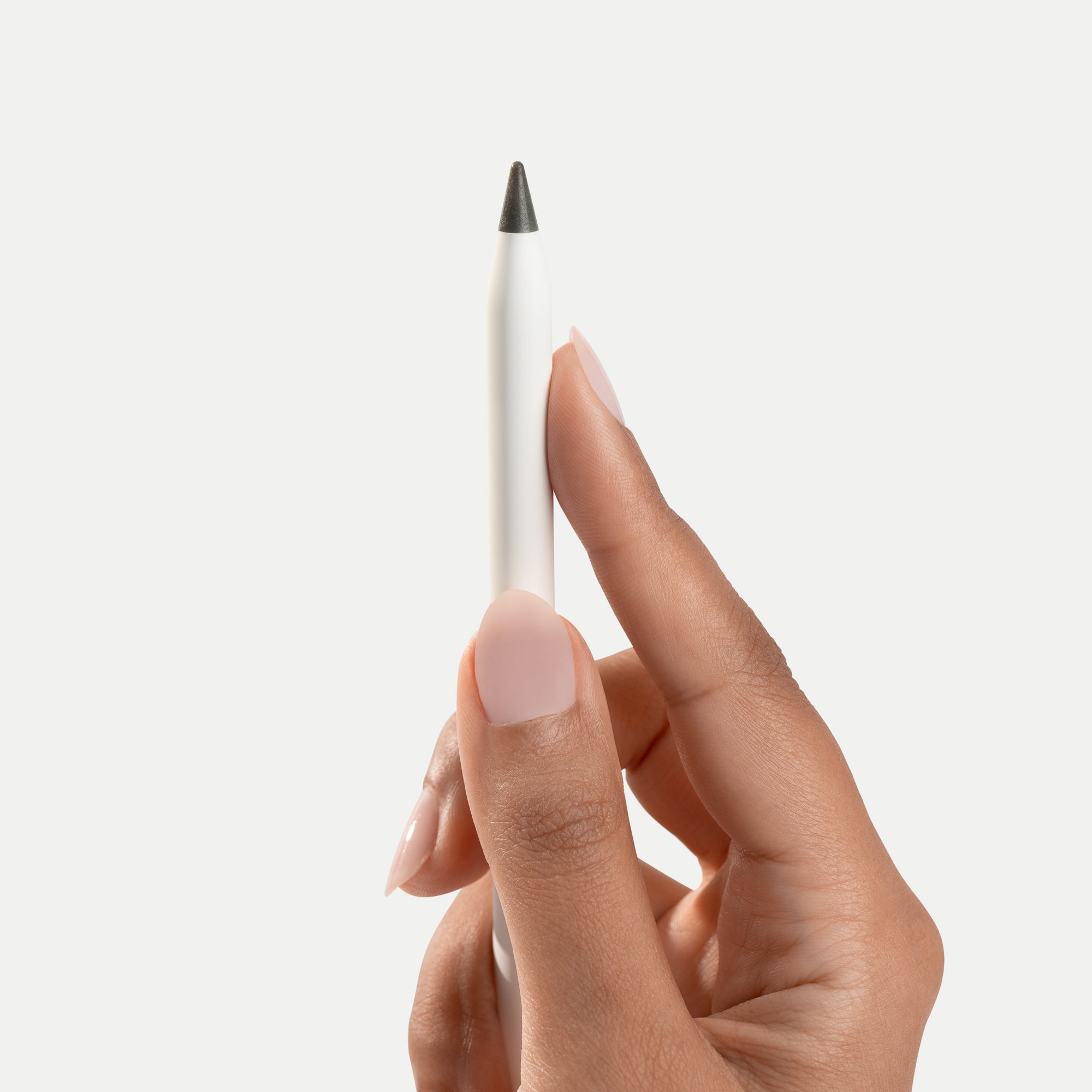
A loose tip (or nib) is one of the most common causes of skipped strokes.
To fix it, all you have to do is unscrew the tip and screw it back on until it feels snug. You will likely still see a tiny hairline gap between the nib and the Pencil body, but what you don’t want is a wobbly connection that interrupts the signal between the internal sensor and the tip.
If your lines cut in and out while writing or drawing, this is usually the first thing to check.
Clean the screen
Oil, dust, and fingerprints are unavoidable on your screen. Besides making it look bad, they can also interfere with how the iPad reads the Apple Pencil’s strokes.
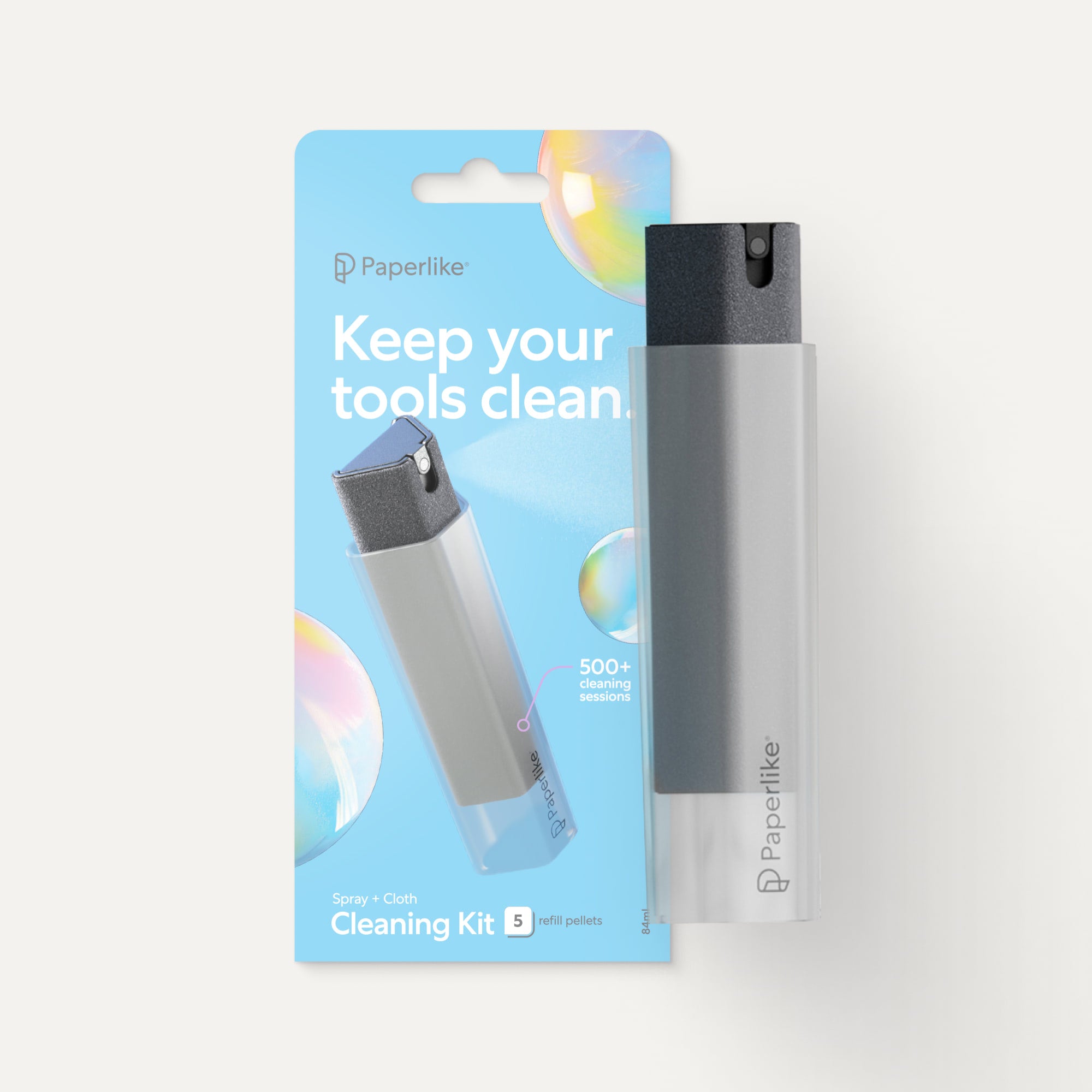
Easy fix: just clean your screen more regularly. Wipe it with a microfiber cloth or, better yet, use the Paperlike Cleaning Kit, which is designed specifically for iPad displays.
It sounds simple, but you’d be surprised by how much a greasy surface can cause your Apple Pencil to lag.
Reset the Bluetooth connection
Bluetooth: a great invention (when it works.) If you’ve ever used Bluetooth to connect your phone to your car, a portable speaker, or in any other way, you know that the connection isn’t always perfect.
The Apple Pencil communicates with your iPad via Bluetooth, so you may need to refresh or reconnect it every once in a while.
Go to Settings → Bluetooth, turn Bluetooth off, wait about 10 seconds, then turn it back on. Reattach or reconnect your Apple Pencil to your iPad to make a fresh connection.
If you still have lag at this point, the next place to look is your iPad’s accessibility settings.

Software Latency – The Accessibility Settings Audit
If none of the above fixes your problem, your lag might be caused by your iPad’s software. iPadOS includes accessibility features that can change how your screen interprets touch input. They’re incredibly useful when you need them, but they can introduce delays that feel exactly like Apple Pencil lag.
The two biggest culprits are Zoom and AssistiveTouch.
Check if Zoom is enabled
Zoom is designed to help you magnify parts of your screen. As part of that, every time you touch your screen, the system will wait to see if you’re trying to trigger the Zoom gesture.
That pause can introduce a small delay before the screen responds. While this delay is only a fraction of a second, it can make your strokes or lines appear just slightly behind your hand.
It’s possible that you’ve turned Zoom on and forgotten about it (that’s pretty common), but it’s been quietly affecting your Apple Pencil input for months.
To check yours:
- Open Settings.
- Tap Accessibility.
- Tap Zoom.
- Make sure Zoom is turned Off.
If it’s enabled, turning it off can restore immediate responsiveness.
Review AssistiveTouch and gesture controls
AssistiveTouch is another accessibility feature that can interfere with your Pencil. It adds an on-screen control and modifies how touch gestures are interpreted across the iPad.
Because it’s busy processing gestures, it can create delays or inconsistent palm rejection while you’re writing.
To check this:
- Open Settings.
- Tap Accessibility.
- Tap Touch.
- Tap AssistiveTouch.
- Toggle AssistiveTouch Off.
While you’re in the Touch menu, you might want to check what other gesture-based accessibility features are enabled or disabled.
Why this matters
The plot twist: it’s not just the hardware that causes your Apple Pencil to lag. Software also plays a part.
When Zoom or AssistiveTouch is enabled, the iPad may briefly pause to determine whether you’re trying to use gestures or write/draw a line.
Once you turn those features off, the Apple Pencil often feels fast and responsive again.

Hardware Integrity – Nib Wear & Sensitivity
Now, for what you typically think to check when your Apple Pencil isn’t working properly: the Pencil tip. If you’ve been using your Apple Pencil for a while and are familiar with how it’s supposed to react, this section’s for you. An Apple Pencil that felt precise but now feels inconsistent or harder to control may need a little R&R.
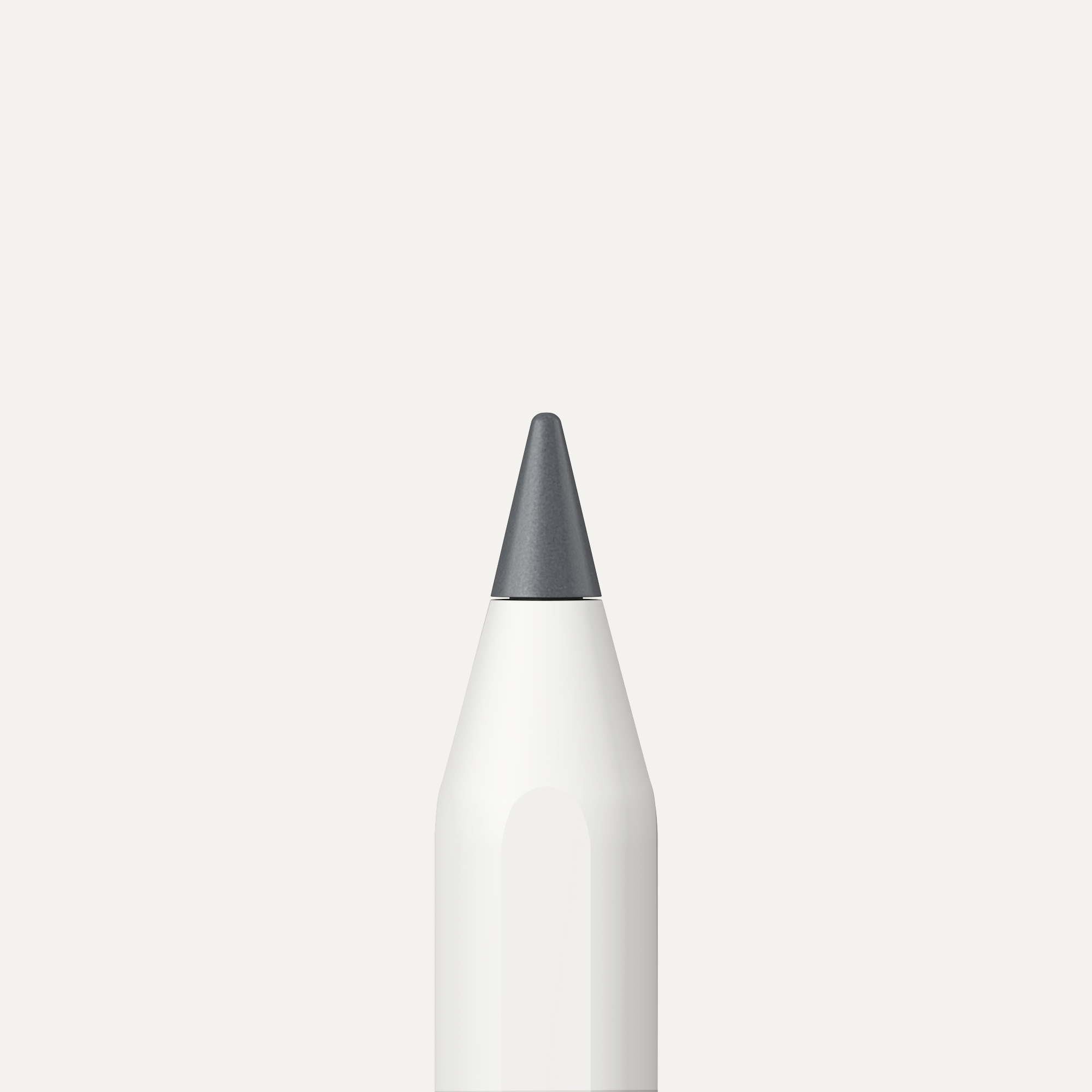
Regular writing and drawing slowly wear down the tip, making it smoother or flatter, or exposing the inner metal, which changes how the Pencil interacts with the screen.
Signs your nib is wearing out
You shouldn’t need to change your Pencil tip very often, but it’s also not made to last forever. There are a few clear signs when it's nearing the end of its lifespan.
You might notice:
- Lines feel less precise than they used to.
- Your strokes occasionally skip or fade.
- The tip appears polished or flattened rather than slightly rounded.
- You’re pressing harder than usual to get consistent lines.
The most obvious sign is when the plastic wears thin enough that you can start to see the internal metal sensor.
Why nib wear affects performance
Or, a better question, why wouldn’t the thing that’s closest to the screen affect performance?
When the tip glides from a smooth surface, it may cause your lines to land farther than you expected. In response, you might tighten your grip for better control or compensate in some other way without even realizing you’re doing it.
When you do that, lines could feel slightly delayed or less stable, even though the iPad itself responds right away.
Treat Pencil tips like routine maintenance
If you write or draw regularly, it’s a good idea to replace your Apple Pencil tip periodically.
It’s part of basic maintenance to keep your setup in working order. A fresh tip every six months or so helps restore pressure sensitivity and control.
Reinforced options, such as Paperlike Pencil Tips, are designed specifically for long-term Apple Pencil use. We built them to be durable and last 10x longer, so you won’t need to replace them as often.
Think of it like a tool in a video game: after using it for a while, it does break down and require maintenance (and no, Mr. Nook, I will not be paying more Bells just to replace it).

The "Glass Glide" Illusion – Actual vs. Perceived Lag
Okay, here’s the tea: not every lag problem is actually true lag.
Sometimes when the iPad responds instantly, it still feels a little off while you’re writing or drawing. Even though the line appears right away, it doesn’t feel perfectly in sync with your hand movement.
That mismatch is what people often think of as lag, even though the system is working as expected.
Digital latency vs. tactile lag vs. perceived latency
Digital latency is the actual delay between the Pencil touching the screen and the line appearing on the screen. On iPads, that delay is hardly noticeable.
Tactile lag is not something that’s caused by the iPad. It’s what happens when the Pencil tip moves across bare glass.
Since glass has almost no resistance, your Pencil tip slides very easily, which means your hand can travel a little farther than you intended before the stroke stops. When that happens, you might pull your hand back to correct it.
Most of the time, you don’t notice that you’re doing it. The result can feel like the line appeared a moment late, even though the iPad responded right away.
Your hand is simply adapting to the surface. When nothing is slowing the tip down, you have to make those small adjustments to stay on track. Over pages of notes or a long drawing session, it starts to feel like the Pencil is lagging.
Perceived latency comes from the physical distance between the Pencil tip and the sensors inside the screen that track it. The Apple Pencil doesn’t actually touch that sensor. It just interacts with it through the glass and any screen protector placed on top of the iPad.
The thicker the screen protector, the farther the tip sits from the sensor. If you get one that’s thicker than Apple’s recommended maximum (<0.095 mm), it increases that gap enough that your lines can appear slightly offset from the Pencil tip, especially when drawing slowly.
Artists often describe this as a subtle “stair-step” effect when sketching curves or tracing fine lines.
Apple designed the Pencil system with a tolerance for screen protectors, but many exceed that tolerance, causing perceived lag.
Why friction matters
Adding controlled friction helps your hand and the screen stay in sync.
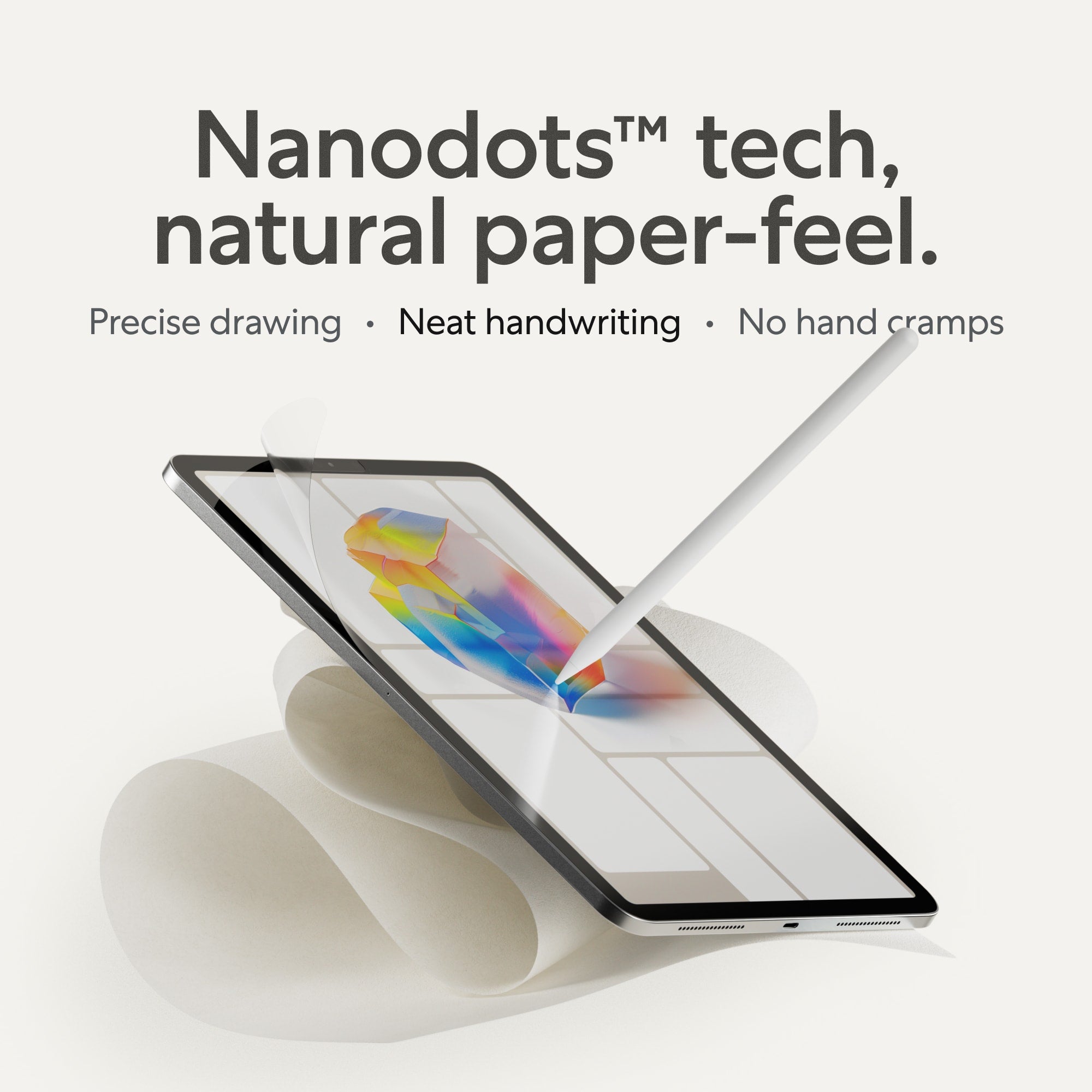
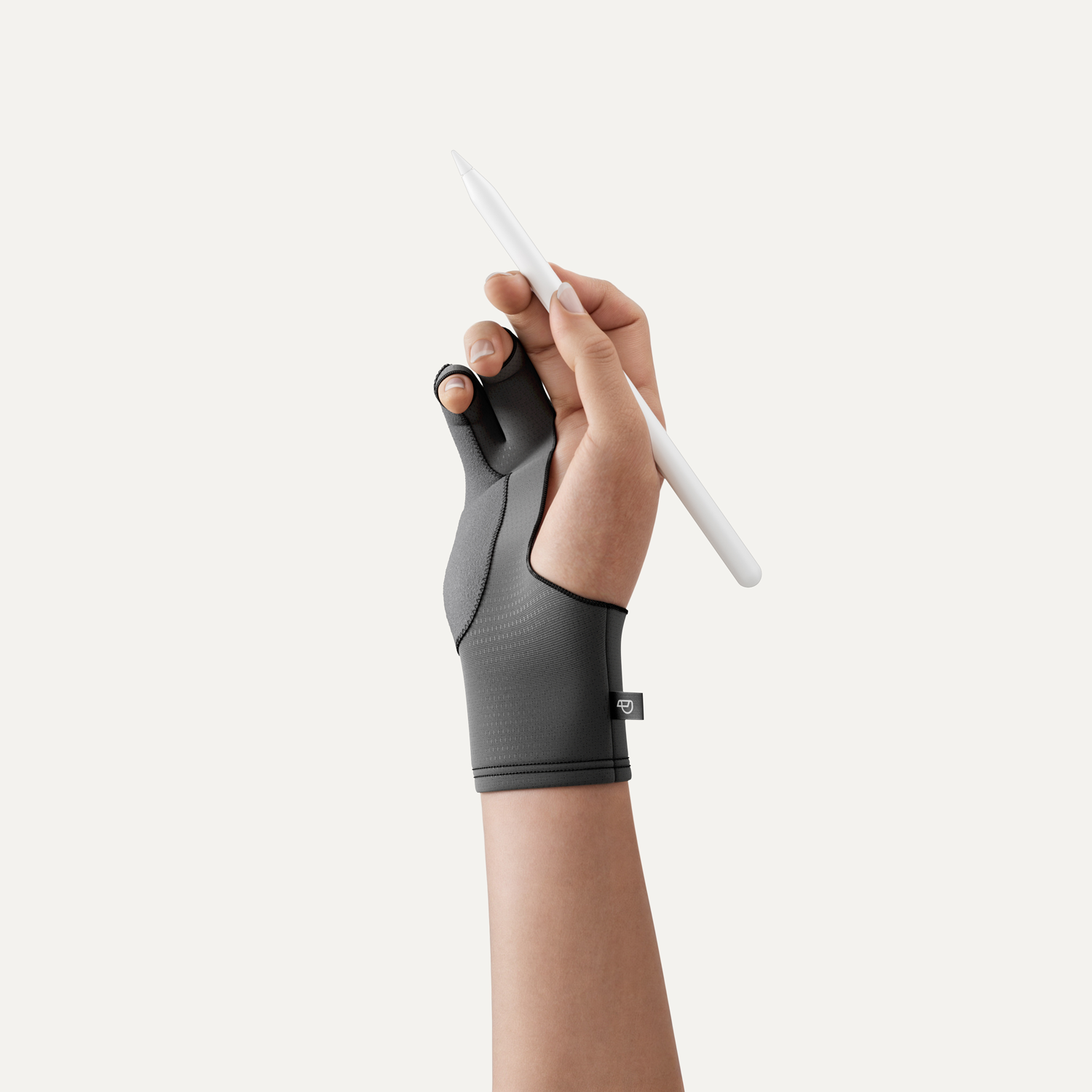
A textured surface like Paperlike keeps the Pencil tip from sliding across the screen. Instead, the tip meets subtle resistance, making it feel like writing on paper and giving you more control over your strokes.
Paperlike also stays within Apple’s recommended thickness for screen protectors, so it doesn’t increase perceived latency.
Pair that with fresh Pencil Tips, and the contact between the tip and the surface becomes more consistent and reliable. The result is strokes that land where your brain expects them to.
The iPad was already fast, but now your hand can finally feel connected to it.

Procreate, Goodnotes, & Notability Performance Optimization
Sometimes the Apple Pencil, iPad, or software isn’t the problem at all. The lag you’re feeling may come from how certain apps process strokes, smoothing, and background tasks. A few small adjustments inside your notetaking or drawing app can make a significant difference.
Procreate
Procreate includes powerful stabilization tools that smooth your lines. These features are great for illustration, but high stabilization settings can make your strokes appear slightly behind your hand.
If your lines feel delayed, check these settings:
- Open Brush Studio by tapping on a brush.
- Go to Stabilization.
- Reduce StreamLine, Stabilization, or Motion Filtering.
Lower values allow strokes to appear more precisely where your Apple Pencil lands.
Large canvases can also slow things down. Extremely high resolutions use more memory, which can reduce responsiveness while drawing. If lag appears on large projects, try working on a slightly smaller canvas.
You can also turn off finger input while drawing:
Actions (wrench) → Prefs → Disable Touch Actions
This prevents accidental touches from interfering with your work while you use the Apple Pencil.
Goodnotes & Notability
In notetaking apps, what feels like Pencil lag often comes from the notebook itself.
Large notebooks, heavy PDFs, and multiple open tabs all add extra work for the app. When you’re writing on a page that’s packed with annotations or running alongside several other documents, the app has more information to process with every stroke.
A few quick checks can help:
- Close notebooks or tabs you aren’t using.
- Let iCloud or background sync finish before long writing sessions.
- Check stylus settings to make sure Apple Pencil is prioritized over finger input.
Both Goodnotes and Notability also include palm rejection and stylus preference options. When you choose the Apple Pencil as your stylus, the apps ignore most accidental touches and render strokes more cleanly.
When the app isn’t juggling as much in the background, and the Pencil is set as the main input, writing usually feels instant again.

FAQs
Why does my Apple Pencil keep cutting out or skipping?
Most skipping isn’t actually lag. It’s usually something mechanical.
The most common causes are a slightly loose tip, magnetic interference from a case, or a worn tip that’s no longer making consistent contact with the screen. When that contact becomes unstable, the signal between the Pencil and the sensors can briefly drop.
That shows up as lines that skip or cut out mid-stroke.
Why does my Pencil lag more in Procreate than in Apple Notes?
Procreate processes strokes differently than simple note apps.
It includes tools designed to smooth and refine your lines while you draw. Settings like stabilization and stroke smoothing help make curves cleaner and steadier. If those settings are set too high, it can cause some lag.
Large canvases require more processing power, which can also slow things down while you’re drawing. Try working on a smaller canvas and see if that makes a difference.
Can Accessibility settings really cause lag with the Apple Pencil?
Yes. The biggest culprit is usually Zoom.
If Zoom is turned on, the iPad pauses for a split second to check whether you’re trying to trigger the Zoom gesture. That brief pause can slow the start of your stroke.
If you’re noticing that effect, try turning Zoom off in Settings → Accessibility → Zoom. It could make all the difference.
Does a screen protector cause Apple Pencil lag?
A screen protector doesn’t change the iPad’s sensors or refresh rate, so it doesn’t increase true digital latency.
What can change is the physical interaction between the Pencil and the screen.
The Apple Pencil interacts with sensors beneath the iPad’s display, so adding a very thick layer on top of the screen can increase the distance between the tip and the sensors. That can make your lines seem a little off from where you expected them to be.
Paperlike 3 Screen Protector is designed to avoid that issue. The surface is thinner than a human hair and stays within Apple’s recommended tolerance for screen protectors.
Instead of changing how the iPad reads the Pencil, Paperlike changes how the surface feels. The subtle texture adds controlled friction, which helps the tip stay consistent so strokes land where your hand expects them to.
How do I know if my Pencil tip needs replacing?
Apple Pencil tips slowly wear down with regular use. If you write or draw daily, the change usually shows up after a few months.
A worn tip may look smoother or flatter. You might also notice strokes skipping, fading, or requiring more pressure than before.
When that happens, replacing the tip usually restores the precision you’re used to.

Final thoughts
If your Apple Pencil feels laggy, the problem usually isn’t the Pencil itself. It’s everything else around it. A loose tip, a hidden accessibility setting, heavy app processing, or a surface that’s too slick can all make strokes feel slower than they should.
The good news is that fixing most of these things takes just a few minutes.
And if you enjoy dialing in your digital tools, our newsletter shares regular tips for getting more out of your iPad. We also send out monthly Procreate brush set recommendations, app updates or news, and small workflow tweaks that help you stay productive.