
Clip Studio Paint is a powerful program for digital painting, illustration, comics, animation, and more. For over a decade, it has supported the latest technology innovations in digital art.
Today, it’s available on desktop for Mac and Windows, as well as iPhone, Android, and iPad. This wide platform compatibility, paired with its exceptional tools and features, makes it a popular choice for artists worldwide. But is it the right choice for you? Maybe!
Let’s see what it has to offer iPad artists and if it’s a good fit for what and how you create.

What is Clip Studio Paint?
| Feature | Quick summary |
| What is it | Clip Studio Paint is a digital drawing, painting, and animation app for desktop, Android, iPhone, and iPad |
| Best for | Illustrators, comic book artists, manga artists, 2D animators |
| Price | Free trial, Premium from $4.89/month |
| Link | Download here |
Clip Studio Paint is a digital drawing, painting, and animation app for desktop, mobile, and iPad. Its capabilities and wide compatibility make it an excellent option for many digital artists. The number of things it can do is impressive, to say the least, which can feel a bit intimidating.
It's unlike any other digital art app I've used because it stays true to its desktop interface, with a mode called Studio Mode. For artists coming from the desktop version, this is a huge plus, as the interface looks very similar to what you’re used to. In this mode, it felt great to connect my Bluetooth keyboard, like a mobile desktop setup.
Your workflow is also highly customizable in this mode, with the option to move and dock menus in different positions. I appreciated the option to use preset Workspaces (similar to Adobe programs) and create and save your own. If you're more interested in a simpler workflow, there's something for you too in Simple Mode.
To start using Clip Studio Paint, first learn about its different software grades and plans.

Pricing breakdown
| Feature | Debut | EX | Pro |
| Price | Free with a subscription to pixiv Premium | From $4.89/month | From $9.69/month |
| Best for | Hobbyists, illustrators, digital painters | Illustrators, comic artists, digital painters | Professional illustrators, comic and manga artists, teams |
Clip Studio Paint has three software grades: Debut, EX, and Pro. Debut is only available through pixiv, a Japanese online community for artists. It's great for anime, manga, and video game fan artists. Access to Clip Studio Paint's Debut tier is a nice bonus for artists who may already use the platform.
If you want to use Clip Studio Paint at a premium tier but aren’t ready to pay, you can use EX or Pro for free for up to six months. A standard free trial is 30 days, so that’s great value for people who want to take their time learning and using the app.
Pro and EX are two different premium grades that offer different features and capabilities depending on your needs.
One of EX's biggest advantages is collaborating on the same document with team members from any device. It’s also great for creating multi-page comics. For 3D model artists, you get 3D-to-2D conversion, which turns your 3D models into flat artwork and tonal layers through LT extraction. Animators will also have unlimited frames for their projects.
Multi-device plans for Pro and EX grades allow you to use Clip Studio Paint on up to four devices, which will increase the price of your plan. When choosing between them, go with Pro if you need fewer features. Compare all of the functions and features across grades here.
In addition to monthly subscriptions, Clip Studio Paint also offers perpetual licenses. These are only available for the desktop versions of the program for Windows and Mac. You'll pay once and have access to the program forever.
To keep your program up to date, you'll need to purchase a subscription to an Update Pass that matches the software grade you have. If you're primarily an iPad artist, your annual or monthly subscription will give you access automatically to feature updates at no additional charge.

Illustration & 3D Modeling
Clip Studio Paint is a unique experience when compared to apps like Procreate or Adobe Fresco. The Home Screen is a hub with recommendations for materials, tips, announcements, and more. Any previously started projects will appear along the top of this screen.
When in doubt, select the giant blue paintbrush icon at the top left to get started. You’ll be prompted to choose your project type: illustration, comic, or animation. Select your own settings or toggle through the presets in the dialogue menu.
Once you’re in your canvas, you can have fun in the beautiful brush library. Your drawing tools include the Pen, Pencil, Brush, Airbrush, Decoration, Eraser, and Blend. When you have a drawing tool selected, the Tool Group palette displays the different brush options you have access to. As you go down, you'll find your tool settings like brush size, opacity, and more.
One of my favorites is the Decoration tool. You can also use these brushes to create patterns and apply effects instantly.
If you ever want to find more brush assets, you can explore the Clip Studio Assets library. This is where you'll find brushes, content, and more that you can use for personal or commercial work. You can also upload your own assets to share with the broader community.
A huge bonus of using Clip Studio Paint for illustration is that you can also create with vector brushes. Blend and manipulate strokes with vector precision for easy editing. With my setup using a 4th-generation iPad Pro 12.9”, there was a bit of lag when increasing the brush size past a certain limit, though.
This is where creating or working with 3D models can become challenging depending on your device specs. Even so, its 3D capabilities set it apart from many other apps. Besides Procreate, no other major digital art app for the iPad has this support, but Clip Studio Paint takes it many steps further.
You can download a variety of 3D materials, models, and objects into your program. From the list of options, drag them onto your canvas. There are a number of ways to move your 3D objects with the Movement Manipulator.
You'll get additional settings for working with human models. Not interested in what's out there? Import your own models from other programs into Clip Studio Paint.
If you're traditionally a 2D artist, you can use 3D models as references for your drawings. Find a pose you like? Save the model and use it multiple times. You can even color them in!

2D Animation
Professional animation studios use Clip Studio Paint because it renders so well. And even if you’re not about to release an episode of a show or create something feature-length, you can still have a lot of fun.
Animation in Clip Studio Paint feels similar to animating in Photoshop on your desktop. A timeline appears at the bottom, letting you add frames and fine-tune your playback settings.
Clip Studio Paint uses Animation folders and animation cels to manage your animation projects. You might recognize the term cel (short for celluloid) from the traditional art of animating on plastic sheets. Artists would draw the linework on the front and paint the color on the opposite side.
In Clip Studio Paint, your animation cels are special layers that you draw your animations on. Regular layers can’t be animated unless they’re converted into this special layer type. Each cel you add to your animation is assigned a number.
Depending on how you work, using layer palette colors for your animation folders can help you stay organized throughout your process. This color will also be reflected in your timeline to help you focus on certain areas of your animation.
Onion skins are a key feature for being able to see what you’ve drawn on other cels. You can adjust your onion skin settings under Show animation cels in the Animation drop-down menu.
To play your animation, you can select the Play/Stop icon from the Timeline. Needless to say, Clip Studio Paint is great for animation, but it's extensive. Their tips for animating are an excellent resource.

Comics & Manga
Early versions of Clip Studio Paint were designed for comic book creation. The program has stayed true to its roots as a place for comic and manga artists to bring their work to life.
Clip Studio Paint includes comic templates with panels, so you’re set to get started. If you want to make frames later, you can use the Frame Border tools to create and split panels for comics.
Once you have your frames in place, Clip Studio Paint automatically isolates each panel, keeping your linework and edits only in the active panel. This way, your work stays polished.
Tools for creating speech bubbles, effect linework, and more minimize repetitive, time-consuming tasks. If you're an EX user, you'll gain access to the Story Editor, making it easy to input and manage your dialogue with bulk actions.
Are you a webcomic creator? Webcomic creators will find a lot of tools to support their work, including special export settings. Webtoon is a popular webcomics platform with strong technical support in Clip Studio Paint.
Once you've created your Webtoon, you can preview it to simulate what it'll look like for the reader with the On-screen area (webtoon) setting. This is important because something might look properly rendered or sized on your canvas, but not when exported.

Clip Studio Paint vs. Photoshop vs. Procreate
| Feature | Clip Studio Paint | Photoshop | Procreate |
| Best for | Comic artists, illustrators, animators, digital painters, 3D model artists | Photographers, designers, illustrators, digital painters | Hobbyists, illustrators, digital painters |
| Price | Free trial, Premium from $4.89/month | From $7.99/month | $12.99 single purchase |
| Pixel brushes | Yes | Yes | Yes |
| Vector brushes | Yes | No | No |
| Animation | Yes | Yes (Desktop only) | Yes |
| 3D Model Support | Yes | No | Yes |
| Multi—page document support | Yes (EX users only) | No | Yes |
| Layer Naming | Yes | Yes | Yes |
| Font Import | Yes | Yes | Yes |
| Custom Brush Import | Yes | Yes | Yes |
| In-app Tutorials | No | Yes | No |
While some features overlap between Clip Studio Paint, Photoshop, and Procreate, each app suits certain disciplines better.
Clip Studio Paint and Procreate have support for multi-page documents through Multi-page and Page Assist, respectively. Overall, comic artists will get a lot more from Clip Studio Paint because of its additional features and built-in tools.
Photoshop is the only app that is primarily a photo editing and compositing tool. Clip Studio Paint's Quick Filters and Quick Effects presets apply a uniform look to your work. Procreate has similar light editing capabilities with Adjustments to transform colors and apply effects.
For illustrators, Clip Studio Paint and Procreate are both solid options. If you’re new to digital art, I’d start with Procreate because of its beginner-friendly interface and single-purchase model, which makes it a great option for hobbyists and professionals alike. Photoshop and Clip Studio Paint feel more positioned for professionals.
When I first started using Clip Studio Paint, it felt very different and took time to get used to. When you select tools, a lot of windows and pop-out menus populate. It’s easy to get overwhelmed at first while you get used to a different program.
You can switch to Simple mode for a version that feels more similar to Procreate or Adobe Fresco. Procreate and Photoshop don’t show quite as much complexity on the surface.

Make the most of drawing on the iPad
The apps you use for your creativity matter. You want tools that help you, not fight you along the way. To get the most out of your iPad, having the right hardware and software setup is key.
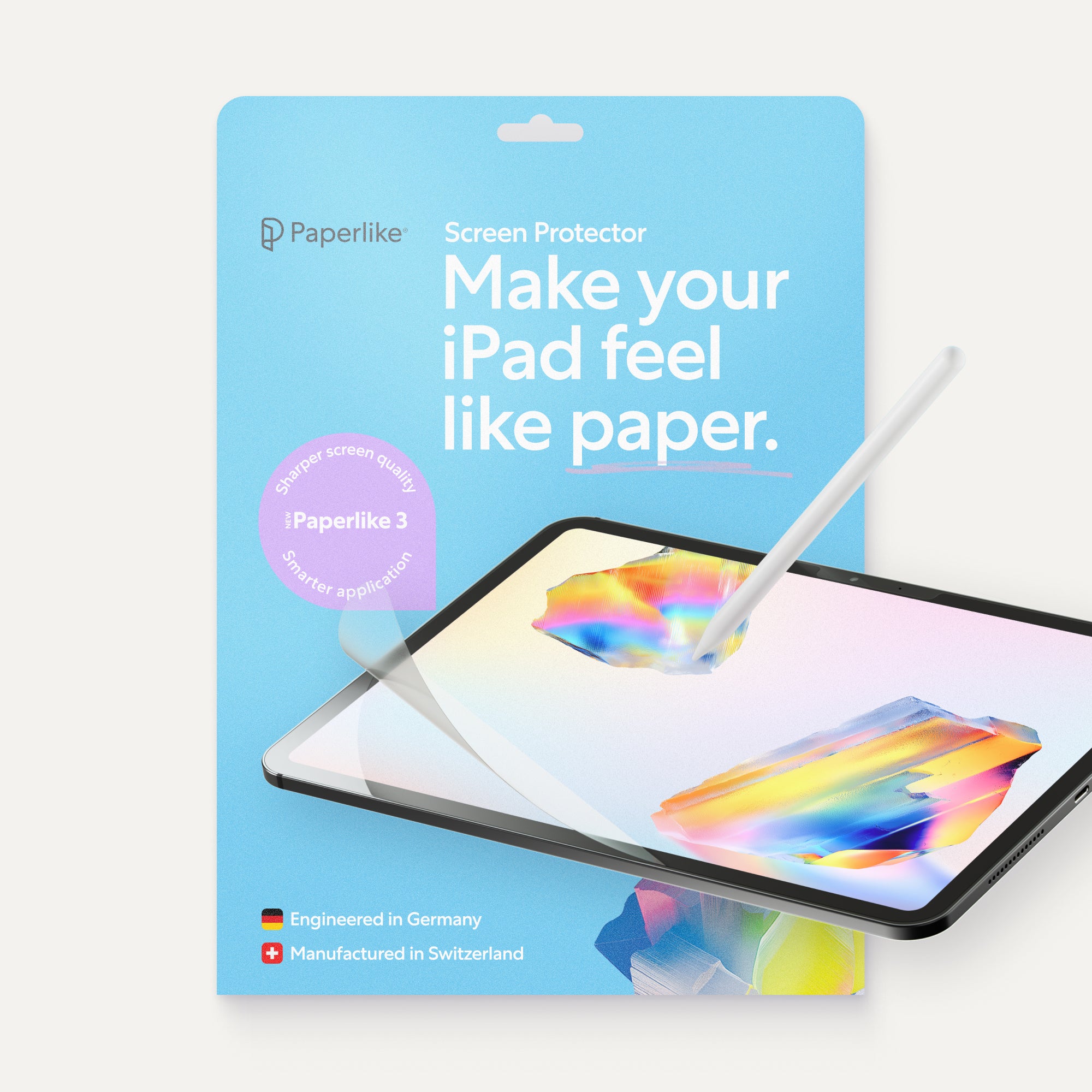
This is where using accessories like the Paperlike Screen Protector makes a big difference. It helps your Apple Pencil glide with control against your iPad screen instead of slipping across glass. It’s engineered for drawing and note-taking on the iPad, with smooth resistance that adds the traditional feel of paper.
I’ve reviewed a lot of programs over the years, trying to find which are best for which iPad artists.
You can find an archive of reviews below:
- Procreate Review
- Procreate Dreams Deep Dive
- Pixelmator Pro on iPad
- Adobe Capture Review
- Adobe Fresco Review
- Linearity Curve Review
- Affinity Designer Review
- Affinity Designer vs Adobe Illustrator vs Curve
- Adobe Fresco Review & Deep Dive
- Adobe Fresco vs. Procreate (vs. Photoshop)
- Adobe Express vs. Canva
- Procreate vs. Photoshop for iPad
Final thoughts
Clip Studio Paint is an impressive program where you can choose your own adventure. Illustration, animation, 3D models.
Overwhelmed? Tap the Simple Mode icon and get straight to creating without worrying so much about the menus. Enjoy the amazing brush library. Switch to Studio Mode and try full features like animation, layer editing, and more.
You don’t have to start at the highest tier right away to get something valuable from the app. Take full advantage of their free trial to see if this is the right program for you.
Frequently Asked Questions
What is Clip Studio Paint?
It’s a digital drawing, painting, and animation app for desktop, mobile, and iPad. It offers different plans to match the devices and features you need.
Is Clip Studio Paint free?
Clip Studio Paint has a subscription plan but also a generous free trial for new users. You can use Clip Studio Paint for up to 6 months for free before your monthly subscription kicks in. Find the right plan for you before you buy.
Is Clip Studio Paint good for beginners?
It’s good for beginners when used in Simple Mode. Studio Mode can be overwhelming for artists without prior experience with the desktop version of the app. If you’re a Clip Studio Paint user for desktop who wants to use the iPad version, you’ll do better by starting in Studio Mode.
Is Clip Studio Paint as good as Photoshop?
They’re both great programs for digital painting and drawing. Photoshop has photo editing features and tools that Clip Studio Paint doesn't. Clip Studio Paint is also better optimized for comic and manga artists than Photoshop. Which you choose will depend on the kind of work you create.