


I hate to admit it, but I own an embarrassing number of iPad accessories. It’s a weird addiction I have, trying to collect all the things. I work at Paperlike, so yes, most of them are ours, but I’ve tried plenty from other brands, too.
The funny thing is, I only really use a few of them. The rest are collecting dust either on my desk or in a drawer. I created this guide to help you avoid the same cluttered fate, so I’ve only included the accessories that I use regularly, plus a few my colleagues swear by.
Why your iPad setup matters more than the apps
Before you even open Goodnotes, Notability, or Apple Notes, your setup is already shaping how those apps feel to use. And the biggest factor is the surface.
Bare glass is slippery. Your Apple Pencil has very little to grip against, which makes small movements harder to control. Handwriting looks... well... terrible, and working for longer stretches gets tiring because your hand is constantly making tiny corrections.
Apps can add better tools, like a lasso to move things around and searchable notes, but they can't change what it feels like to move your hand across the screen.

The core iPad setup: What really matters
Like I mentioned earlier, there are hundreds of iPad accessories out there, but you can probably skip most of them.
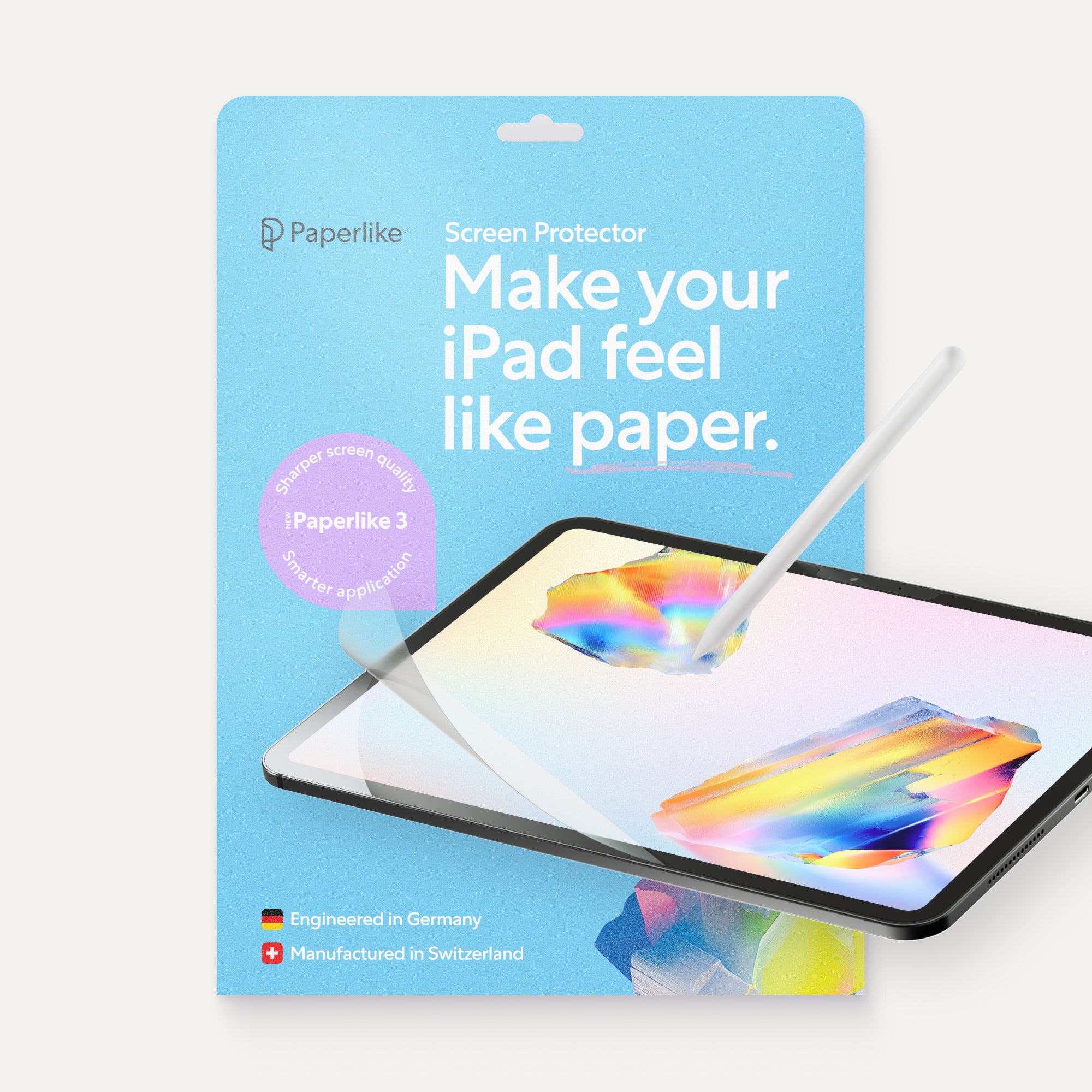
If you were to only buy one, I think it should be a paper-feel screen protector like Paperlike. Remember when I talked about bare glass being slippery? Paperlike solves that by adding just the right amount of friction and resistance, so it feels more like writing on paper.
I’ll talk more in depth about that and get into my other favorite accessories below.

Best screen protector for iPad notes
A screen protector changes the surface of your device, and that can make a big difference in how it feels to write.
A standard glass protector offers heavy protection, but that comes with a downside. To provide the best protection, these protectors are thick. Unfortunately, the thicker the protector, the more it interferes with the Apple Pencil's responsiveness, leading to wobbly lines and other issues.
Glass protectors keep the screen smooth and glossy, which is fine for browsing or watching videos. For writing and drawing, though, that smoothness works against you. The Apple Pencil slides more than it should, and your hand ends up compensating without you realizing it.
Textured protectors help, but not all of them feel the same. Many of them feel rough, and that coarseness can wear down Apple Pencil tips faster than normal. Others dull the display, making everything look grainy.
Paper-feel screen protectors are what you want, but you need to make sure you get one that has just enough friction to make your strokes feel more intentional without sacrificing your Pencil tips and the sharpness of your display.
Paperlike launched on Kickstarter in 2017 and invented the paper-feel category. It’s also been refined over multiple versions since.
It’s made from a PET film that’s thin enough to stay within Apple’s recommended tolerance for screen protectors, so it doesn’t affect how the Apple Pencil reads the screen. I normally hate applying screen protectors because I always end up with bubbles, but the Butterfly™ Application System and the included Helper Tool make it simple and easy.
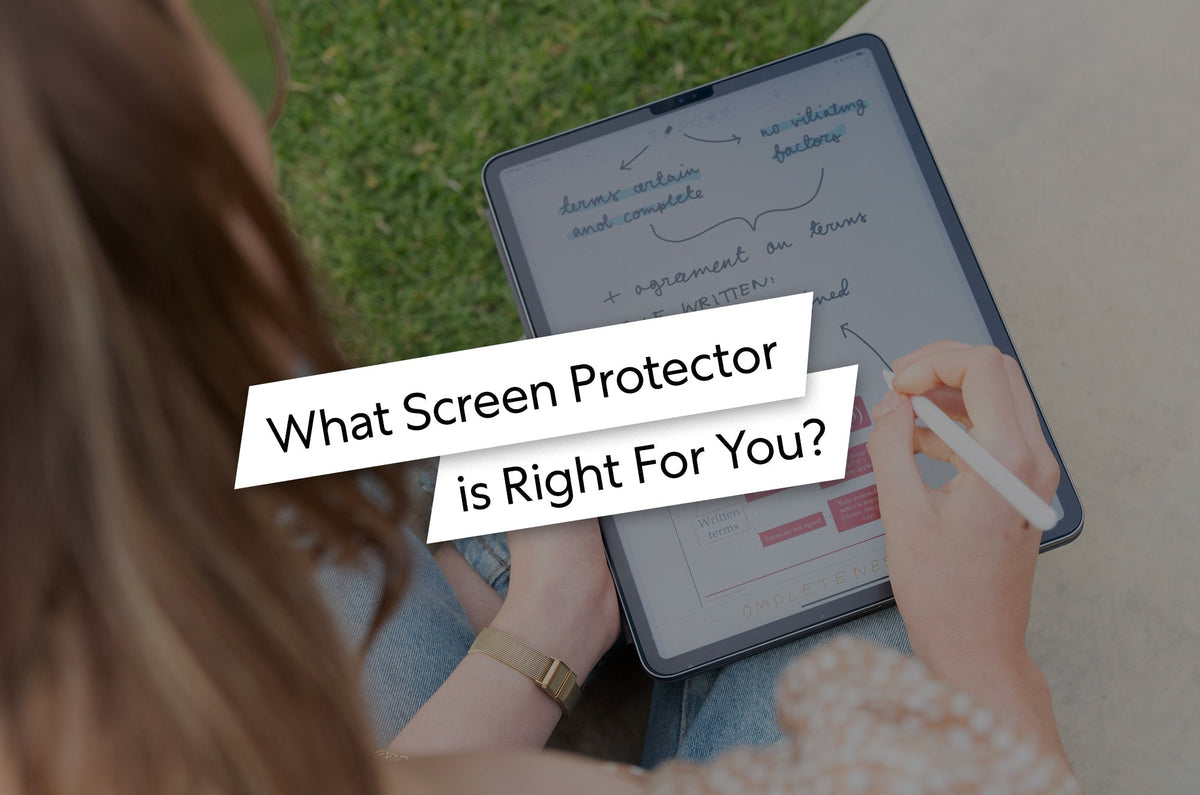
If you’re not sure which option fits your setup, check out our blog, What Screen Protector is Right for You, which breaks down what to look for in more detail.
| In practice | A paper-feel screen protector doesn’t just protect your display. It changes how your Apple Pencil moves across the screen, making writing feel natural. |

Apple Pencil tips & grips: What to know
When you’re taking notes on an iPad, you’re using your Apple Pencil, which means it gets a lot of screen time.
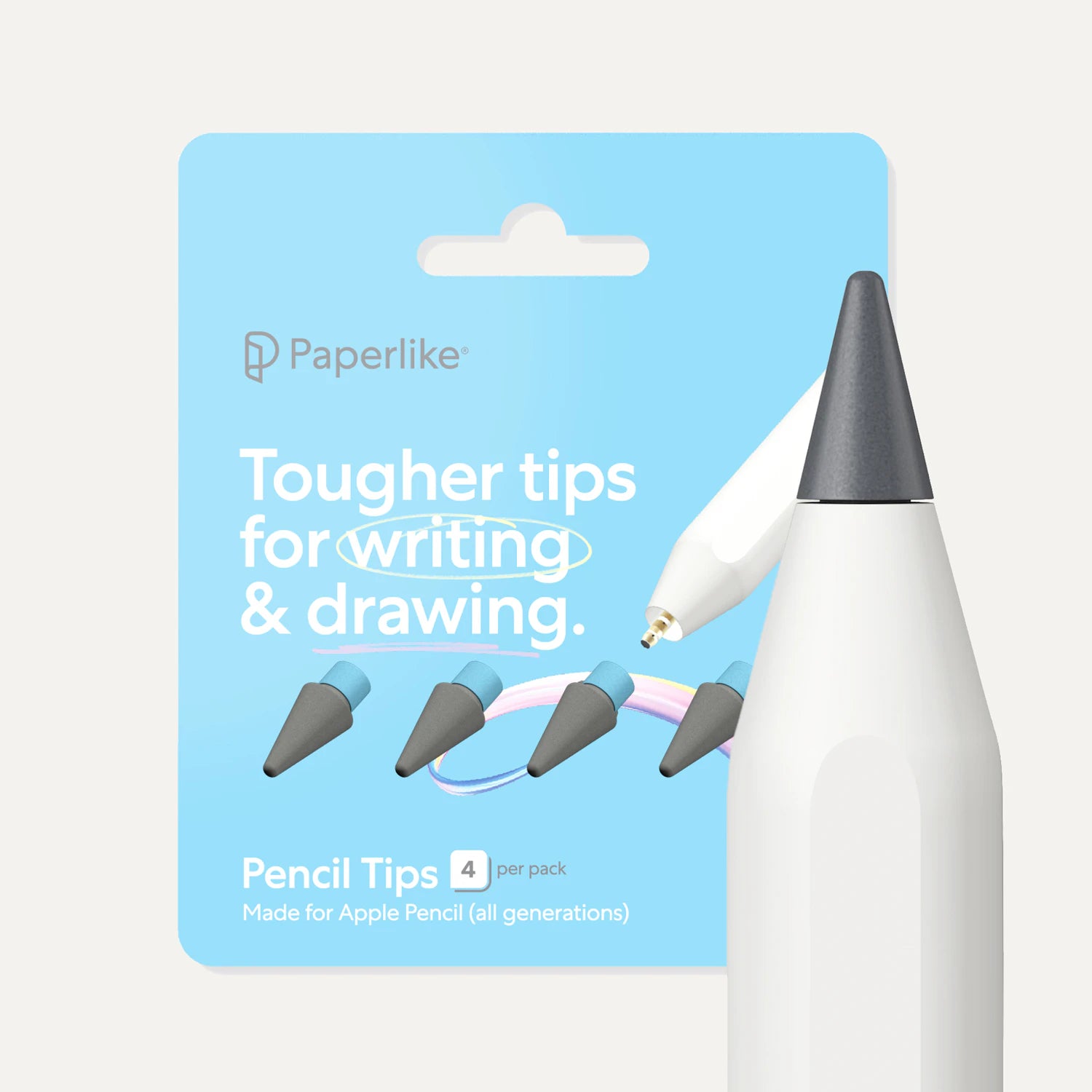
It’s normal for the tip to wear down over time. It’s a slow process, so you may not notice until one day your strokes look or feel like you’re writing with a crayon on a wet napkin. When that happens, it’s time to replace your tip.
Different tip materials also change how the Pencil feels against the screen. Standard tips glide across the glass. Reinforced options like Paperlike Pencil Tips add a bit more resistance when paired with a paper-feel screen protector and lasts 10 times longer than the original tip, so you won’t be swapping them out every few months.
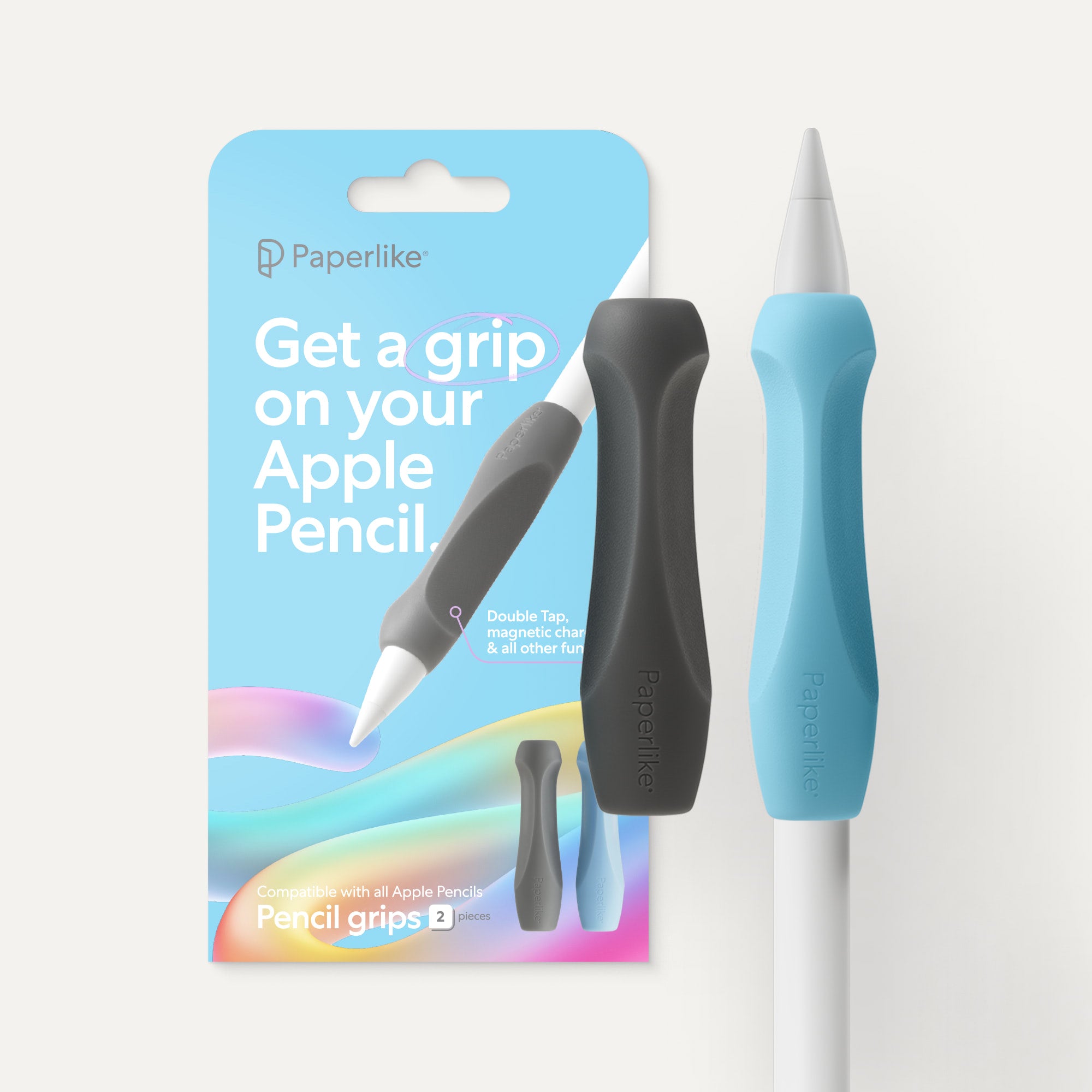
If you’re the kind of person who picks up their iPad for a quick five minutes and somehow ends up two hours deep into a notes spiral, your hand is going to let you know about it. A grip like the Paperlike Pencil Grip adds cushioning and makes it easier to hold so you’re comfortable longer.

Drawing gloves for iPad: Do you actually need one?
For casual iPad users? Probably not. I personally don’t need one because I’m not taking notes every day.
But Alanna, our arts writer, loves hers and wouldn’t want to work without it. If you’re writing for hours, you’ll find that it really helps.
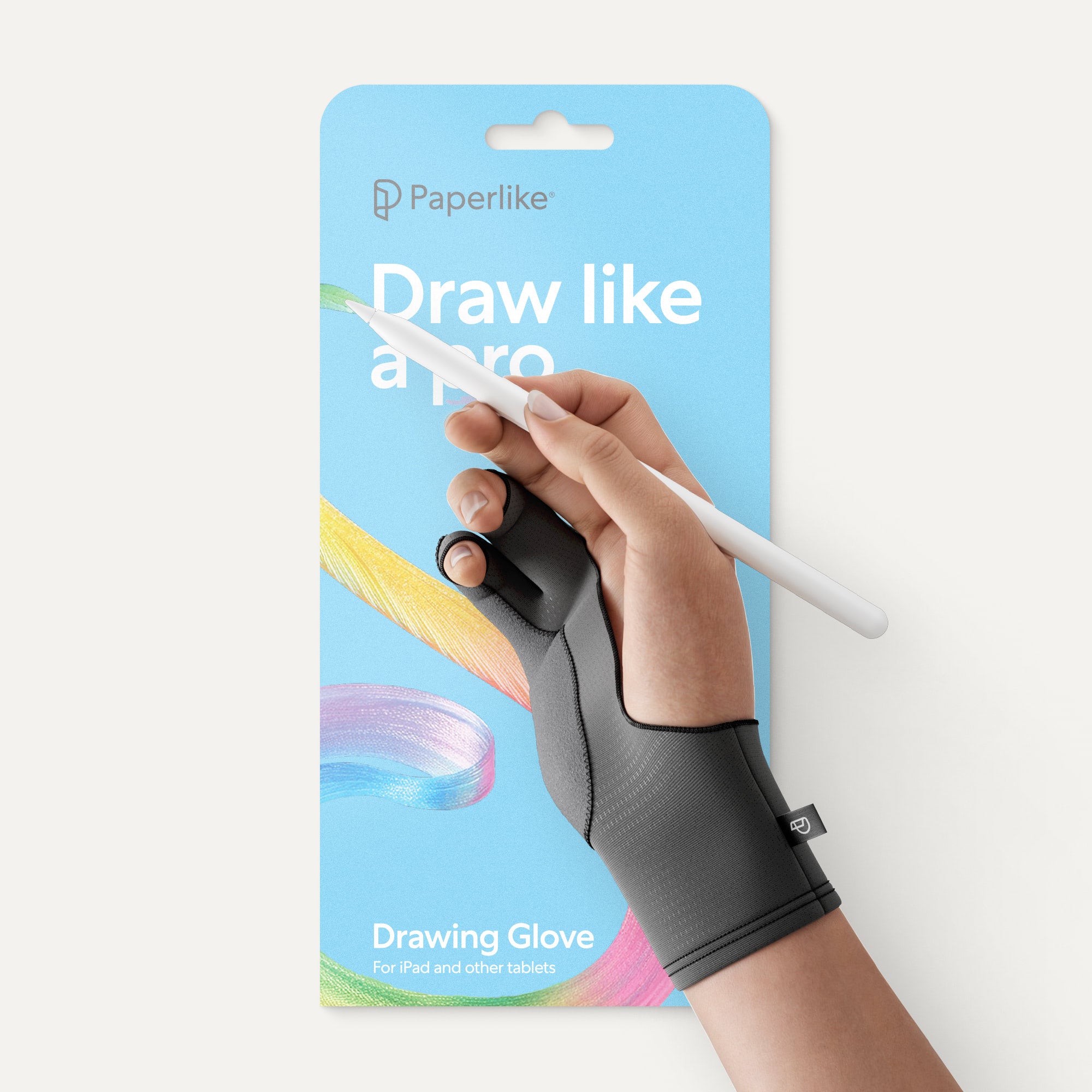
Bare skin tends to stick to the glass, especially when warm, and you’ll find that your palm starts to drag across the screen. A glove adds a layer between the two, so your hand glides easily, while also keeping fingerprints and skin oils off your screen.
Even though iPads have built-in palm rejection, it’s not always perfect. The fabric of a glove doesn’t register as touch, further preventing those annoying stray marks that interrupt your flow.
For artists and heavy note-takers, it makes long sessions feel easier. Check out the Paperlike Drawing Glove if you want to give it a try.
iPad cases for note-taking & writing
I’ve had more iPad cases over the years than all my other accessories combined. That’s partly because I’ve gotten new iPads, partly because I just felt like a change, and partly because the one I had didn’t do what I needed it to.
That last part is why I think choosing one should have more to do with how you use your iPad than anything else. Here are five options that are based on different iPad setups and use cases.

If you use your iPad like a digital notebook
Folio cases are the closest thing to a traditional notebook setup, which is probably why note-takers and students gravitate toward them.
They're slim, they fold flat, and they don't add a lot of bulk.
But what makes them useful for writing isn't the protection. It's the viewing angle. A good folio props your iPad up at a comfortable position for writing, reading, or watching a lecture without needing anything else.
Cases like the Paperlike Folio Case fold into two tilt positions, keep your Apple Pencil secure with a magnetic flap, and still easily slip into a bag. This is what I use, and I like that it’s also super easy to take off, if I ever feel the need to switch to a keyboard case.

If your iPad is basically your laptop
Some people use their iPad for handwriting. Others use it to replace their laptop entirely. If you're in the second camp, you need a keyboard case.
Options like the Apple Magic Keyboard or the Logitech Combo Touch are built for longer typing sessions, multitasking, and real desk work. The downside is the added weight, but they let you do a lot more with your iPad.
The Logitech Combo Touch is great because it doesn't lock you into one mode. It supports typing, viewing, sketching, and reading, and the keyboard detaches when you don't need it. I tried a generic keyboard case that I got on Amazon, and it broke within six months, so I’d strongly suggest investing in a high-quality option if you’re going to go this route.

If you spend long stretches drawing or sketching
Artists tend to have a different set of priorities. Comfort and flexibility matter, but so does stability.
A protective standing case like the Zugu gives you a sturdier build and more adjustable angles than a typical folio. When you're drawing for two or three hours, being able to shift the angle as you go is paramount.
The same goes for detailed work, where the iPad needs to stay put while your hand moves across the screen.
These cases add more bulk than folios, but for people spending serious time on the iPad, that's usually a fair trade.

If you mostly work at a desk, but want portability
Not every case needs to live on your iPad permanently. I know it’s a wild thought, but hear me out.
If your iPad mostly sits on a desk and you just want protection while it's in your bag, a sleeve is a great option. Something like the Magic Sleeve by nedrelow doesn’t add much bulk or change how the iPad feels to use once it's out. The tomtoc is another great choice because it has multiple pockets to carry all your accessories.
The tradeoff is that you give up the built-in stand, so a separate desk stand helps if you're doing longer sessions at home or in the office.

If you want your setup to feel like yours
This one is less about workflow and more about the fact that you're probably going to be staring at your iPad case every single day, so it might as well be something you like.
Brands like Velvet Caviar and Burga lean into bold patterns and designs that make your iPad feel personal without completely giving up on protection. They're not built for rugged use, but for everyday carry and light protection, they work.
I used to use fun cases like these before I started at Paperlike, and I really liked being able to pick something that flaunted my style.
Build your setup by workstyle
A student's ideal setup looks nothing like an artist’s. And neither looks much like a professional who’s basically replaced their laptop with an iPad.
Here are a few that make sense for different workflows.

Student
The main priorities for students are portability and comfort.
You're carrying this thing around all day, writing for long stretches, and probably switching between apps more than you'd like during lectures. (If Instagram was around when I was in college, I’d probably have been scrolling during my 8 am class.)
A paper-feel screen protector like Paperlike makes handwriting feel more controlled, which matters when you're trying to keep up with a professor who thinks slides are optional. A slim folio case keeps everything portable and gives you a stable angle for writing without needing anything extra. And if you're someone who writes for hours at a time, a Pencil grip is worth adding just to keep your hand from aching halfway through your notes.
During university, I spent hours taking digital notes, and switching from a clear glass protector to Paperlike made my handwriting more precise and comfortable, even during long study sessions.
Lifestyle, beauty, and wellness creator, @heyyamandav

Artist
Artists tend to care more about precision and comfort than portability.
A Paperlike Screen Protector adds resistance that gives your strokes more control, which makes a bigger difference than you'd expect once you're doing detailed work. A worn tip changes how your strokes feel and how they register on the display. And a drawing glove reduces friction between your palm and the screen, so your hand moves smoothly without dragging or leaving smudges everywhere.
I’m used to brush pens on paper, so drawing on glass always felt wrong. Paperlike adds just enough texture and resistance that the iPad finally feels like a real sketch surface.”
Traveling Nature Illustrator, @harrison.how

Professional
For professionals, the iPad usually needs to do a lot of different things depending on the day. Typing up documents, annotating PDFs, jumping on calls, and taking handwritten notes in meetings, just to name a few.
I’ve been using Paperlike for almost a decade as an iPad Pro-first user, and it’s still the first accessory I recommend to anyone getting a new iPad. The paper-feel resistance makes using the Apple Pencil feel amazing.
Tech reviewer, @9to5Mac
A keyboard case like the Apple Magic Keyboard handles the typing and multitasking side of things, turning your iPad into something that can hold its own against a laptop. A Paperlike Screen Protector makes handwritten notes and annotations feel more natural when you put the keyboard away and pick up your Pencil. And a sleeve makes it easier to move between your desk and wherever else the day takes you without having to rebuild your whole setup.
It's the kind of setup that works whether you're in the office, at a coffee shop, or on a flight. Assuming you're one of those people who gets work done on planes.
Final thoughts
The best iPad accessories bring the analog feel back to the digital world. That’s exactly what we’re trying to do at Paperlike. Try a few out and see what you think.
Frequently Asked Questions
What accessories do I need for iPad note-taking?
The most important ones are a Paperlike Screen Protector, an Apple Pencil, and a case that fits how you work. A screen protector like Paperlike changes how your Pencil moves across the screen, making handwriting feel more natural and controlled. From there, a Pencil grip helps with comfort during longer sessions, and a folio case keeps everything portable and at a good writing angle.
Does Paperlike work with Apple Pencil?
Yes, and that's kind of the whole point. Paperlike is designed to stay within Apple's recommended thickness for screen protectors, so it doesn't interfere with how the Apple Pencil reads the screen. You get the paper-like texture and added friction without any loss of precision or responsiveness.
What is the best iPad screen protector for writing?
A paper-feel screen protector is the best option for writing and drawing. Unlike standard glass or matte protectors, Paperlike is designed specifically around controlled resistance, giving your Apple Pencil enough friction to make strokes feel intentional without affecting display quality or Pencil performance.
Do I need a drawing glove for iPad?
Not if you’re just a casual user. But if you spend long stretches drawing or handwriting, a drawing glove reduces friction between your palm and the screen, cuts down on accidental touches, and makes the whole experience more comfortable over time.
What iPad case is best for students?
A slim folio case is usually the best fit for students. It keeps the iPad lightweight and portable, props it up at a comfortable angle for writing and reading, and protects it during the commute between classes. Something like the Paperlike Folio Case also keeps your Apple Pencil secure, which is one less thing to keep track of.
How often should I replace my Apple Pencil tips?
It depends on how much you use it, but if you're writing or drawing daily, every few months is a reasonable rule of thumb.
Tips wear down gradually, so you might not notice until your strokes start feeling inconsistent or less precise. When that happens, replacing the tip usually fixes things faster than any setting or app adjustment will. If you want your tip to last even longer, try more durable options like Paperlike Pencil Tips.
Weiterlesen
 Lindsay Armstrong
