
Pixelmator Pro was the missing piece that completed Apple's Creator Studio. It was acquired in 2024, but it's been available as a Mac desktop program since 2017, with iPad versions since the early 2010s.
But does it feel like a watered-down version of the Mac app, or a real photo-editing and digital art powerhouse you can take with you anywhere?
That’s what I want to explore with you. Let’s see if it could be the newest creative app in your toolkit.

Why Pixelmator Pro?
Pixelmator Pro is an image editing, design, digital painting, and illustration app with powerful AI features. While it all sounds new, Pixelmator has over a decade of history.
It evolved from a Mac program in 2007 and is now a key part of Apple's new Creator Studio, a collection of creative apps available through a new monthly subscription.
With Pixelmator Pro, you get photo-editing features for masking, retouching, effects, and more. In addition to image editing, you can also draw and paint in the app.
You'll even find support for pixel and vector layers, giving it a wider range of capabilities. This puts it in the conversation with popular Adobe apps like Photoshop and Fresco.
Let’s see what the newly revamped iPad app has to offer artists.

Interface
Pixelmator Pro gets users right to work from the start. When you open the app, you'll see options to create a document or browse your photo library, with a homescreen layout similar to the Preview app that Apple rolled out with iPadOS 26.
Once you configure your document, Pixelmator Pro has a simple presentation with a customizable toolbar along the top of the screen. On the left, you have your Layers sidebar, and on the right, you have your Tools sidebar, which you can customize to hold your preferred toolset.
Context menus pop up with settings and sliders you can adjust while a tool is active. Pixelmator Pro has different tool categories: Basic, Selection, Painting, Retouching, Drawing, and Type. Clearly, it can do a lot, but you don't feel overwhelmed as you navigate.
The UI features large translucent menu windows and optional grids, guides, and rulers. These are simple features that you'd expect and that I definitely rely on in my own workflow. While you can't customize or move your windows, you can adjust the sliders and toggles to change your settings.
If you prefer a mobile desktop setup, it also has keyboard support. This gives you the flexibility to use whichever shortcuts you prefer. Overall, this is a great interface for beginners to digital art because tools are easy to find, and while some menus are dense, they aren't overly complex.

Image & video editing
Image editing is where Pixelmator Pro shines. It offers standard and advanced image editing tools and features similar to those in programs like Photoshop or Affinity.
Use the layer panel to organize your image edits and keep them non-destructive. Name your layers (or don't), and toggle their visibility.
Outside of basic Styles like shadows, strokes, and fills, you can also add Effects to your layers. I like the Effects because you can experiment with over 50 of them, including halftone, bokeh, crystalize, and vignette. They can be added directly to your layers or layer groups, and you can disable or edit them. It's an easy way to change the look of your photos instantly.
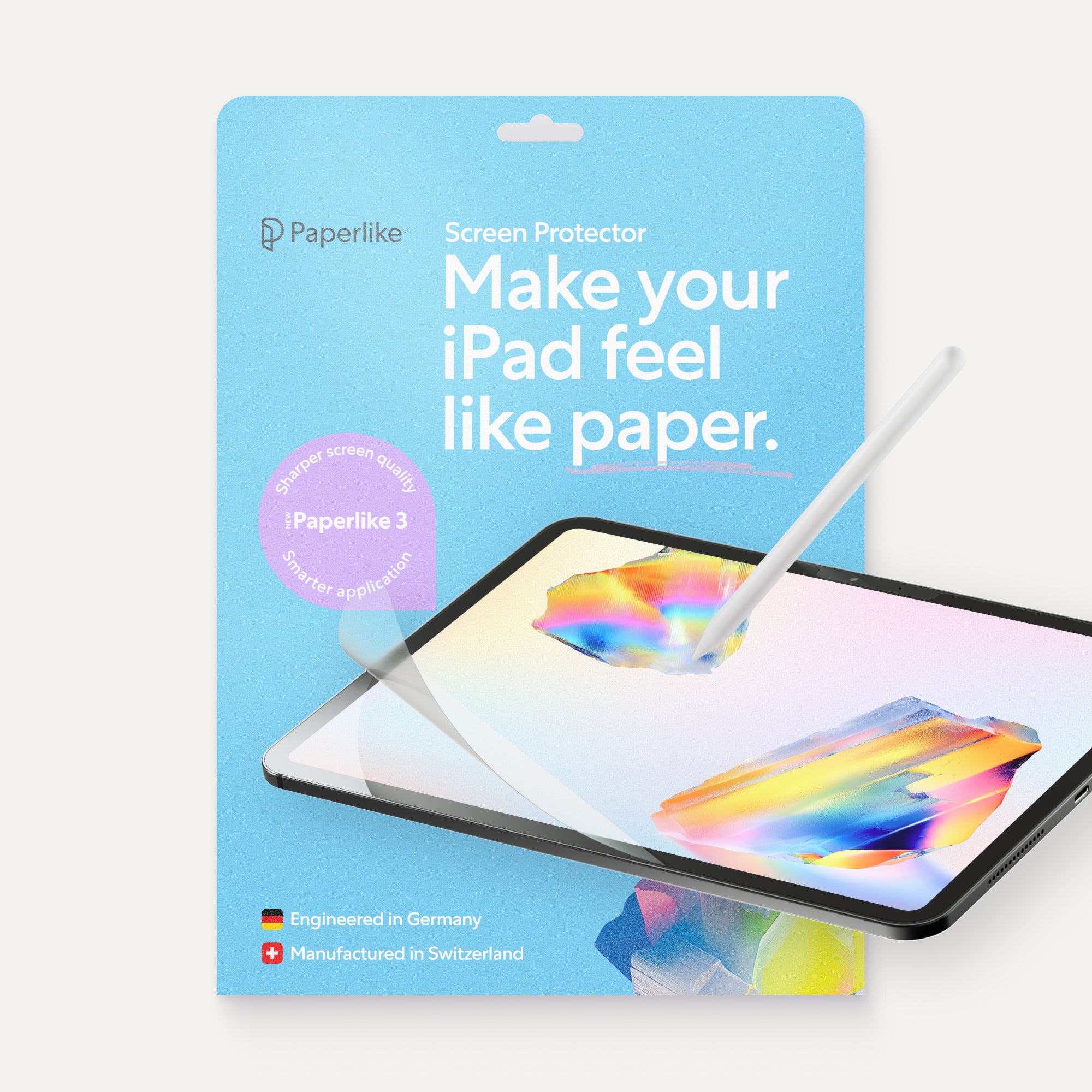
Part of what makes Pixelmator Pro a great professional option for photographers is its extensive RAW image support that includes hundreds of camera models. That sets you up to jump right into color grading and fine-tuning your photos. I like having a Paperlike Screen Protector for detail work like this. The real advantage is the control and resistance it gives you while editing.
If you're not exactly pro-level, there are features that anyone can benefit from, like Autocropping. Use it to get composition suggestions from the program by cutting out unwanted edges and straightening your photos.
Even more than camera support, AI features have become essential in photo editing apps. The ones you'll see in Pixelmator Pro are built by Apple Intelligence and are features designed to speed up previously time-consuming tasks. This also likely explains why Pixelmator Pro is compatible with newer iPad models running A16, A17, and M-series chips, to leverage their processing power.
Use Remove Background to easily isolate foregrounds in individual layers or layer groups. This feature has become a new standard, and I'm always happy to see it in different apps. Similarly, brush tools for Repair, Quick Selections, and Denoise make retouching images a breeze.
Then there's a personal favorite: Super-Resolution. This is an AI-powered tool for upscaling photos. How many times have you been asked to make an image bigger? It preserves sharpness and detail while scaling your image. This is a feature that you can find in Lightroom and Photoshop as well.
But if image editing wasn’t enough, there’s also video editing and retouching.
Import videos as a layer or as their own document. Video layers can be edited like images with support for masks, color adjustments, and more. Once you're done, you can export them into MP4 or QuickTime movie formats.
While this pushes it a step further than other similar apps, I don't think this single feature is a strong enough draw on its own.

Digital painting & illustration
The Apple Pencil is too good a stylus not to include drawing and painting in Pixelmator Pro. Even so, drawing and painting are definitely secondary functions for the app.
There are two main tools for vector drawing: the Pen Tool and the Freeform Pen Tool. The biggest difference between them is plotting points to make your shape versus drawing them and having the program automatically create points for you. Vectors can also be used to create easy-to-use shapes like plants, arches, and more.
Its digital brushes for painting offer customization and a range of textures across over six brush categories. They're dual-textured, giving them deep complexity and realism.
It was also nice to see that you have the option to favorite brushes, making them easier to access. As you draw, you'll see icons and sliders at the bottom to adjust your brush size, color, and other brush settings. There's also pressure sensitivity, which is a must for illustrators and painters. Compared to Procreate brushes, they're definitely on par and show no real lag.
The gestures, for now, do fall a bit short.
You can tap, pinch, and swipe to interact with and navigate your workspace. But the classic two-finger tap undo gesture is missing in action. There is also limited support for Double-tap, Hover, and Squeeze if you’re an Apple Pencil Pro user. For now, Squeeze can be programmed for undo and redo. Hover is also limited to active image edits and select submenus.
I'd like to see them expand the features that work with the Apple Pencil Pro in future updates to really take advantage of its power.
If you're an illustrator transitioning from other programs like Adobe Illustrator or Photoshop, you can import those files and work on them in Pixelmator Pro. The wide file compatibility will help a lot of users.

Graphic design
If you're also a graphic designer like me (or even if you're not), you'll find tools you'll appreciate.
Pixelmator Pro comes loaded with a collection of templates and customizable mockups. The templates are organized by themed collections for social media and print. It's always nice not having to start from scratch. Mockups, while nice, are a premium feature available only in the Apple Creator Studio version of the app.
The way that you can seamlessly replace any mockup graphics reminds me of Adobe Illustrator's mockup feature. Using the premium Warp feature, you can edit your objects and text by distorting them along your mockup template.
There are also typography options for adding text to your images and illustrations.
Text style presets let you set the look of Title, Body, and Captions for easy text editing, similar to InDesign. I also love seeing support for advanced typographic features like ligatures and glyphs, which not every program offers. You can also have fun wrapping your text around drawn paths or shapes with the Path Type and Circular Type tools.
Thanks to Pixelmator Pro's layer and raster capabilities, text can be converted into pixel or vector layers for further manipulation and customization. However, the inability to import other fonts into the program feels like a missed opportunity.

Similarities to Photoshop
| Feature | Photoshop for iPad | Pixelmator Pro for iPad |
| Best for | Photo-editing, photo compositing | Photo-editing, photo compositing, illustration |
| Price | Free; $7.99/month | $12.99/month |
| Compatibility | iPad, Android, iPhone, Web | iPad, Mac |
| Pixel Brush Support | Yes | Yes |
| Vector Brush Support | No | Yes |
| Cloud Support | Yes, through Creative Cloud | Yes, through iCloud |
| Desktop Version | Yes | Yes |
| AI features | Yes | Yes |
Pixelmator Pro’s high-quality photo-editing capabilities make the comparison to Photoshop natural. Photoshop has long been an industry standard for photo editing, with a strong move towards AI-powered features in the last few years.
There's also the added benefit of the Mac version, which lets you continue your projects on a desktop. The Pixelmator Pro for iPad version doesn't have all the tools and features of the Mac version, similar to the experience with Photoshop for iPad and its desktop companion.
Photoshop for iPad offers a limited-feature free version, with the premium version starting at $7.99/month. Pixelmator Pro is part of the Apple Creator Studio for $12.99/month. If you don't feel like you need the other programs in the Apple Creator Studio, paying for Photoshop might not seem like a huge investment compared to Adobe's other plans.

Apple Creator Studio
The Apple Creator Studio was announced in early 2026. It includes Final Cut Pro, Logic Pro, Pixelmator Pro, Motion, Compressor, MainStage, Keynote, Pages, Numbers, and Freeform.
You can get all of these for $12.99/month or $129/year. They also have a student plan for $2.99/month. It could become a competitor to Adobe’s programs and others like Affinity that offer users a wide range of capabilities.
What can be confusing for users is that there are technically two Pixelmator Pro apps. There's the classic one-time-purchase version for $50, which has a different icon than the Apple Creator Studio version. You'll also see that certain AI features aren't included in the one-time-purchase version.
As of right now, the biggest drawback of the Creator Studio is that, with a few exceptions, most of the programs aren't as built out or as feature-rich as Adobe apps. I'm curious to see how all of the apps evolve with time and what that does to the price.

Wrapping up
There's no denying that Pixelmator Pro is a solid image-editing app. Though personally, I wouldn't use Pixelmator Pro since I'm primarily an illustrator in the Adobe ecosystem.
For graphic design, it doesn't offer the depth of Affinity or InDesign when adding text to your photos, and that's probably the point. I think it still has a way to go, but this feels like a solid start.
If you're looking to transition from Adobe programs, this might be a good option on a desktop, but I wouldn't rely solely on the iPad version of the app just yet.
Frequently Asked Questions
Can Pixelmator Pro replace Photoshop?
It depends on what you're using it for. It's a great photo editing app, and if you're an Apple user, Pixelmator Pro is a solid option.
If you're looking for an app that can do both photo editing and drawing, with an emphasis on illustration, Photoshop is better because of its relation to Adobe Fresco. You can learn more by comparing the leading illustration apps for iPad.
Does Pixelmator Pro for iPad have AI features?
Yes. It uses Apple Intelligence for its AI features. Features like Super-Resolution, Remove Background, and Warp let you speed up editing and reimagine your photos and graphics. Programs like Adobe Express and Canva are also using AI to keep up with the latest trends in creative workflows.
Can I buy Pixelmator Pro for iPad?
You can buy Pixelmator Pro as a one-time purchase or as part of the Apple Creator Studio subscription. If you buy the one-time purchase version of the app, you won't have access to mockups or certain AI-powered features.
What is Apple Creator Studio?
This is Apple's collection of creative apps, which includes Pixelmator Pro, available with a monthly subscription of $12.99. You can start with a 1-month free trial to see if the plan is right for you.
Can I draw in Pixelmator Pro for iPad?
Yes. Pixelmator Pro for iPad supports both pixel and vector digital brushes. This is similar to Adobe Fresco for the iPad or Affinity. Adobe Fresco is also a great option on the iPad.