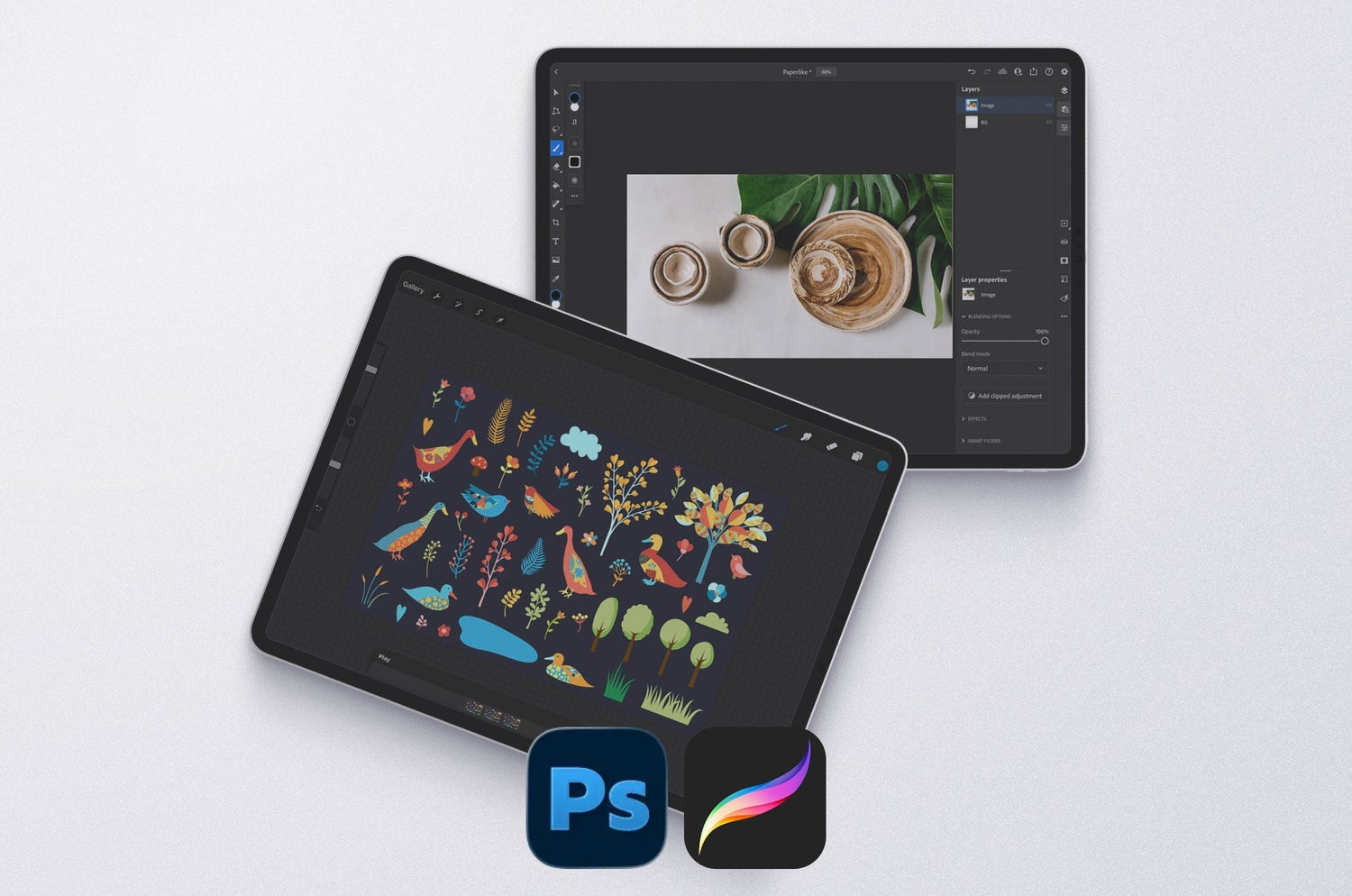
Being a multidisciplinary digital artist can be tricky. It means you can get stuck trying to figure out which tools and apps to use to create your art.
This is especially true if you're trying to incorporate both illustrations and photography into your work. You're deeply inspired, Apple Pencil in hand, about to layer illustrations over your photography. The big question: which app would do this best?
Procreate and Photoshop for iPad are two standouts for getting the job done. Each represents a legacy of excellence in the creative space, and each have their share of fans. That's why we're putting them head-to-head to see which app offers digital artists and photographers the best of both the photography and illustration worlds.
When should you go to each, and is the price tag for another app worth it? Grab your iPad and let's jump in together!

Interface
Adobe Photoshop for iPad takes its interface cues from its desktop program. You can customize the location of your tool settings bar, giving you flexibility with your workspace.
Its layout gives legacy users a familiar feel and makes it a mobile solution for their Photoshop workflow. Under the Learn tab on the home screen, you can take the Photoshop on the iPad UI Tour to see where your favorite desktop tools and features live on the iPad. This helps lower the learning curve and benefits both new and old Photoshop users.

Procreate is probably best known for digital painting and illustration, thanks to its amazing brush library. Its menus and settings are more hidden, which contributes to its simpler appearance.
All of your tools are visible along the top of the screen. Once you engage with the tools in the app, you'll have menus that drop down, some of which are movable, like the Color menu.
Verdict: Photoshop for iPad.
It's an industry-standard interface that puts it over the edge. The layout will be familiar to most users who have experience with the desktop program. Even if you need guidance on navigating the interface, the in-app tutorials are very helpful.
Procreate is easy enough to start using right away, so it's ideal for new digital art app users. You won't feel overwhelmed with having too many tools present, and as you progress, you can explore the app and its settings more closely.

Price
Procreate is available for a single purchase for $12.99. That's already hard to beat, and has been a big part of their appeal for digital artists. They also have an iPhone version of their app, Procreate Pocket, for $9.99.
While Procreate Pocket is similar to the iPad version, it's not just a downsized version of the iPad app. It's been completely redesigned and optimized from the bottom up. While you won't have the benefit of Apple Pencil stylus support using the Pocket version (because the Apple Pencil doesn’t work on iPhones), gestures like two-finger undo and three-finger redo are still there, so you can take the experience of Procreate with you in a smaller package.
Photoshop for iPad is available with two main plans: the Photoshop Plan and the Photography Plan. The Photoshop Plan is $22.99/month (annual), and the Photography Plan is $19.99/month (annual).
If you want to leverage the full power of the Adobe programs, you can get the Creative Cloud Pro plan for $69.99/month or the Creative Cloud Standard for $54.99/month. The main difference between the Creative Cloud plans is the availability of creative AI tools based on generative credits. The Pro plan gives you more credits and more advanced features like Text to Video and Audio Translation.
Procreate doesn't support AI and has made it clear that it has no interest in incorporating it into its products. This is also a big part of what sets it apart from Adobe programs, but we'll see that more in the next section.
Verdict: Procreate.
It's hard to beat a single-purchase model. Adobe's subscription has long been part of the conversation for artists who are trying to keep their program costs low.
Photoshop offers a lot in its plans, which can make the price tag feel worth it if you're going to use all of the tools and features. Having access to Lightroom is also a huge benefit for photo editors who want to take control of organizing and editing large amounts of photos in batches.

Illustration & animation
Photoshop and Procreate are among the best digital painting and illustration programs for artists today. The brush libraries in each show off the impressive rendering capabilities of their brush engines.
Procreate has a robust library with over 300 brushes across 18 categories. If that sounds overwhelming, Procreate's brush management features, like search, recent brushes, and pinned brushes, will help you navigate. You can also import Photoshop files and brushes (.ABR files) into Procreate, making it a good crossover program for artists considering a switch.
Photoshop for iPad doesn't include its full, powerful library of brushes, but you can browse them and import hundreds directly into the app. It also offers brush management features, such as toggling off individual brushes and brush categories. Even with its capacity for brush importing, you're probably better off illustrating and animating in the desktop program or Adobe Fresco.
For animation, Procreate created its 2D animation app, Procreate Dreams. If you don't want to invest in a different app, you can still animate in Procreate using the Animation Assist feature, which is great for creating frame-by-frame animations from your illustrations. If animating on the iPad interests you, there are plenty of apps to explore.
A less discussed feature in Procreate is the ability to paint on 3D models. It can read USDZ or OBJ files, allowing you to adjust the lighting, texture, and paint using your favorite brushes. Nothing like that exists in Photoshop for iPad.
Verdict: Procreate.
They've created an all-in-one drawing app that also gives you animation tools. Procreate also becomes the obvious choice for artists who aren't interested in AI.
Adobe has split Photoshop's capabilities between Photoshop for iPad and Adobe Fresco. While you can still illustrate in Photoshop for iPad, it's no surprise that photo editing is where it really shines.

Photo editing & AI tools
Photoshop for iPad is ready for all your photo-editing needs. It more closely mimics classic photo editing tools and features that artists have come to know from the desktop program.
Retouch, mask, and add effects in Photoshop for iPad, and then pick everything back up on the desktop thanks to cloud documents. There's also RAW file support, which gives you even more granular control over your edits. Retouching images is easy with the Apple Pencil and the Healing Brush, Remove tool, and Clone stamp.
Using AI-powered tools and features in Photoshop for iPad will help you speed up your workflow. Features like the Remove Tool, Generative Expand, and Remove Background can make editing photos to incorporate them in your artwork easier.
For photo editing, Procreate's capabilities are closer to light editing tools like adjustment layers, filters, and masking.
I like that they include photo and image manipulation tools, similar to Photoshop, such as Liquify and Glitch, to give your work and photos interesting effects. But can it retouch photos? For that, there's a Clone tool, as well as Curves and Color Balance, but nothing is as detailed as what you'll find in Photoshop.
It's not going to be the first thing that comes to mind when you think of photo editing, and that's by design. It shines as a digital painting and illustration app, and it does it very well.
Verdict: Photoshop for iPad.
It's no surprise that the legacy photo-editing program takes this one. If you want to get your photos looking their best, Photoshop is the program for you.
If you're primarily an illustrator who uses photos in your work occasionally, you'll do well using Procreate. You'll have enough tools to do simple color grades and edit lighting. Procreate isn't equipped for the in-depth needs of photographers and would probably be better used as a way of experimenting with your imagery, not improving it.

Gestures & features
Procreate set the standard for creating gestures in digital art apps and has since shared it with everyone to use in their own programs. Gestures like 2-finger tap to undo, 3-finger tap to redo, and drawing & holding to make a straight line are just a few essential shortcuts when using digital art programs today.
The QuickShape function allows you to make perfect circles, squares, and polygons by drawing and holding. You can control scaling and proportion constraints by holding one finger on your screen while performing transformations, and you can further customize your gestures within the Gesture Controls menu.
In Photoshop for iPad, you can learn all about the gestures in the app by selecting the ‘?’ icon and going to View Gestures. This shows you how to undo, redo, zoom-in and out, and more.
Additionally, there’s the Touch Shortcut. This is a handy button that changes the function of different tools when you touch and hold it. You’ll find the primary and secondary features of the Touch Shortcut in the same menu as the gestures. Similarly, Procreate features two-handed settings, such as holding your screen with one finger to lock the proportions of your shapes while you draw.
Verdict: Tie.
Both apps offer great gestures and additional touch features. Once I started using apps like Procreate, I got so used to their gestures that I came to expect them in all my apps.
Photoshop for iPad's Touch Shortcut is a standout, while Procreate offers QuickMenu and QuickShapes to help with a more efficient workflow.

Limitations
Nobody is perfect, but it helps to be critical even when looking at our favorite digital art apps.
While you have the benefits of a mobile workflow with Photoshop for iPad, you won’t have access to all of the desktop features. You can’t use Smart Filters, which allow for certain non-destructive edits to layers. There is also currently no support for Smart Objects, which allow you to embed and update files. However, whatever you can’t achieve in Photoshop for iPad, you can bring into the desktop version via cloud documents.
It’s also nice to see New and Upcoming features right on the home screen, so you know what to look forward to in future app updates.
One of Procreate's larger limitations is the maximum layer count. This will depend on the DPI and canvas size of your document. If you happen to specialize in high-quality, large-scale digital illustration, you will most likely experience the problem of running out of layers(if you haven't already). This can be pretty annoying when you have to stop drawing to merge your layers in order to bring down your layer count.
Both apps are pixel-based, so you won't find any vector brush capabilities. If you want the option to do both, Fresco is a good option, and you can compare all three apps to see which might be best for you.
Verdict: Tie.
No app is without flaws. Even so, it's clear that each app's team strives to deliver what users are looking for in each new update. Photoshop is harder to view objectively because it will always be compared to the desktop version everyone knows and loves.
At the end of the day, you be the judge. Because every artist is different, what each of us needs from our apps is rarely universal.

Exporting & platform compatibility
In Photoshop for iPad, you can export to the following formats: JPEG, PSD, TIFF, and PNG. You can also choose your export file size from small, medium, and large, with large allowing for faster saving speed. Photoshop for iPad is available on the iPad, with an additional mobile version that has been created for iPhone and Android devices.
Procreate exports to a number of formats using the share tool: Procreate, PSD, PDF, JPEG, PNG, TIFF, Animated PNG, Animated GIF, Animated MP4, and Animated HEVC. You can also share directly on social media when you choose your export format. Photoshop for iPad doesn't emphasize social sharing options when exporting files beyond Pinterest, if you have it installed.
Both apps work on iPad and have iPhone versions. Photoshop for iPad has expanded its user base with Android and in-browser versions.
You'll also find Quick Export options in both apps that let you automatically save your work into your preferred format. To update your preferred Quick Export format, go into the app settings for each app and change it.
Verdict: Photoshop for iPad.
There are more export options for Procreate, but Photoshop for iPad has greater cross-platform compatibility. This makes it available to more users as an option. Procreate has dedicated itself to being a premier iOS app, and that's where it continues to shine.
Despite the ongoing debate between iOS and Android, I recommend going with whichever best fits your current workflow or preference. For me, I use a MacBook desktop and an iPhone, so investing in the iPad Pro made sense.
Organization, file management & cloud storage
Keeping your files organized and easy to access is key when you're a digital artist.
From your home screen in Photoshop for iPad, you will see all your most recent Photoshop and Fresco files. Under the “Your files” section, you can view your work by date, name, or date modified. Your files can be organized into folders.

Through the Creative Cloud, you have access to 100GB of cloud storage, so you won’t have to worry about running out of space locally. If you purchase the Photography Plan, you'll get a significant bump to 1 TB of cloud storage. As long as you have an active subscription through your Adobe ID, your programs and files will follow you from device to device.

Procreate has a Gallery where all your work lives and Stacks for grouping your artwork. In terms of cloud storage, Procreate doesn't currently have one for artwork, although the option is available for your brush library.
An effective workflow for backing up your Procreate artwork to your iPad is to save it to your Files app as a .Procreate file. This will ensure that you have access to all your brush information and layers, even if you switch devices in the future.
What's less forgiving is if you accidentally delete a file. Even though the pop-up warns you before you delete it, the stakes are pretty high compared to Photoshop.
Photoshop for iPad lets you recover deleted work from the app's Deleted section for up to 30 days.
Verdict: Photoshop for iPad.
As someone who has lost all of their Procreate files in the past, Photoshop for iPad's recovery feature is a lifesaver. It keeps your work safe in the cloud, and I like that you can access it on a desktop as well.
Being able to upgrade your devices without worrying about losing all your artwork is a peace of mind all artists should have. Regardless of which app you choose, I encourage everyone to establish a proper workflow for saving and backing up your files.

Learning & community
You might not realize it, but there's a global community of artists attached to the apps you use every day.
Photoshop for iPad has a dedicated Learn tab on its home screen, which lets users explore the app through in-app guided tours.
You can also dive deep into specific interactive tutorials for key features like retouching images, using adjustment layers, and more
Adobe Live is a great way to tune in and watch artists using Adobe programs like Photoshop and learn from their workflow.
Adobe Live has an active presence on Twitch and YouTube, where artists can tune in and learn from other artists using their favorite apps. You connect with them in-real time during livestreams or on Discord to post your art and grow.
Procreate's global community is full of artists from casual creatives to professionals. The Procreate Folio forum is a great place to share ideas for the app, connect, and find resources.
If you're just getting started, Procreate has a full beginner's tutorial series on its YouTube channel and a huge community on social media. They're constantly shouting out artists and sharing their work on their social media channels.
Verdict: Tie.
Community is key when it comes to creating. Both programs do a great job of uplifting artists and providing resources to help them thrive in their programs.
While Adobe has a more formal presence with weekly livestreams, there are numerous Procreate tutorials available from amazing artists on YouTube. Not to mention the amazing community of brush makers who have developed brushes for Procreate, including the free Paperlike Brush Collection.
Final verdict
Here’s the tea: Photoshop for iPad is the clear standout for photo editing, but when it comes to illustration, Procreate is the clear winner. Here's how I think each app stacks up for different kinds of creatives:
Graphic designers: Photoshop for iPad
Adobe has been the industry-standard for graphic design for decades. Photoshop is among the programs that I learned to use when I was studying graphic design in undergrad. This makes the most sense in a designer workflow and remains important across all design disciplines.
Illustrators: Procreate
Procreate is an amazing digital drawing and painting app. The brushes are high-quality and convincingly render traditional materials. You can even animate in it, which feels like a fun bonus if you want to transform your illustrations or make GIFs.
Photographers: Photoshop for iPad
This is the heart of Photoshop. It's been interesting to see it evolve over the last few years on the iPad and become a powerful mobile photo-editing option.
Hobbyists: Procreate
Thanks to its simple interface and affordable price point, Procreate is a great place to start with digital art. You can start learning with Procreate tutorials that connect you to the wider creative community using the app.
Writer's choice: Photoshop for iPad
I would only go for Photoshop for iPad these days because it's tied to Fresco and the desktop version of the program. It's what best suits my current workflow.
For example, I do most of my work in Adobe Fresco, and I like to use Photoshop for its effects, expanded layer organization, and to send working files to clients. It also works with Apple's Universal Clipboard that lets me copy something from Fresco on my iPad and paste it into Photoshop on my desktop. Photoshop is also how I create mockups of my designs and artwork for my portfolio or social media posts.
Since studying graphic design in college, I've used Adobe software because it's the industry standard. But when I first got my iPad in 2017, I used Procreate because it was the best option for mobile illustration at the time.
Since 2019, Adobe has focused on developing its suite of iPad apps to serve as companions for its desktop programs. By using cloud documents, I know that I'll always have the latest version of my file, whether I'm on my iPad or desktop, making working on personal and client projects seamless.

FAQs
Is Photoshop for iPad good for illustration?
It can be! Its companion app, Fresco, is better suited for illustration; however, it still has the power of the Photoshop painting engine built into it. Procreate is also a great option because of its amazing brush library.
Is Photoshop for iPad available for free?
No, but it has a 7-day free trial. Procreate uses a single purchase model and will definitely be the most cost-effective option.
Can you animate in Procreate?
Yes, you can. It has a feature called Animation Assist that lets you create frame-by-frame animations from the layers in your document. There are a lot of different tutorials for anything you want to learn in Porcreate.
Is Photoshop available for any other platforms?
Yes. In addition to the iPad, you can download Photoshop for iPhone and Android and use it on a desktop.
Can I upload my own brushes in Procreate?
Yes. In addition to Procreate brush files, you can import Photoshop brush files (.ABR brushes) into the program. And if you don’t know where to start, try these free Procreate brushes from artists in our community.
Wrapping up
While the Photoshop desktop program is known for its amazing digital brushes, the iPad version downplays this a bit more. Photo editing takes center stage. It wants to be your go-to app for on-the-go editing.
Procreate excels for illustration and painting. The brush engine is next level, and the developers show no signs of slowing down, with new and exciting updates coming out year after year.
Which app is best for you will depend on how you like to work. Procreate still has enough file export flexibility that if you wanted to use Photoshop on your desktop, you can. If having access to your files, no matter where you are, is key, an Adobe Photoshop plan will give you convenience and peace of mind.